> ## Documentation Index
> Fetch the complete documentation index at: https://docs.disco.co/llms.txt
> Use this file to discover all available pages before exploring further.
# Public Pages
Public Pages are dedicated, publicly accessible web pages Programs and Memberships that allow prospective Members to discover, learn about, and register.
 ## **Overview**
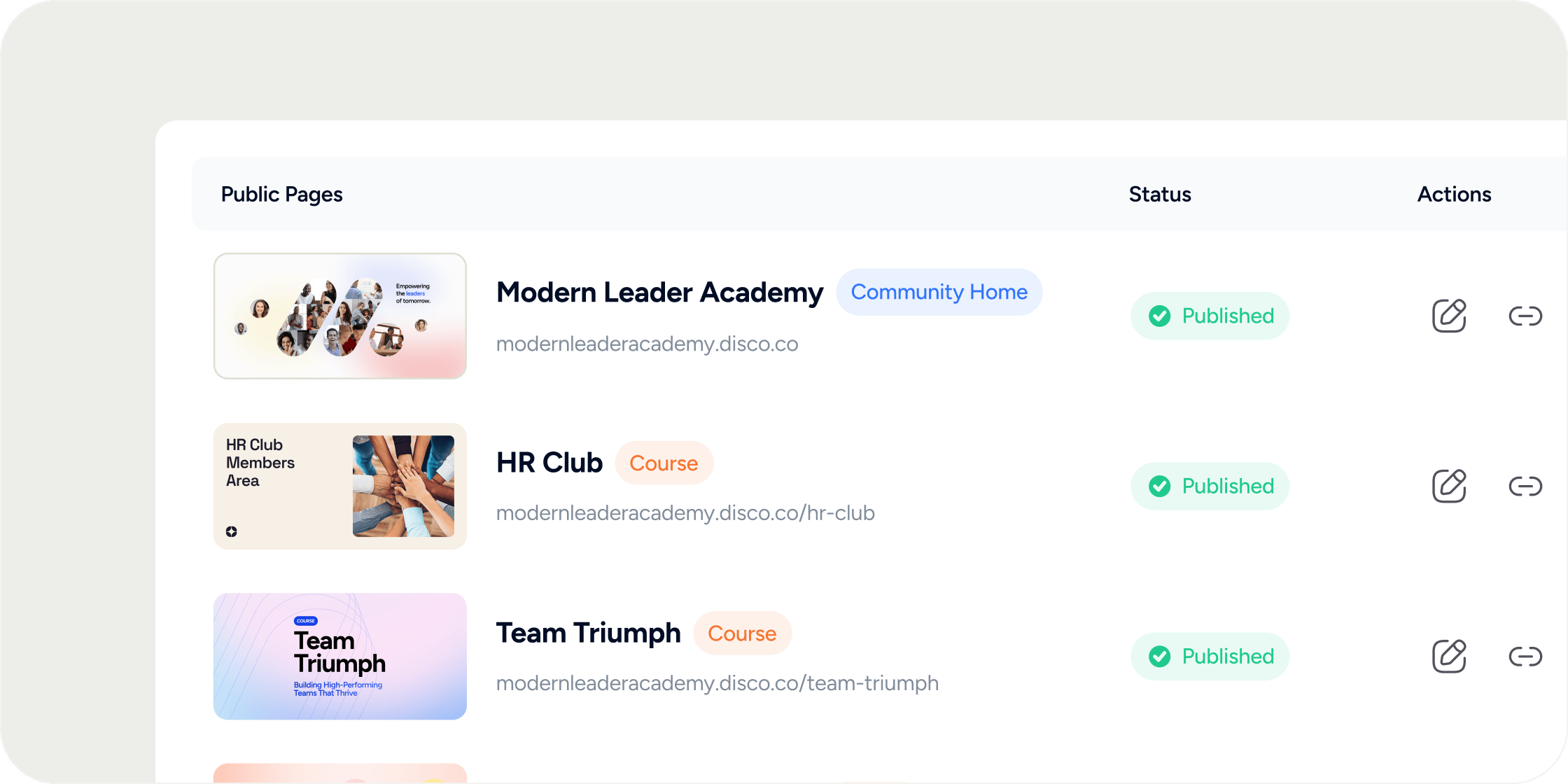
Every Program set to public access automatically gets a Public Page. These pages are indexed by search engines, making them a key tool for organic discovery. You can customize the cover image, description, and SEO settings for each Program independently.
Public Pages live at a unique URL tied to your Program. Prospective Members who land on the page can register directly from it. Private Programs do not have a Public Page.
## **Customize a Public Page**
Each Program's Public Page has its own inline editor where you control the cover image and description. Changes made here are what visitors see when they land on the page. Note that edits made in your general Program settings will not automatically update the Public Page content; you need to use the inline editor described below.
1. Navigate to **Admin** > **Products** > **Public Pages**.
2. Locate the Program you want to edit in the table.
3. Click the **Edit** icon to open the public-facing page.
4. Click directly on the cover image to upload a new one, or click on the description text to edit it using the inline editor.
5. Click **Save** when you are done.
**POV:** Your description is often the first thing a prospective Member reads before deciding to register. Treat it like a landing page headline: lead with the outcome the Member will get, not a summary of the content.
## **Modify SEO and Social Share Settings**
Disco automatically generates meta titles and descriptions for each Public Page, but you can override them with your own copy. You can also upload a dedicated social share image so that links shared on social media render with the right visual.
1. Navigate to **Admin** > **Products** > **Public Pages**.
2. Locate the Program whose SEO settings you want to update.
3. Click the **gear** icon to open the settings drawer.
4. Scroll to the **SEO & Social Share Settings** section.
5. Update the meta title, meta description, and social share image as needed.
6. Click **Save**.
The social share image is separate from the cover image. Set a dedicated 1200x630px image here so your page looks polished when Members share the registration link on LinkedIn or other platforms.
## **FAQ**
Only Programs set to public access get a Public Page. If your Program is set to private (invite-only), it will not have a publicly accessible page.
No. Each Program has one Public Page. Creating multiple public pages with a menu structure is not currently supported. If this is important to your workflow, contact Disco support to submit it as a feature request.
The Public Page description is managed separately through the inline editor on the **Public Pages** tab (**Admin** > **Products** > **Public Pages**). Changes made in other settings areas do not automatically sync to the Public Page. Open the Public Page editor directly and update the description there.
The checkout page includes some hard-coded text that cannot be edited, including payment frequency labels like "one time charge." You can add a description to the product you are selling, but the payment terminology is fixed and reflects how the Member will be charged.
Yes. The social share image is configured separately in the **SEO & Social Share Settings** drawer and is independent of the cover image on the page. A common best practice is to use a 1200x630px image for the social share to ensure it renders correctly across platforms.
The Public Page URL follows the pattern \[your-academy-subdomain]/p/\[program-slug]. You can copy it directly from your browser while viewing the Public Page in the editor.
Yes. Public Pages are crawled by search engines. To improve discoverability, set a clear and specific meta title and meta description in the SEO settings for each Program.
Onboarding questions in Disco are set at the Academy level, meaning they apply globally to anyone who signs up. Program-specific registration intake questions are not configurable per Program. Contact Disco support if you need guidance on how to collect additional information from new Members.
Yes. The Facebook Pixel ID set in the integration settings drops the pixel on Public Pages, as long as the end user has consented to the cookie banner.
## **Overview**
Every Program set to public access automatically gets a Public Page. These pages are indexed by search engines, making them a key tool for organic discovery. You can customize the cover image, description, and SEO settings for each Program independently.
Public Pages live at a unique URL tied to your Program. Prospective Members who land on the page can register directly from it. Private Programs do not have a Public Page.
## **Customize a Public Page**
Each Program's Public Page has its own inline editor where you control the cover image and description. Changes made here are what visitors see when they land on the page. Note that edits made in your general Program settings will not automatically update the Public Page content; you need to use the inline editor described below.
1. Navigate to **Admin** > **Products** > **Public Pages**.
2. Locate the Program you want to edit in the table.
3. Click the **Edit** icon to open the public-facing page.
4. Click directly on the cover image to upload a new one, or click on the description text to edit it using the inline editor.
5. Click **Save** when you are done.
**POV:** Your description is often the first thing a prospective Member reads before deciding to register. Treat it like a landing page headline: lead with the outcome the Member will get, not a summary of the content.
## **Modify SEO and Social Share Settings**
Disco automatically generates meta titles and descriptions for each Public Page, but you can override them with your own copy. You can also upload a dedicated social share image so that links shared on social media render with the right visual.
1. Navigate to **Admin** > **Products** > **Public Pages**.
2. Locate the Program whose SEO settings you want to update.
3. Click the **gear** icon to open the settings drawer.
4. Scroll to the **SEO & Social Share Settings** section.
5. Update the meta title, meta description, and social share image as needed.
6. Click **Save**.
The social share image is separate from the cover image. Set a dedicated 1200x630px image here so your page looks polished when Members share the registration link on LinkedIn or other platforms.
## **FAQ**
Only Programs set to public access get a Public Page. If your Program is set to private (invite-only), it will not have a publicly accessible page.
No. Each Program has one Public Page. Creating multiple public pages with a menu structure is not currently supported. If this is important to your workflow, contact Disco support to submit it as a feature request.
The Public Page description is managed separately through the inline editor on the **Public Pages** tab (**Admin** > **Products** > **Public Pages**). Changes made in other settings areas do not automatically sync to the Public Page. Open the Public Page editor directly and update the description there.
The checkout page includes some hard-coded text that cannot be edited, including payment frequency labels like "one time charge." You can add a description to the product you are selling, but the payment terminology is fixed and reflects how the Member will be charged.
Yes. The social share image is configured separately in the **SEO & Social Share Settings** drawer and is independent of the cover image on the page. A common best practice is to use a 1200x630px image for the social share to ensure it renders correctly across platforms.
The Public Page URL follows the pattern \[your-academy-subdomain]/p/\[program-slug]. You can copy it directly from your browser while viewing the Public Page in the editor.
Yes. Public Pages are crawled by search engines. To improve discoverability, set a clear and specific meta title and meta description in the SEO settings for each Program.
Onboarding questions in Disco are set at the Academy level, meaning they apply globally to anyone who signs up. Program-specific registration intake questions are not configurable per Program. Contact Disco support if you need guidance on how to collect additional information from new Members.
Yes. The Facebook Pixel ID set in the integration settings drops the pixel on Public Pages, as long as the end user has consented to the cookie banner.