> ## Documentation Index
> Fetch the complete documentation index at: https://docs.disco.co/llms.txt
> Use this file to discover all available pages before exploring further.
# Programs Overview
Programs are learning experiences in Disco that Members can discover, register for, and complete, ranging from self-paced courses to structured cohort-based programs that combine asynchronous content with live events and discussions.
 ## Overview
A Program packages your learning content into a focused experience that Members can access through the **Learn** section of the sidebar. Programs can be self-paced, allowing Members to work through content on their own schedule, or cohort-based, with fixed start and end dates and a mix of curriculum, live events, and discussion channels.
You can offer Programs for free with automatic enrollment, restrict them to specific groups, require an application or invite, or place them behind a paywall or membership plan. Programs can be saved as drafts while you build them and published when you are ready to open registration.
Admin access is required to create and manage Programs.
## Create a Program
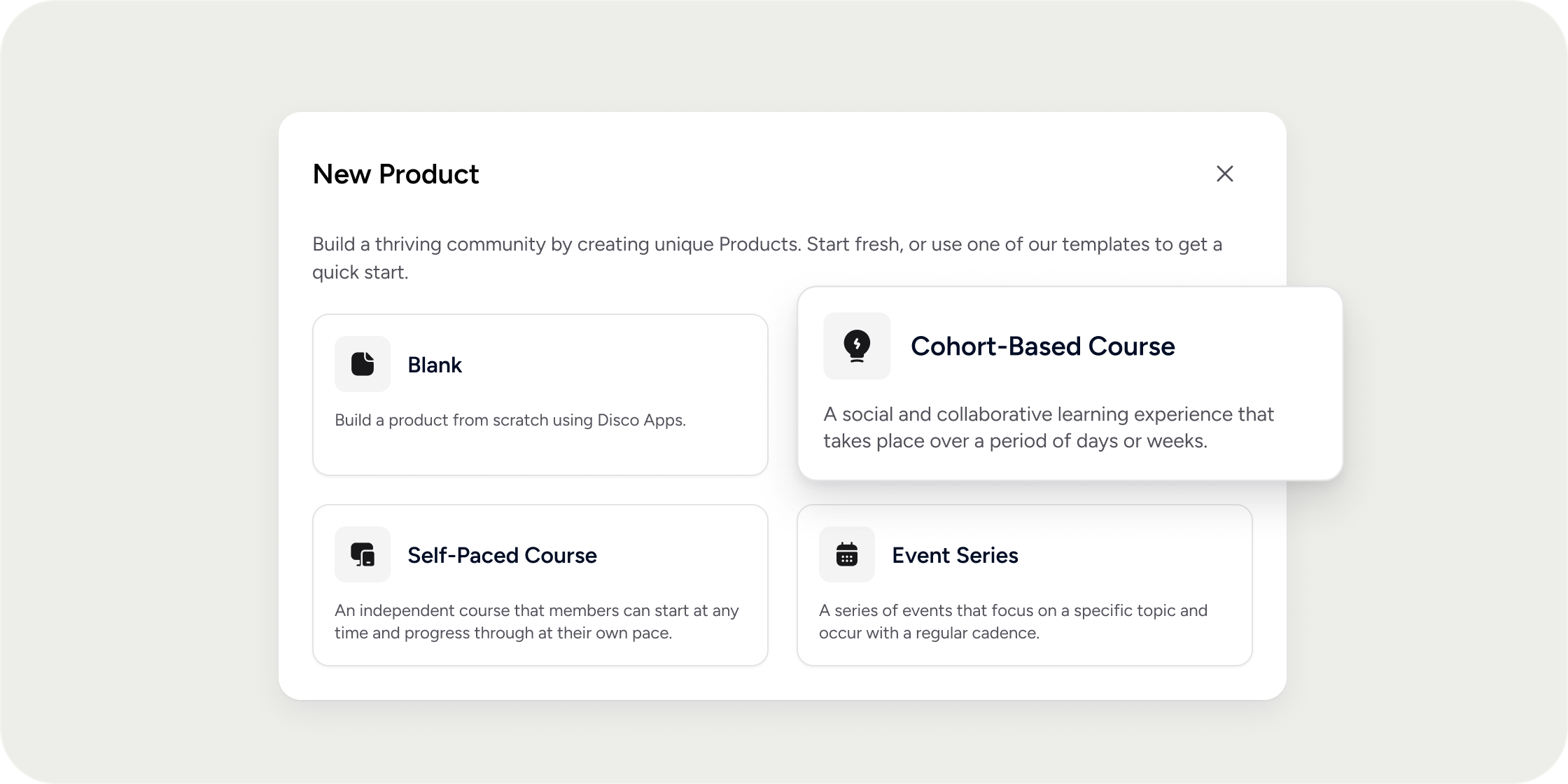
Programs can be built from scratch, with AI, or from a pre-built template. Templates come with apps and settings already configured for the format you choose.
1. Go to **Admin Area** > **Products > Programs**, or open the **Learning** sidebar area.
2. Select **Add Product**.
3. Choose a template: **Self-Paced**, **Cohort-Based**, **Blank** OR **Build with AI.**
4. Fill in the initial Program details:
* Badge and title: The Program name Members will see.
* Description: A summary of what the Program covers.
* Access: Choose who can register on demand without an invitation. Options are **Public** (anyone), **Members Only** (all Academy Members), **Private** (specific Members or groups), or **Invite Only** (invited Members only).
* Duration: For cohort-based Programs, set start and end dates.
5. Select **Save as Draft** to create the Program and open the Program dashboard.
### AI Program Generation
If you select AI Program Generation, you will go directly to a separate workflow that allows you to conversationally build out your program with AI. Read [AI Program Generation](https://docs.disco.co/programs-overview#ai-program-generation) for more.
From the dashboard, you will have the option to use DiscoAI to generate a curriculum. See \[link] for more on that.
## Edit a Program
Once your Program is created, you can customize its layout, content, and settings at any time, whether it is in draft or published.
### Edit Program settings
Program settings control details, access, pricing, notifications, members, subgroups, and team roles. All of these live in one place: the Program Settings drawer.
1. Open the Program from the **Explore** page or **Admin** > **Products**.
2. Select the overflow menu (three dots) and choose **Settings**.
Inside the Settings drawer:
* **Details tab**: Edit the Program name, icon, description, and cover photo. For cohort-based Programs, toggle on Fixed Duration to set start and end dates. Under the **Advanced** section, add a label, attach tags for discoverability, customize the registration page, copy the Program URL, or find the Program ID for Zapier integrations.
* **Access tab**: Set visibility (Public, All Members, Private, or Invite Only) and configure enrollment options, including auto-enrollment, capacity limits, registration status, and application requirements. Toggle on **Learning Mode** to allow Admins, Managers, or Instructors to complete the Program themselves.
* **Pricing tab**: Choose between a one-time fee, membership-linked pricing, or both. Turn on **Per-Plan Pricing** to charge different prices depending on a Member's membership plan.
* **Notifications tab**: Toggle event-based emails on or off and edit email content.
* **Members tab**: View enrolled Members, invite new ones, or assign Members directly.
* **Subgroups tab**: Create smaller groups within the Program for private events, discussions, or activities.
* **Team tab**: Add instructors or managers, and see who has admin access to Program settings.
## Publish a Program
When your Program is ready for Members:
1. Open **Product Settings** from the overflow menu (three dots).
2. At the bottom of the Settings drawer, select **Publish Product** from the button dropdown.
3. Confirm publishing in the pop-up modal.
Once published:
* Members can be invited or assigned to the Program.
* Members can discover and register for the Program (for Public, All Members, or Private Programs).
* For Invite Only Programs, only invited Members can register.
Anyone who receives an email invitation to a Program will be able to register for it regardless of its visibility setting.
To move a published Program back to draft, open the same button dropdown at the bottom of Settings and select **Save as Draft**. Once in draft, the Program is hidden from Members on the Explore page and in the sidebar. Members who are already enrolled remain enrolled but cannot access the Program again until it is published.
## Delete a Program
To delete a Program, simply:
1. Open the overflow menu (three dots) on any Program.
2. Select **‘Delete’**.
3. Type out the name of the Program and select ‘**Delete Program’.**
## FAQ
Yes, you may ‘Add App’ in the Academy area and select the **‘Link’ App > Product Link > Select Program.**
Yes. Select **Save as Draft** at any point during setup. Draft Programs are only visible to admins and are hidden from Members on the Explore page and in the sidebar.
You can create unlimited Programs unless your contract specifies otherwise. Check your contract order form if you are unsure of your limits.
Yes. You can duplicate an existing Program to use as a starting point for a new cohort or a different format. To duplicate, open the overflow menu (three dots) on a Program card and select **Clone**. Note that after duplicating, changes you make to the duplicate are independent of the original.
Enrolled Members remain enrolled, but they lose access to the Program until it is published again. The Program is also hidden from the Explore page and sidebar while in draft.
Yes. Programs can be organized into sections within the Learn area, making it easier for Members to find relevant content in a large catalog. They can also be organized into Learning Pathways for a sequenced learning experience from Program to Program.
Not yet. Each location has one template designed for its dimensions and layout. To change the brand colors used, go to **Admin Area** > **Appearance** > **Theme** > **Primary Color**. Note that updating your brand color will not regenerate images that were already created.
You can duplicate a cohort-based Program and then adjust its settings to remove fixed dates and reconfigure it as self-paced.
Per-Plan Pricing lets you charge different prices for the same Program depending on the membership plan a Member holds. For example, you could make a Program free for paid Members and charge a fee for Members on a free plan.
## Overview
A Program packages your learning content into a focused experience that Members can access through the **Learn** section of the sidebar. Programs can be self-paced, allowing Members to work through content on their own schedule, or cohort-based, with fixed start and end dates and a mix of curriculum, live events, and discussion channels.
You can offer Programs for free with automatic enrollment, restrict them to specific groups, require an application or invite, or place them behind a paywall or membership plan. Programs can be saved as drafts while you build them and published when you are ready to open registration.
Admin access is required to create and manage Programs.
## Create a Program
Programs can be built from scratch, with AI, or from a pre-built template. Templates come with apps and settings already configured for the format you choose.
1. Go to **Admin Area** > **Products > Programs**, or open the **Learning** sidebar area.
2. Select **Add Product**.
3. Choose a template: **Self-Paced**, **Cohort-Based**, **Blank** OR **Build with AI.**
4. Fill in the initial Program details:
* Badge and title: The Program name Members will see.
* Description: A summary of what the Program covers.
* Access: Choose who can register on demand without an invitation. Options are **Public** (anyone), **Members Only** (all Academy Members), **Private** (specific Members or groups), or **Invite Only** (invited Members only).
* Duration: For cohort-based Programs, set start and end dates.
5. Select **Save as Draft** to create the Program and open the Program dashboard.
### AI Program Generation
If you select AI Program Generation, you will go directly to a separate workflow that allows you to conversationally build out your program with AI. Read [AI Program Generation](https://docs.disco.co/programs-overview#ai-program-generation) for more.
From the dashboard, you will have the option to use DiscoAI to generate a curriculum. See \[link] for more on that.
## Edit a Program
Once your Program is created, you can customize its layout, content, and settings at any time, whether it is in draft or published.
### Edit Program settings
Program settings control details, access, pricing, notifications, members, subgroups, and team roles. All of these live in one place: the Program Settings drawer.
1. Open the Program from the **Explore** page or **Admin** > **Products**.
2. Select the overflow menu (three dots) and choose **Settings**.
Inside the Settings drawer:
* **Details tab**: Edit the Program name, icon, description, and cover photo. For cohort-based Programs, toggle on Fixed Duration to set start and end dates. Under the **Advanced** section, add a label, attach tags for discoverability, customize the registration page, copy the Program URL, or find the Program ID for Zapier integrations.
* **Access tab**: Set visibility (Public, All Members, Private, or Invite Only) and configure enrollment options, including auto-enrollment, capacity limits, registration status, and application requirements. Toggle on **Learning Mode** to allow Admins, Managers, or Instructors to complete the Program themselves.
* **Pricing tab**: Choose between a one-time fee, membership-linked pricing, or both. Turn on **Per-Plan Pricing** to charge different prices depending on a Member's membership plan.
* **Notifications tab**: Toggle event-based emails on or off and edit email content.
* **Members tab**: View enrolled Members, invite new ones, or assign Members directly.
* **Subgroups tab**: Create smaller groups within the Program for private events, discussions, or activities.
* **Team tab**: Add instructors or managers, and see who has admin access to Program settings.
## Publish a Program
When your Program is ready for Members:
1. Open **Product Settings** from the overflow menu (three dots).
2. At the bottom of the Settings drawer, select **Publish Product** from the button dropdown.
3. Confirm publishing in the pop-up modal.
Once published:
* Members can be invited or assigned to the Program.
* Members can discover and register for the Program (for Public, All Members, or Private Programs).
* For Invite Only Programs, only invited Members can register.
Anyone who receives an email invitation to a Program will be able to register for it regardless of its visibility setting.
To move a published Program back to draft, open the same button dropdown at the bottom of Settings and select **Save as Draft**. Once in draft, the Program is hidden from Members on the Explore page and in the sidebar. Members who are already enrolled remain enrolled but cannot access the Program again until it is published.
## Delete a Program
To delete a Program, simply:
1. Open the overflow menu (three dots) on any Program.
2. Select **‘Delete’**.
3. Type out the name of the Program and select ‘**Delete Program’.**
## FAQ
Yes, you may ‘Add App’ in the Academy area and select the **‘Link’ App > Product Link > Select Program.**
Yes. Select **Save as Draft** at any point during setup. Draft Programs are only visible to admins and are hidden from Members on the Explore page and in the sidebar.
You can create unlimited Programs unless your contract specifies otherwise. Check your contract order form if you are unsure of your limits.
Yes. You can duplicate an existing Program to use as a starting point for a new cohort or a different format. To duplicate, open the overflow menu (three dots) on a Program card and select **Clone**. Note that after duplicating, changes you make to the duplicate are independent of the original.
Enrolled Members remain enrolled, but they lose access to the Program until it is published again. The Program is also hidden from the Explore page and sidebar while in draft.
Yes. Programs can be organized into sections within the Learn area, making it easier for Members to find relevant content in a large catalog. They can also be organized into Learning Pathways for a sequenced learning experience from Program to Program.
Not yet. Each location has one template designed for its dimensions and layout. To change the brand colors used, go to **Admin Area** > **Appearance** > **Theme** > **Primary Color**. Note that updating your brand color will not regenerate images that were already created.
You can duplicate a cohort-based Program and then adjust its settings to remove fixed dates and reconfigure it as self-paced.
Per-Plan Pricing lets you charge different prices for the same Program depending on the membership plan a Member holds. For example, you could make a Program free for paid Members and charge a fee for Members on a free plan.