> ## Documentation Index
> Fetch the complete documentation index at: https://docs.disco.co/llms.txt
> Use this file to discover all available pages before exploring further.
# Pathways Overview
Learning Pathways are a structured sequence of Programs that guide members through a defined progression, unlocking each stage only after the previous one is complete.
 ## Overview
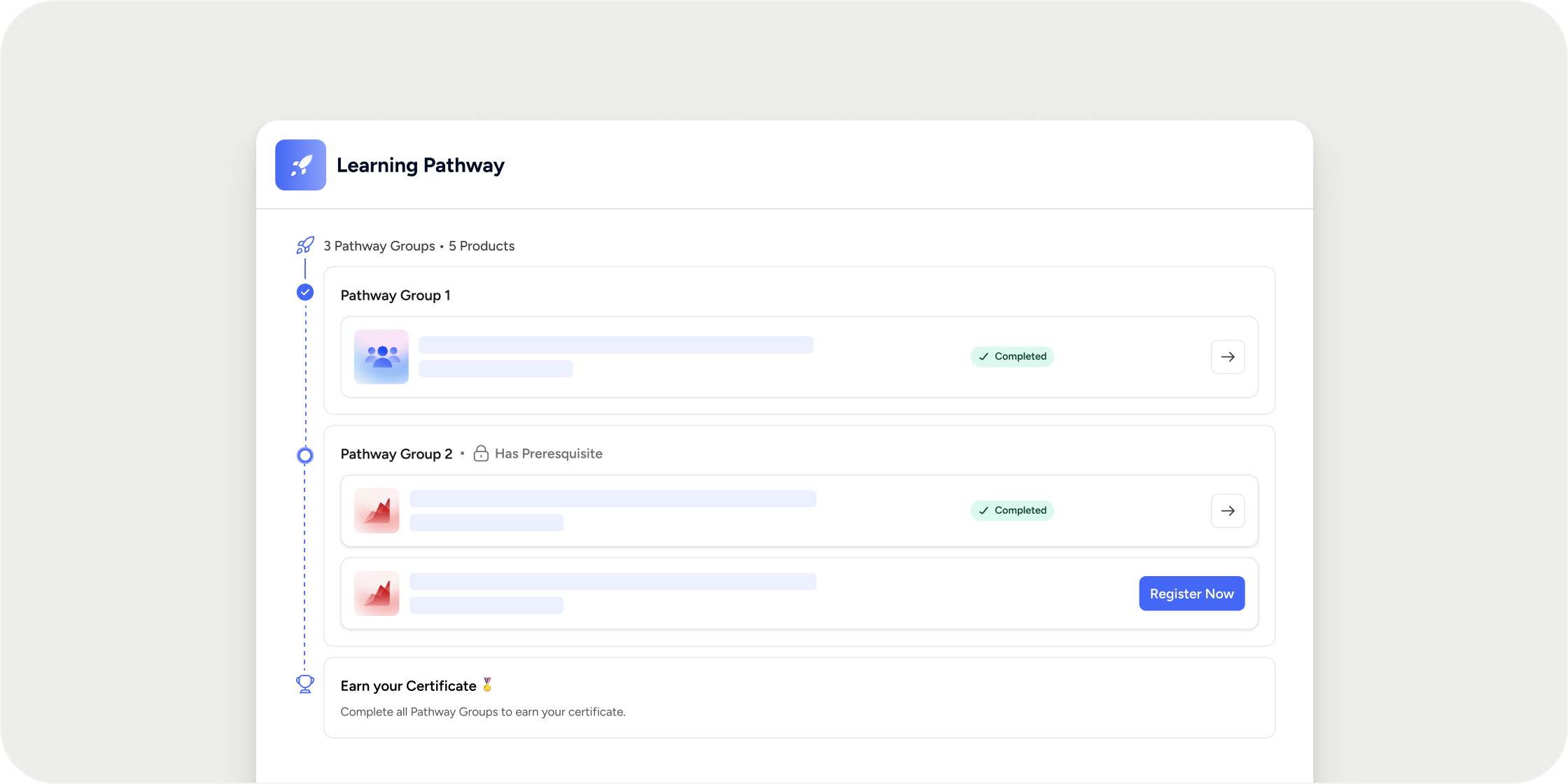
A Learning Pathway is a container that holds multiple Programs and organizes them into ordered groups. Members register for the pathway as a whole, then work through each group in sequence. Pathways appear alongside Programs in the left navigation of the Learning area and on the Explore page. Only community owners and admins can create and manage pathways. Instructor and manager roles do not exist at the pathway level.
## Program eligibility requirements
Not every Program can be added to a pathway. A Program must meet two conditions to be eligible.
It must have a curriculum app, meaning it must be completable. Programs that contain only events or resource collections are not eligible because there is nothing for a member to finish.
It must also be evergreen, meaning it cannot have a fixed start date or end date. If a Program ends while a member is partway through a pathway, they would be permanently blocked from progressing. Only evergreen Programs prevent this.
If no eligible Programs exist in your Academy yet, the **Add Pathway** button is disabled and shows a tooltip explaining why.
## Where to create a pathway
You can create a pathway from three locations.
From the **Learning** page, click the down arrow next to **Add Product** and select **Pathway** from the dropdown. Alternatively, click the **+** button at the top of the left navigation and choose **Add Pathway**.
From **Admin Area > Products > Pathways**, click the **+ Pathway** button in the top right.
All three options open the same **Create Pathway** modal.
## Set up pathway details
In the **Create Pathway** modal, enter a title for the pathway. You can optionally set a badge, which appears next to the pathway name in the left navigation.
Add a short description to display on the pathway card on the Explore page. This is a brief overview that gives members a quick sense of what the pathway covers.
A more detailed description can be added to the registration page after you save the pathway. Members see this when they register, so it is a good place to provide a thorough overview of the sequence, learning goals, and what is included.
Choose the access setting for the pathway. There are four options.
**Public** means anyone on the internet can find the registration page and sign up without an existing account in your Academy.
**All Members** means only people who already have an account in your Academy can register. Sharing a registration link with someone who does not yet have an account will result in a login error, because the link leads to a registration page that requires an existing account. If you need to onboard new external users, use **Public** access instead, or send them a direct email invite.
**Private** means only specific members or groups you designate can see the pathway on the Explore page and register.
**Invite Only** means the pathway is not discoverable anywhere. Members can only join if you send them a direct invitation.
## Build the pathway sequence
Click **Next** in the creation modal to set up the pathway sequence. The sequence is made up of groups, and each group contains one or more Programs.
Every pathway requires at least one group, and every group requires at least one Program.
The first group is labeled **Immediate Access**. When a member registers for the pathway, they gain the ability to register for any Program in this first group right away. They are not automatically enrolled in those Programs. They must go to the Pathway Dashboard and click **Register now** for each Program they want to start.
Click **Add Pathway Group** to add additional groups below the first. Each subsequent group is labeled **Has Prerequisites**, which means members must complete all Programs in the previous group before they can register for any Programs in the next group.
Within a group, members can register for and complete Programs in any order. The visual order you set in the sequence is a suggested order, not an enforced one.
To rename a group, click the pencil icon next to its name. To remove a group, click the **X** at the top right of the group. To add or remove Programs within a group, use the **Add Product** button inside that group.
If you want members to complete Programs in a strict linear order, put one Program in each group. This forces members to finish one Program completely before the next becomes available.
## Registration bypasses product-level requirements
When a member registers for a Program through a pathway via the Pathway Dashboard, all product-level registration requirements are bypassed. This includes applications, payments, capacity limits, and any other access restriction set on that Program.
This bypass applies only when a member registers through the pathway. If a member navigates directly to a Program's registration page outside of the pathway, all standard registration requirements still apply.
## Save the pathway and configure the registration page
Click **Save Draft** in the modal to save the pathway. This opens the pathway registration drawer, where you can:
* Set a custom image for the registration page
* Add detailed pathway information using the rich text editor
* Review the default **Pathway Overview** block, which shows all groups and the Programs within them. Members can expand each Program to preview its modules. You can delete this block if you prefer not to show it.
To view the Pathway Dashboard, click **View Pathway** from the registration drawer. From the dashboard, admins can click **Go to Experience** to jump directly into any Program, and access pathway settings using the **Admin** button.
Admins cannot register for pathways. You must be a member of the Academy to register for and complete a pathway. There is no Learn Mode for pathways.
## Publish the pathway
A pathway must be published before members can register for it. You cannot publish a pathway that contains any Programs still in draft status. Publish or remove all draft Programs first.
Once a pathway is published, it cannot be reverted to draft status.
You must also publish the pathway before you can send invitations to members.
## Manage the pathway after publishing
Open pathway settings by clicking **Admin** at the top of the Pathway Dashboard. From here you can:
* Edit the pathway title, description, and sequence
* Add or remove Programs from groups
* Rename, add, or remove groups
* Change the access setting or pathway visibility
* Add the pathway to membership plans
* Update the URL slug and add tags for filtering
## How pathway completion works
A Program is complete when a member has finished 100% of its curriculum. Events and resource collections do not count toward completion. Quizzes that require a passing grade must be passed, not just attempted.
A pathway group is complete when all Programs in that group are complete.
A pathway is complete when all groups are complete.
Certificates can be set up to issue automatically on pathway completion, just like on individual Program completion.
### Completion and prior progress
If a member has already completed Programs outside the pathway before registering, that completion carries over. They do not need to redo any work.
If a member has already completed every Program within a pathway when they register, they are granted pathway completion and receive any associated certificate or automations immediately upon registration. This makes it possible to retroactively reward members for finishing a set of related Programs by creating a pathway and assigning them to it.
## What happens when you edit an active pathway
You can edit a pathway's sequence after it has been published and members are already working through it. The following rules govern how existing member progress is handled.
**Removing a Program from a group:** If a member is partway through completing a group and you remove the last Program they had not yet completed, the system automatically grants them completion credit for that group.
**Removing an entire group:** If a member has already completed all remaining groups when you remove a group, they are immediately granted completion for the entire pathway.
**Adding a Program to a group a member has already completed:** That member is not required to complete the new Program. It appears in their pathway sequence and they can register for it if they choose, with all registration requirements bypassed as usual. However, it counts as optional because they have already completed the group.
**Adding a new group after a member has completed the pathway:** Members who have already completed the pathway are not required to complete the new group. They retain their completion status and any certificates they earned. The new group appears in their pathway sequence and they can work through it at their own pace.
The general rule is that once something is completed in a pathway, it is considered completed permanently. Adding new content never requires a member to go backwards.
## Invite and assign members
Members can discover and self-register for a pathway based on its access setting. You can also invite or assign members directly.
To invite members, open the pathway admin dropdown and choose **Invite**. To assign members without requiring them to accept an invitation, choose **Assign** from the same dropdown.
You cannot invite instructors or managers to a pathway. Only community owners and admins can manage pathway settings.
## How members experience a pathway
Once a member registers for a pathway, it appears in their left navigation alongside their other Programs.
On the Pathway Dashboard, members see the sequence with the first group marked as **Available** and subsequent unlocked groups ready to register for. Locked groups show a lock icon until all Programs in the previous group are complete.
Members click **Register now** on any available Program to open the registration drawer for that Program. Because they are registering through the pathway, all requirements are bypassed and they gain immediate access. After registering, they click **View Experience** to enter the Program.
The left navigation updates as they progress, showing module completion counts for the pathway and a quick link back to each Program.
## FAQ
No. Prerequisites between groups are a core part of how pathways work. Groups must be completed in order. If you want members to access multiple Programs without enforcing an order, place all of them in the first group. Members can then register for and complete them in any sequence they choose.
The most common cause is an incomplete curriculum item that is not immediately obvious. Go to **Admin > Insights > Members**, select the member, and review their progress for each Program in the current group. Check that all modules and lessons are marked complete, and if any quizzes require a passing grade, confirm they were passed rather than just attempted. If the system still shows a discrepancy, contact Disco support.
Yes. Set each Program's access to **Invite Only** in its settings. Members will not be able to find or register for those Programs independently. The pathway grants access to them when members register through the Pathway Dashboard. You can keep the pathway itself set to **Public** or **All Members** so members can still self-register.
Yes. Set the pathway access to **Public** (anyone can register) or **All Members** (existing members can register). Once registered, members progress through the pathway automatically as they complete each group.
Your pathway access is likely set to **All Members**, which requires an existing account. New users who do not yet have an account in your Academy hit a login wall and cannot proceed. To allow new users to register via the link, change the pathway access to **Public** under **Pathway Settings > Access**. Alternatively, send them a direct email invitation, which creates their account as part of the onboarding flow.
Yes. A Program can appear in as many pathways as needed to support different learning journeys. Once a Member completes a Program, it will be marked as completed for them in all pathways in which it appears, and they won’t be required to complete it again.
Yes. Go to **Pathway Settings > Access** and set the access to **Invite Only**. The pathway is no longer discoverable and new registrations are blocked.
Yes. Go to **Admin Area > Insights > Members**, select a member, and review their progress across each Program in the pathway.
No. Duplicating a pathway is not currently supported.
Yes. Pathways support payments in the same way Programs do. You can also make a pathway available through a membership plan.
This is not currently supported as a native automation variable. This has been submitted as a feature request with the Disco team.
Programs inside a private pathway follow the pathway's access rules. They appear in a member's left navigation only after the member registers for the pathway. This behavior in relation to the community home page is not fully documented in the available context. Contact Disco support for guidance specific to your setup.
No, Admins can’t currently mark a Program as complete for a member to allow them to proceed.
Yes, but only members with access to that private Learning Pathway will see the featured Program.
## Overview
A Learning Pathway is a container that holds multiple Programs and organizes them into ordered groups. Members register for the pathway as a whole, then work through each group in sequence. Pathways appear alongside Programs in the left navigation of the Learning area and on the Explore page. Only community owners and admins can create and manage pathways. Instructor and manager roles do not exist at the pathway level.
## Program eligibility requirements
Not every Program can be added to a pathway. A Program must meet two conditions to be eligible.
It must have a curriculum app, meaning it must be completable. Programs that contain only events or resource collections are not eligible because there is nothing for a member to finish.
It must also be evergreen, meaning it cannot have a fixed start date or end date. If a Program ends while a member is partway through a pathway, they would be permanently blocked from progressing. Only evergreen Programs prevent this.
If no eligible Programs exist in your Academy yet, the **Add Pathway** button is disabled and shows a tooltip explaining why.
## Where to create a pathway
You can create a pathway from three locations.
From the **Learning** page, click the down arrow next to **Add Product** and select **Pathway** from the dropdown. Alternatively, click the **+** button at the top of the left navigation and choose **Add Pathway**.
From **Admin Area > Products > Pathways**, click the **+ Pathway** button in the top right.
All three options open the same **Create Pathway** modal.
## Set up pathway details
In the **Create Pathway** modal, enter a title for the pathway. You can optionally set a badge, which appears next to the pathway name in the left navigation.
Add a short description to display on the pathway card on the Explore page. This is a brief overview that gives members a quick sense of what the pathway covers.
A more detailed description can be added to the registration page after you save the pathway. Members see this when they register, so it is a good place to provide a thorough overview of the sequence, learning goals, and what is included.
Choose the access setting for the pathway. There are four options.
**Public** means anyone on the internet can find the registration page and sign up without an existing account in your Academy.
**All Members** means only people who already have an account in your Academy can register. Sharing a registration link with someone who does not yet have an account will result in a login error, because the link leads to a registration page that requires an existing account. If you need to onboard new external users, use **Public** access instead, or send them a direct email invite.
**Private** means only specific members or groups you designate can see the pathway on the Explore page and register.
**Invite Only** means the pathway is not discoverable anywhere. Members can only join if you send them a direct invitation.
## Build the pathway sequence
Click **Next** in the creation modal to set up the pathway sequence. The sequence is made up of groups, and each group contains one or more Programs.
Every pathway requires at least one group, and every group requires at least one Program.
The first group is labeled **Immediate Access**. When a member registers for the pathway, they gain the ability to register for any Program in this first group right away. They are not automatically enrolled in those Programs. They must go to the Pathway Dashboard and click **Register now** for each Program they want to start.
Click **Add Pathway Group** to add additional groups below the first. Each subsequent group is labeled **Has Prerequisites**, which means members must complete all Programs in the previous group before they can register for any Programs in the next group.
Within a group, members can register for and complete Programs in any order. The visual order you set in the sequence is a suggested order, not an enforced one.
To rename a group, click the pencil icon next to its name. To remove a group, click the **X** at the top right of the group. To add or remove Programs within a group, use the **Add Product** button inside that group.
If you want members to complete Programs in a strict linear order, put one Program in each group. This forces members to finish one Program completely before the next becomes available.
## Registration bypasses product-level requirements
When a member registers for a Program through a pathway via the Pathway Dashboard, all product-level registration requirements are bypassed. This includes applications, payments, capacity limits, and any other access restriction set on that Program.
This bypass applies only when a member registers through the pathway. If a member navigates directly to a Program's registration page outside of the pathway, all standard registration requirements still apply.
## Save the pathway and configure the registration page
Click **Save Draft** in the modal to save the pathway. This opens the pathway registration drawer, where you can:
* Set a custom image for the registration page
* Add detailed pathway information using the rich text editor
* Review the default **Pathway Overview** block, which shows all groups and the Programs within them. Members can expand each Program to preview its modules. You can delete this block if you prefer not to show it.
To view the Pathway Dashboard, click **View Pathway** from the registration drawer. From the dashboard, admins can click **Go to Experience** to jump directly into any Program, and access pathway settings using the **Admin** button.
Admins cannot register for pathways. You must be a member of the Academy to register for and complete a pathway. There is no Learn Mode for pathways.
## Publish the pathway
A pathway must be published before members can register for it. You cannot publish a pathway that contains any Programs still in draft status. Publish or remove all draft Programs first.
Once a pathway is published, it cannot be reverted to draft status.
You must also publish the pathway before you can send invitations to members.
## Manage the pathway after publishing
Open pathway settings by clicking **Admin** at the top of the Pathway Dashboard. From here you can:
* Edit the pathway title, description, and sequence
* Add or remove Programs from groups
* Rename, add, or remove groups
* Change the access setting or pathway visibility
* Add the pathway to membership plans
* Update the URL slug and add tags for filtering
## How pathway completion works
A Program is complete when a member has finished 100% of its curriculum. Events and resource collections do not count toward completion. Quizzes that require a passing grade must be passed, not just attempted.
A pathway group is complete when all Programs in that group are complete.
A pathway is complete when all groups are complete.
Certificates can be set up to issue automatically on pathway completion, just like on individual Program completion.
### Completion and prior progress
If a member has already completed Programs outside the pathway before registering, that completion carries over. They do not need to redo any work.
If a member has already completed every Program within a pathway when they register, they are granted pathway completion and receive any associated certificate or automations immediately upon registration. This makes it possible to retroactively reward members for finishing a set of related Programs by creating a pathway and assigning them to it.
## What happens when you edit an active pathway
You can edit a pathway's sequence after it has been published and members are already working through it. The following rules govern how existing member progress is handled.
**Removing a Program from a group:** If a member is partway through completing a group and you remove the last Program they had not yet completed, the system automatically grants them completion credit for that group.
**Removing an entire group:** If a member has already completed all remaining groups when you remove a group, they are immediately granted completion for the entire pathway.
**Adding a Program to a group a member has already completed:** That member is not required to complete the new Program. It appears in their pathway sequence and they can register for it if they choose, with all registration requirements bypassed as usual. However, it counts as optional because they have already completed the group.
**Adding a new group after a member has completed the pathway:** Members who have already completed the pathway are not required to complete the new group. They retain their completion status and any certificates they earned. The new group appears in their pathway sequence and they can work through it at their own pace.
The general rule is that once something is completed in a pathway, it is considered completed permanently. Adding new content never requires a member to go backwards.
## Invite and assign members
Members can discover and self-register for a pathway based on its access setting. You can also invite or assign members directly.
To invite members, open the pathway admin dropdown and choose **Invite**. To assign members without requiring them to accept an invitation, choose **Assign** from the same dropdown.
You cannot invite instructors or managers to a pathway. Only community owners and admins can manage pathway settings.
## How members experience a pathway
Once a member registers for a pathway, it appears in their left navigation alongside their other Programs.
On the Pathway Dashboard, members see the sequence with the first group marked as **Available** and subsequent unlocked groups ready to register for. Locked groups show a lock icon until all Programs in the previous group are complete.
Members click **Register now** on any available Program to open the registration drawer for that Program. Because they are registering through the pathway, all requirements are bypassed and they gain immediate access. After registering, they click **View Experience** to enter the Program.
The left navigation updates as they progress, showing module completion counts for the pathway and a quick link back to each Program.
## FAQ
No. Prerequisites between groups are a core part of how pathways work. Groups must be completed in order. If you want members to access multiple Programs without enforcing an order, place all of them in the first group. Members can then register for and complete them in any sequence they choose.
The most common cause is an incomplete curriculum item that is not immediately obvious. Go to **Admin > Insights > Members**, select the member, and review their progress for each Program in the current group. Check that all modules and lessons are marked complete, and if any quizzes require a passing grade, confirm they were passed rather than just attempted. If the system still shows a discrepancy, contact Disco support.
Yes. Set each Program's access to **Invite Only** in its settings. Members will not be able to find or register for those Programs independently. The pathway grants access to them when members register through the Pathway Dashboard. You can keep the pathway itself set to **Public** or **All Members** so members can still self-register.
Yes. Set the pathway access to **Public** (anyone can register) or **All Members** (existing members can register). Once registered, members progress through the pathway automatically as they complete each group.
Your pathway access is likely set to **All Members**, which requires an existing account. New users who do not yet have an account in your Academy hit a login wall and cannot proceed. To allow new users to register via the link, change the pathway access to **Public** under **Pathway Settings > Access**. Alternatively, send them a direct email invitation, which creates their account as part of the onboarding flow.
Yes. A Program can appear in as many pathways as needed to support different learning journeys. Once a Member completes a Program, it will be marked as completed for them in all pathways in which it appears, and they won’t be required to complete it again.
Yes. Go to **Pathway Settings > Access** and set the access to **Invite Only**. The pathway is no longer discoverable and new registrations are blocked.
Yes. Go to **Admin Area > Insights > Members**, select a member, and review their progress across each Program in the pathway.
No. Duplicating a pathway is not currently supported.
Yes. Pathways support payments in the same way Programs do. You can also make a pathway available through a membership plan.
This is not currently supported as a native automation variable. This has been submitted as a feature request with the Disco team.
Programs inside a private pathway follow the pathway's access rules. They appear in a member's left navigation only after the member registers for the pathway. This behavior in relation to the community home page is not fully documented in the available context. Contact Disco support for guidance specific to your setup.
No, Admins can’t currently mark a Program as complete for a member to allow them to proceed.
Yes, but only members with access to that private Learning Pathway will see the featured Program.