> ## Documentation Index
> Fetch the complete documentation index at: https://docs.disco.co/llms.txt
> Use this file to discover all available pages before exploring further.
# Lessons
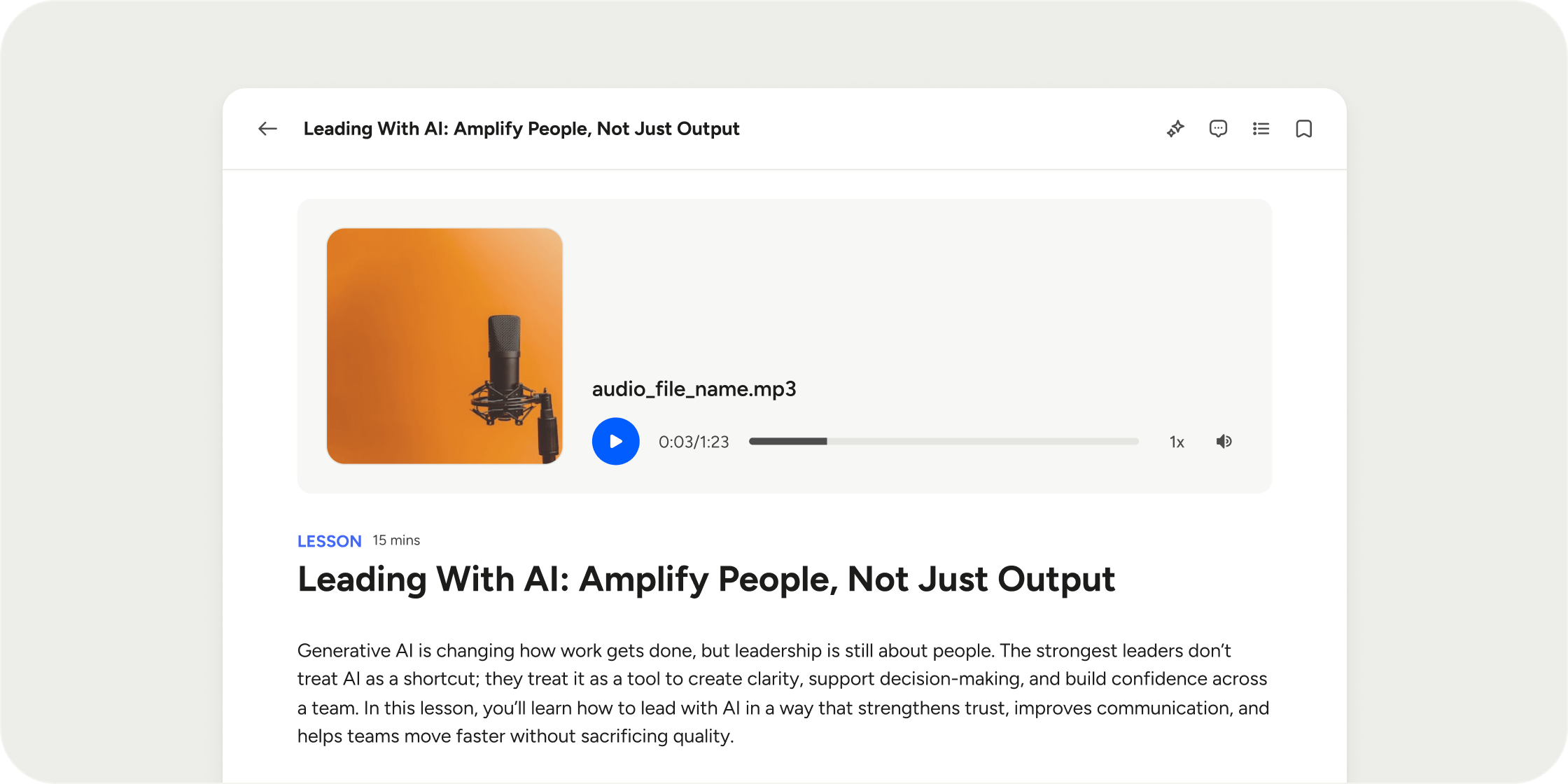
Lessons are the core learning unit in Disco that deliver educational content to members inside a program.
 ## **Overview**
A lesson is a single piece of content that members work through as part of a program. Lessons live either inside a curriculum module or a collection. This hierarchy keeps content organized and allows you to control pacing, access, and sequencing at a granular level.
## **Create a Lesson**
Lessons are created from inside a curriculum module or a collection app. Navigate to where you want to add a lesson, then follow these steps:
1. Click the **Add** button inside the module.
2. Select **Lesson** on the Add Content modal.
3. Enter a Title for the lesson
4. Optionally, add a Featured Media for your lesson. This can be:
* An image, a video, or an audio uploaded from your device.
* An image using our branded template, generated with AI, or from Unsplash.
* A SCORM .zip file
* An embed hosted on various sources, such as: YouTube, Loom, Google Doc, Typeform, Miro, PDFs, and many more.
* A custom HTML or generic iFrame code.
5. Upload any attachments and reorder or remove them as needed.
6. Write or upload your lesson content in the body area. The rich text editor supports inline formatting (bold, italic, underline). Type / to access block commands, embed media inline, or mention events, programs, or other content.
7. Click **Save**.
## **Configure Lesson Settings**
Settings control how members experience a lesson. Access them from the **Admin** button on the top right corner > select **Settings**.
* **Comments:** Toggle comments on or off. When enabled, members can comment directly on the lesson.
* **Prerequisites:** Require members to complete specific content before they can access this lesson. Members who have not met the prerequisites see a lock screen instead of the lesson content.
* Prerequisites are set at the instance level, not the root level. The same lesson content can have different prerequisites in different programs.
* **Confirmation Checkbox:** Require members to check a box before they can mark the lesson as complete. Use this when you need members to acknowledge something, such as agreeing to a policy or confirming they have completed an offline task.
* **Content Label:** Rename the lesson label to something that fits your program's language. Options include labels like "Guide" or "Assignment." This is cosmetic only. Changing the label does not change any underlying behavior.
* **Custom Thumbnail:** Upload a thumbnail image for the lesson. The thumbnail appears in listing and navigation contexts.
* **Time Estimate:** Either enter a time manually or click **Get AI Estimate** to let AI calculate an estimate based on the lesson content.
Use prerequisites thoughtfully. They are powerful for structured, sequential programs like bootcamps or certification courses, but can feel restrictive in self-paced or resource-based programs. Set them at the instance level so you can tailor access rules for each program without duplicating content.
## **View Lesson Analytics**
Analytics are available once a lesson is live. Open the lesson and click the **Admin** button > Select **Analytics** to see:
* Total views
* Unique member views
Use this data to identify which lessons are getting attention and which may need promotion or revision.
## **Share a Lesson**
Once a lesson is live, you can share it directly with members in the program.
1. Open the lesson.
2. Click the **Admin** button > Select **Share by Email**
3. Customize the email subject and email body.
4. Click **Share**. The lesson is sent to the members enrolled in that program.
##
## **FAQ**
Yes. Lessons are created at the content level and can be added to multiple programs. Prerequisites and other instance-level settings can be configured differently for each program.
They see a modal that indicates the lesson is not yet available. It tells members which items need to be completed before they can access the lesson.
No. Content labels are cosmetic only. Changing a lesson's label to "Assignment" does not enable file submission, grading, or any other assignment-specific behavior.
Yes. Drag and drop lessons within a module to reorder them. The order members see reflects the order set in the editor.
## **Overview**
A lesson is a single piece of content that members work through as part of a program. Lessons live either inside a curriculum module or a collection. This hierarchy keeps content organized and allows you to control pacing, access, and sequencing at a granular level.
## **Create a Lesson**
Lessons are created from inside a curriculum module or a collection app. Navigate to where you want to add a lesson, then follow these steps:
1. Click the **Add** button inside the module.
2. Select **Lesson** on the Add Content modal.
3. Enter a Title for the lesson
4. Optionally, add a Featured Media for your lesson. This can be:
* An image, a video, or an audio uploaded from your device.
* An image using our branded template, generated with AI, or from Unsplash.
* A SCORM .zip file
* An embed hosted on various sources, such as: YouTube, Loom, Google Doc, Typeform, Miro, PDFs, and many more.
* A custom HTML or generic iFrame code.
5. Upload any attachments and reorder or remove them as needed.
6. Write or upload your lesson content in the body area. The rich text editor supports inline formatting (bold, italic, underline). Type / to access block commands, embed media inline, or mention events, programs, or other content.
7. Click **Save**.
## **Configure Lesson Settings**
Settings control how members experience a lesson. Access them from the **Admin** button on the top right corner > select **Settings**.
* **Comments:** Toggle comments on or off. When enabled, members can comment directly on the lesson.
* **Prerequisites:** Require members to complete specific content before they can access this lesson. Members who have not met the prerequisites see a lock screen instead of the lesson content.
* Prerequisites are set at the instance level, not the root level. The same lesson content can have different prerequisites in different programs.
* **Confirmation Checkbox:** Require members to check a box before they can mark the lesson as complete. Use this when you need members to acknowledge something, such as agreeing to a policy or confirming they have completed an offline task.
* **Content Label:** Rename the lesson label to something that fits your program's language. Options include labels like "Guide" or "Assignment." This is cosmetic only. Changing the label does not change any underlying behavior.
* **Custom Thumbnail:** Upload a thumbnail image for the lesson. The thumbnail appears in listing and navigation contexts.
* **Time Estimate:** Either enter a time manually or click **Get AI Estimate** to let AI calculate an estimate based on the lesson content.
Use prerequisites thoughtfully. They are powerful for structured, sequential programs like bootcamps or certification courses, but can feel restrictive in self-paced or resource-based programs. Set them at the instance level so you can tailor access rules for each program without duplicating content.
## **View Lesson Analytics**
Analytics are available once a lesson is live. Open the lesson and click the **Admin** button > Select **Analytics** to see:
* Total views
* Unique member views
Use this data to identify which lessons are getting attention and which may need promotion or revision.
## **Share a Lesson**
Once a lesson is live, you can share it directly with members in the program.
1. Open the lesson.
2. Click the **Admin** button > Select **Share by Email**
3. Customize the email subject and email body.
4. Click **Share**. The lesson is sent to the members enrolled in that program.
##
## **FAQ**
Yes. Lessons are created at the content level and can be added to multiple programs. Prerequisites and other instance-level settings can be configured differently for each program.
They see a modal that indicates the lesson is not yet available. It tells members which items need to be completed before they can access the lesson.
No. Content labels are cosmetic only. Changing a lesson's label to "Assignment" does not enable file submission, grading, or any other assignment-specific behavior.
Yes. Drag and drop lessons within a module to reorder them. The order members see reflects the order set in the editor.