> ## Documentation Index
> Fetch the complete documentation index at: https://docs.disco.co/llms.txt
> Use this file to discover all available pages before exploring further.
# Labels
Labels are customizable vocabulary settings that let you replace Disco's default terminology with words that match your organization's brand and language.
 ## **Overview**
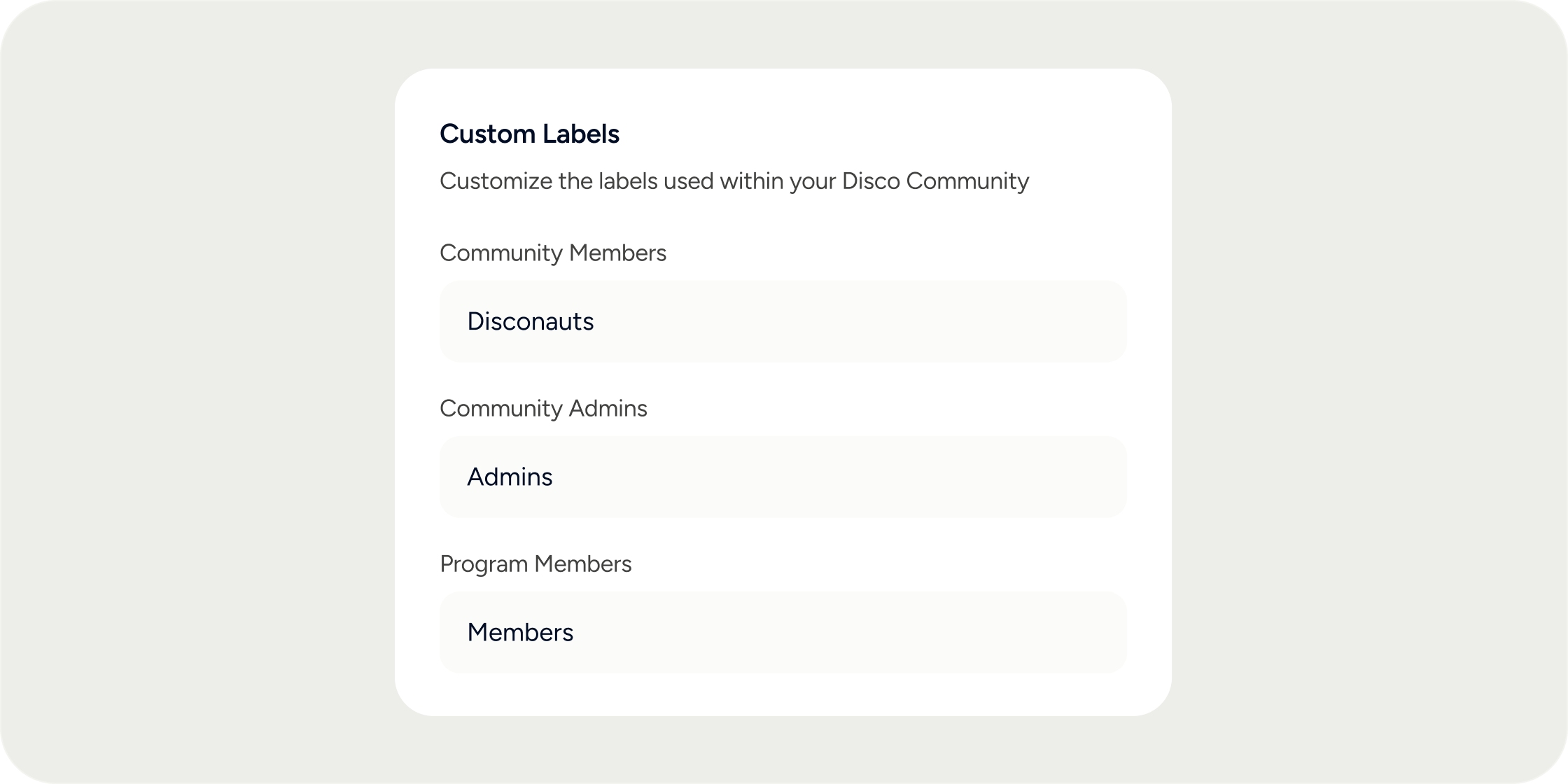
Disco uses default terms throughout the platform: "Product," "Curriculum," "Member," and others. Labels let you swap these defaults for any words that fit your academy's identity. Once saved, your custom terms appear globally across in-app text, email notifications, and the mobile app.
Only admins can edit labels. There is no limit on how many labels you change.
## **Customize Your Labels**
1. In the left navigation of the **Admin Dashboard**, select **Appearance**.
2. Click **Labels**.
3. Enter your preferred term in each field you want to change.
4. Click **Save**.
### **Available labels**
Disco lets you customize the following labels:
**Program-level roles**
| **Label** | **What it refers to** | **Default** |
| :-------------------- | :-------------------------------------- | :---------- |
| Experience Member | A member enrolled in a specific program | Member |
| Experience Instructor | An instructor of a program | Instructor |
| Experience Manager | A manager of a program | Manager |
**Academy-level roles**
| **Label** | **What it refers to** | **Default** |
| :--------------- | :----------------------------------- | :---------- |
| Community Member | A member who has joined your academy | Member |
| Community Admin | An admin of your academy | Admin |
| Community Owner | The owner of your academy | Owner |
**Content terminology**
| **Label** | **What it refers to** | **Default** |
| :--------- | :-------------------------------------------- | :---------- |
| Product | The programs you offer in your academy | Product |
| Curriculum | The organized course content within a program | Curriculum |
| Pathway | A structured sequence of programs | Pathway |
## **How Labels Work**
Enter each label in its **singular form only**. Disco automatically generates the plural wherever it is needed. For example, entering participant produces "participant" in singular contexts and "participants" in plural contexts.
Labels are capitalized by default. Enter a lowercase term if you want it to appear lowercase across the platform.
Custom labels propagate throughout the platform, including:
* In-app text and navigation
* Email notifications
* Mobile app
## **FAQ**
No. Enter only the singular form. Disco infers and applies the plural automatically wherever it appears in the platform.
Labels are capitalized by default. If you enter a lowercase term, Disco displays it in lowercase throughout the platform.
Labels must use English characters only. Special characters and non-English text are not supported.
Custom labels update throughout most of the platform, including in-app text, emails, and mobile. Some notification messages and system-generated text may still display the default term in specific locations. If you notice a label not updating somewhere, contact Disco support.
Yes. Role names can also be updated individually by navigating to **Admin > Members > Roles**, selecting the role, and editing the Custom Name field. This updates the label for that specific role across the academy. For a global vocabulary change, use **Admin > Appearance > Labels** instead.
Both affect how role names appear in the platform, but they operate differently. **Appearance > Labels** sets the global default term for all roles of that type. **Members > Roles > Custom Name** lets you rename a specific role. If you need a single, consistent term everywhere, use Appearance > Labels.
Clear the custom text from the label field and save. Disco reverts to the original default term.
Yes. Multi-word labels are supported. Enter the full phrase in singular form and Disco will apply it across the platform.
## **Overview**
Disco uses default terms throughout the platform: "Product," "Curriculum," "Member," and others. Labels let you swap these defaults for any words that fit your academy's identity. Once saved, your custom terms appear globally across in-app text, email notifications, and the mobile app.
Only admins can edit labels. There is no limit on how many labels you change.
## **Customize Your Labels**
1. In the left navigation of the **Admin Dashboard**, select **Appearance**.
2. Click **Labels**.
3. Enter your preferred term in each field you want to change.
4. Click **Save**.
### **Available labels**
Disco lets you customize the following labels:
**Program-level roles**
| **Label** | **What it refers to** | **Default** |
| :-------------------- | :-------------------------------------- | :---------- |
| Experience Member | A member enrolled in a specific program | Member |
| Experience Instructor | An instructor of a program | Instructor |
| Experience Manager | A manager of a program | Manager |
**Academy-level roles**
| **Label** | **What it refers to** | **Default** |
| :--------------- | :----------------------------------- | :---------- |
| Community Member | A member who has joined your academy | Member |
| Community Admin | An admin of your academy | Admin |
| Community Owner | The owner of your academy | Owner |
**Content terminology**
| **Label** | **What it refers to** | **Default** |
| :--------- | :-------------------------------------------- | :---------- |
| Product | The programs you offer in your academy | Product |
| Curriculum | The organized course content within a program | Curriculum |
| Pathway | A structured sequence of programs | Pathway |
## **How Labels Work**
Enter each label in its **singular form only**. Disco automatically generates the plural wherever it is needed. For example, entering participant produces "participant" in singular contexts and "participants" in plural contexts.
Labels are capitalized by default. Enter a lowercase term if you want it to appear lowercase across the platform.
Custom labels propagate throughout the platform, including:
* In-app text and navigation
* Email notifications
* Mobile app
## **FAQ**
No. Enter only the singular form. Disco infers and applies the plural automatically wherever it appears in the platform.
Labels are capitalized by default. If you enter a lowercase term, Disco displays it in lowercase throughout the platform.
Labels must use English characters only. Special characters and non-English text are not supported.
Custom labels update throughout most of the platform, including in-app text, emails, and mobile. Some notification messages and system-generated text may still display the default term in specific locations. If you notice a label not updating somewhere, contact Disco support.
Yes. Role names can also be updated individually by navigating to **Admin > Members > Roles**, selecting the role, and editing the Custom Name field. This updates the label for that specific role across the academy. For a global vocabulary change, use **Admin > Appearance > Labels** instead.
Both affect how role names appear in the platform, but they operate differently. **Appearance > Labels** sets the global default term for all roles of that type. **Members > Roles > Custom Name** lets you rename a specific role. If you need a single, consistent term everywhere, use Appearance > Labels.
Clear the custom text from the label field and save. Disco reverts to the original default term.
Yes. Multi-word labels are supported. Enter the full phrase in singular form and Disco will apply it across the platform.