> ## Documentation Index
> Fetch the complete documentation index at: https://docs.disco.co/llms.txt
> Use this file to discover all available pages before exploring further.
# Academy Setup
Academy Setup is the process of configuring your Disco Academy's navigation, apps, and core settings so your space is ready for members to join and learn.
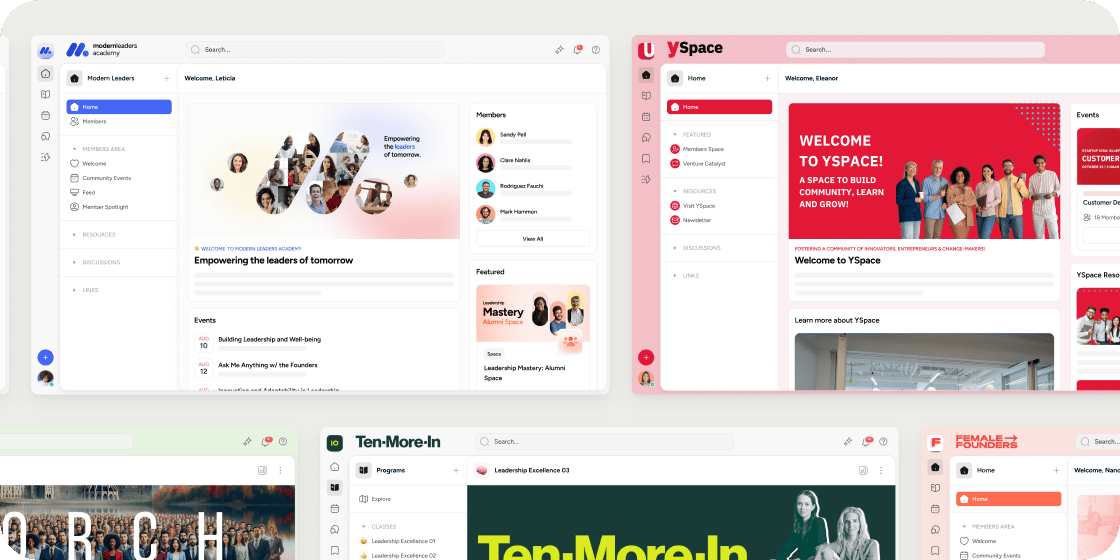 ## **Overview**
Setting up your Academy involves two main areas: building out your Home sidebar with apps and sections, and configuring your general settings from the Admin Area. General settings control everything from your Academy's name and subdomain to access permissions, search behavior, billing, and registration requirements. Only owners and admins can access these settings.
## **Add Apps and Sections to the Home Sidebar**
The Home sidebar is the first thing members see when they enter your Academy. It comes pre-loaded with a set of default apps, but you can customize it to match your Academy's purpose.
Apps allow you to create spaces for discussions, events and content accessible to a specific group of members.
1. Go to the **Home** tab in your Academy.
2. Select the **+** button at the top right of the left-hand sidebar.
3. Choose the app you want to add from the list.
###
Sections let you group related apps under a label to keep the sidebar organized.
1. Go to the **Home** tab in your Academy.
2. Select the **+** button at the top right of the left-hand sidebar.
3. Select **Add Section** and give it a name.
4. Drag apps under the section to organize them.
We recommend setting up sections before your Academy goes live. A well-organized sidebar reduces confusion for new members and makes it easier to scale as you add more apps over time.
### **Remove or Reorder Apps**
Select and drag any app to reorder it. To remove an app, open its settings and select **Remove**. Note that the **For You** dashboard cannot be removed; it is a permanent part of the Home sidebar.
## **Configure General Settings**
To access your Academy's general settings, select the **Admin** icon in the leftmost sidebar, then select **Settings** at the bottom of the Admin Area sidebar.
Your Academy name appears throughout the Disco platform, including in the browser tab when members view your Academy and in outgoing communications such as event reminder emails. The name is used as the sender in those emails, so choose something members will recognize.
###
Your subdomain determines how members access your Academy: [yoursubdomain.disco.co](http://yoursubdomain.disco.co). A few things to keep in mind:
* The subdomain must be unique across all Disco Academies. Terms like "disco" are reserved and cannot be used.
* If you change your subdomain, the old one will no longer redirect to your Academy.
* If you have a custom domain configured, your subdomain will still work as an alternative access point.
The Academy description is used for URL previews when you share Academy pages on social platforms like LinkedIn or Instagram. To verify it's working, use the LinkedIn Post Inspector and paste a URL from your Academy to check the title and description that appear.
You can also use your **Company Website** (see below) to have Disco help generate this description.
Enter your company's existing website URL here. Disco's AI features use this to generate content on the admin side, for example suggesting prompts for the Ask AI feature and helping write your Academy description.
Your billing address is synced with Stripe for subscription invoices and payment notifications from Disco. This is separate from payments your members make to you. By default, it is set to the email address of the Academy creator.
Select the currency you want to collect payments in. This setting cannot be changed after you connect Stripe, so confirm your currency before completing your Stripe integration.
This is the default time zone for your Academy. It applies when the person creating an item (such as an event) does not have a personal time zone set in their profile. If a time zone is set at the user level, that takes precedence.
This setting controls who can use the @channel tag in chat channels across your Academy. The @channel tag notifies everyone in a channel when used.
* **Everyone** (default): all members can use @channel.
* **Admins only**: only admins can use @channel.
This applies globally to all channels in your Academy.
Choose which screen Members see when they first open the mobile app.
* **Academy Apps Menu** (default): opens the Academy navigation, where Members can access its apps and sections.
* **For You Screen**: opens the personalized Academy home page. If you have renamed the For You app, its custom title appears in this option.
This setting changes only the initial landing screen. Members can still access the Apps Menu from the mobile navigation.
## **Academy Access**
Academy access controls who can join your Academy.
* **Public access**: anyone who visits yoursubdomain.disco.co/joinacademy can sign up and become a member. You can still restrict access to specific programs, events, or content using their individual registration and targeting settings.
* **Private access**: only people you specifically invite can join your Academy, unless they register through a program or event that has been made publicly accessible.
Most professional learning Academies start with private access to maintain quality and control over who joins. You can always switch to public access later as your audience grows.
## **Search Settings**
Search settings let you control what different roles in your Academy can search for. Settings are segmented by role: owners and admins have one set of permissions, and members (including managers and instructors) have another.
Searchable content types include: posts, people, programs, channels, feeds, messages, content, and events.
**Two important notes:**
* Permissions still apply at the individual level. A member with search access to posts will only see posts from programs and apps they already have access to.
* If you have disabled the **Members** app in your Academy Home to prevent members from seeing each other, also disable the ability for members to search for people in these settings. The two work together.
## **Registration**
The **Registration** sub-tab lets you add custom checkboxes to the registration forms members complete when joining your Academy, registering for a program, or signing up for a public event.
Members must check all boxes before completing registration. Disco also includes a built-in checkbox for its terms and conditions and privacy policy; this checkbox is always present and cannot be removed.
Checkboxes use a Disco text editor. You can write any text you'd like and format it with links.
Below the checkboxes, you can add a **Registration Description** that appears on the left-hand side of your Academy's registration page.
## **Delete Academy**
The **Advanced** sub-tab contains a single option: **Delete Academy**.
Deleting your Academy is permanent and irreversible. It removes all content, members, and programs from the Disco platform. This action cannot be undone.
## **FAQ**
Yes, but the old subdomain will immediately stop redirecting to your Academy. Make sure to update any links you've shared before making this change.
No. Once Stripe is connected, the currency setting is locked. Change your currency in Settings before completing the Stripe integration.
Members will not see that content type appear in search results at all. Individual permission rules also still apply: members can only search content they have access to regardless of these settings.
Registration checkboxes apply only to new registrations: when someone joins the Academy, registers for a program, or signs up for a public event. Existing members are not prompted to complete them retroactively.
Only owners and admins can see and enable Labs features. Program managers do not have access to the Settings area.
## **Overview**
Setting up your Academy involves two main areas: building out your Home sidebar with apps and sections, and configuring your general settings from the Admin Area. General settings control everything from your Academy's name and subdomain to access permissions, search behavior, billing, and registration requirements. Only owners and admins can access these settings.
## **Add Apps and Sections to the Home Sidebar**
The Home sidebar is the first thing members see when they enter your Academy. It comes pre-loaded with a set of default apps, but you can customize it to match your Academy's purpose.
Apps allow you to create spaces for discussions, events and content accessible to a specific group of members.
1. Go to the **Home** tab in your Academy.
2. Select the **+** button at the top right of the left-hand sidebar.
3. Choose the app you want to add from the list.
###
Sections let you group related apps under a label to keep the sidebar organized.
1. Go to the **Home** tab in your Academy.
2. Select the **+** button at the top right of the left-hand sidebar.
3. Select **Add Section** and give it a name.
4. Drag apps under the section to organize them.
We recommend setting up sections before your Academy goes live. A well-organized sidebar reduces confusion for new members and makes it easier to scale as you add more apps over time.
### **Remove or Reorder Apps**
Select and drag any app to reorder it. To remove an app, open its settings and select **Remove**. Note that the **For You** dashboard cannot be removed; it is a permanent part of the Home sidebar.
## **Configure General Settings**
To access your Academy's general settings, select the **Admin** icon in the leftmost sidebar, then select **Settings** at the bottom of the Admin Area sidebar.
Your Academy name appears throughout the Disco platform, including in the browser tab when members view your Academy and in outgoing communications such as event reminder emails. The name is used as the sender in those emails, so choose something members will recognize.
###
Your subdomain determines how members access your Academy: [yoursubdomain.disco.co](http://yoursubdomain.disco.co). A few things to keep in mind:
* The subdomain must be unique across all Disco Academies. Terms like "disco" are reserved and cannot be used.
* If you change your subdomain, the old one will no longer redirect to your Academy.
* If you have a custom domain configured, your subdomain will still work as an alternative access point.
The Academy description is used for URL previews when you share Academy pages on social platforms like LinkedIn or Instagram. To verify it's working, use the LinkedIn Post Inspector and paste a URL from your Academy to check the title and description that appear.
You can also use your **Company Website** (see below) to have Disco help generate this description.
Enter your company's existing website URL here. Disco's AI features use this to generate content on the admin side, for example suggesting prompts for the Ask AI feature and helping write your Academy description.
Your billing address is synced with Stripe for subscription invoices and payment notifications from Disco. This is separate from payments your members make to you. By default, it is set to the email address of the Academy creator.
Select the currency you want to collect payments in. This setting cannot be changed after you connect Stripe, so confirm your currency before completing your Stripe integration.
This is the default time zone for your Academy. It applies when the person creating an item (such as an event) does not have a personal time zone set in their profile. If a time zone is set at the user level, that takes precedence.
This setting controls who can use the @channel tag in chat channels across your Academy. The @channel tag notifies everyone in a channel when used.
* **Everyone** (default): all members can use @channel.
* **Admins only**: only admins can use @channel.
This applies globally to all channels in your Academy.
Choose which screen Members see when they first open the mobile app.
* **Academy Apps Menu** (default): opens the Academy navigation, where Members can access its apps and sections.
* **For You Screen**: opens the personalized Academy home page. If you have renamed the For You app, its custom title appears in this option.
This setting changes only the initial landing screen. Members can still access the Apps Menu from the mobile navigation.
## **Academy Access**
Academy access controls who can join your Academy.
* **Public access**: anyone who visits yoursubdomain.disco.co/joinacademy can sign up and become a member. You can still restrict access to specific programs, events, or content using their individual registration and targeting settings.
* **Private access**: only people you specifically invite can join your Academy, unless they register through a program or event that has been made publicly accessible.
Most professional learning Academies start with private access to maintain quality and control over who joins. You can always switch to public access later as your audience grows.
## **Search Settings**
Search settings let you control what different roles in your Academy can search for. Settings are segmented by role: owners and admins have one set of permissions, and members (including managers and instructors) have another.
Searchable content types include: posts, people, programs, channels, feeds, messages, content, and events.
**Two important notes:**
* Permissions still apply at the individual level. A member with search access to posts will only see posts from programs and apps they already have access to.
* If you have disabled the **Members** app in your Academy Home to prevent members from seeing each other, also disable the ability for members to search for people in these settings. The two work together.
## **Registration**
The **Registration** sub-tab lets you add custom checkboxes to the registration forms members complete when joining your Academy, registering for a program, or signing up for a public event.
Members must check all boxes before completing registration. Disco also includes a built-in checkbox for its terms and conditions and privacy policy; this checkbox is always present and cannot be removed.
Checkboxes use a Disco text editor. You can write any text you'd like and format it with links.
Below the checkboxes, you can add a **Registration Description** that appears on the left-hand side of your Academy's registration page.
## **Delete Academy**
The **Advanced** sub-tab contains a single option: **Delete Academy**.
Deleting your Academy is permanent and irreversible. It removes all content, members, and programs from the Disco platform. This action cannot be undone.
## **FAQ**
Yes, but the old subdomain will immediately stop redirecting to your Academy. Make sure to update any links you've shared before making this change.
No. Once Stripe is connected, the currency setting is locked. Change your currency in Settings before completing the Stripe integration.
Members will not see that content type appear in search results at all. Individual permission rules also still apply: members can only search content they have access to regardless of these settings.
Registration checkboxes apply only to new registrations: when someone joins the Academy, registers for a program, or signs up for a public event. Existing members are not prompted to complete them retroactively.
Only owners and admins can see and enable Labs features. Program managers do not have access to the Settings area.