> ## Documentation Index
> Fetch the complete documentation index at: https://docs.disco.co/llms.txt
> Use this file to discover all available pages before exploring further.
# Program Registration
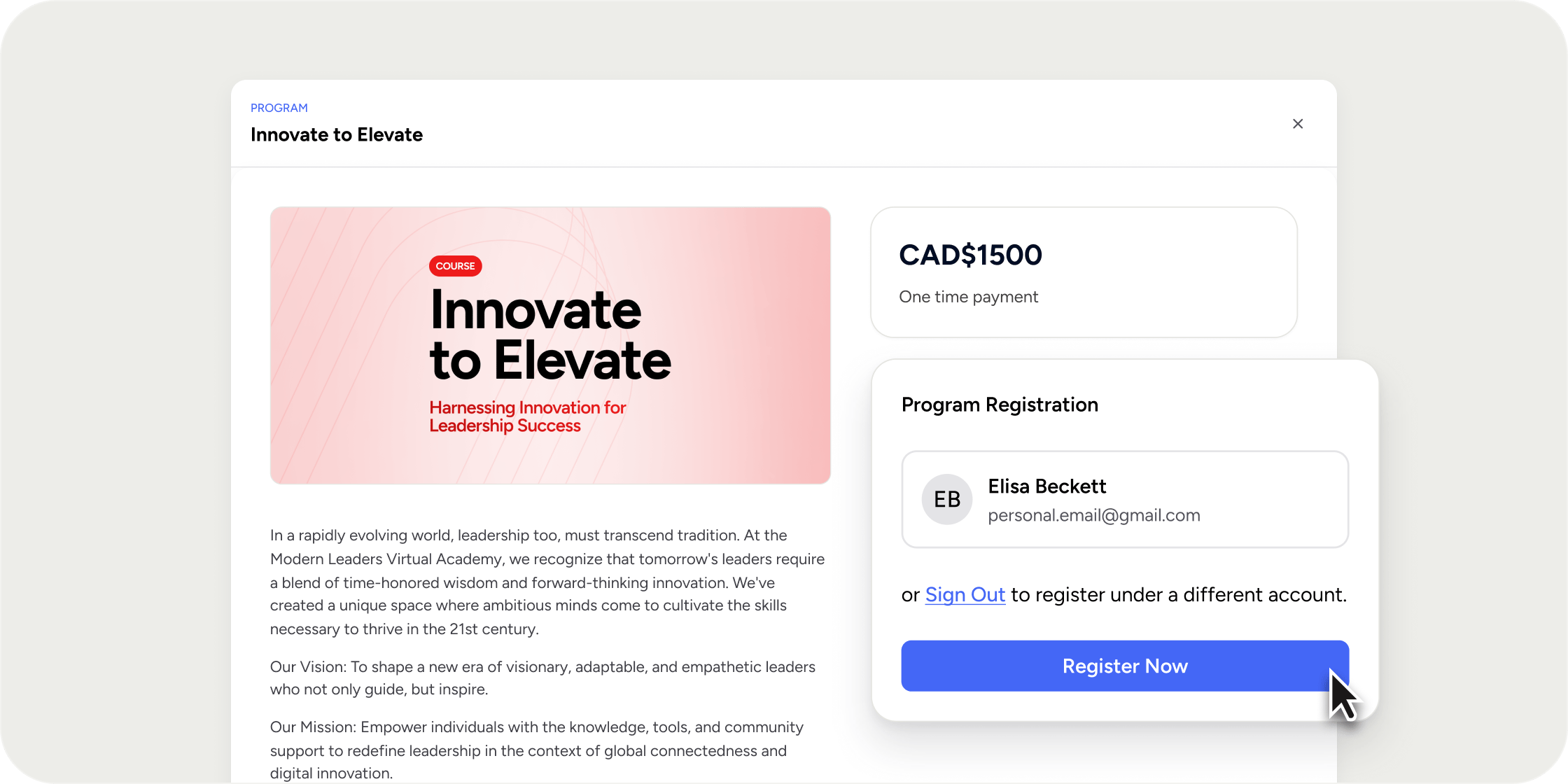
Program registration and enrollment are the settings that control how Members discover, access, and join a Program.
 ## **Overview**
Every Program in a Disco Academy has its own registration and enrollment settings. These settings cover who can see the Program, whether Members can register for it, whether Members need to apply first, how many seats are available, whether a fee is charged, and whether admins and instructors can take the curriculum themselves. Most of the controls live on the **Access** tab of the Program settings drawer. Pricing lives on a separate **Pricing** tab and is only available to community-type Academies with monetization turned on.
## **Open a Program's Registration Settings**
**Visibility** is the only registration setting you can configure when you first create a Program. Every other setting becomes available once the Program exists.
To open the settings for an existing Program:
1. Go to **Programs** in the admin area.
2. Find the Program in the list.
3. Click the triple-dot menu on the Program row and select **Settings**. The Program settings drawer opens.
4. Click the **Access** tab to configure visibility, registration status, applications, capacity, Auto-Add, and Learning Mode.
5. Click the **Pricing** tab to configure fees. The **Pricing** tab only appears for community-type Academies with monetization enabled, and paid pricing options require a connected Stripe integration.
## **Set Program Visibility**
Visibility decides who can find the Program on the Explore page, and reach its registration page. On the **Access** tab, use the **Visibility** dropdown to pick one of four options:
* **Public**: Anyone on the internet can register through the Program's registration page.
* **All Members**: Any Member of the Academy can register.
* **Private**: Only specific Members or groups can register. Selecting **Private** reveals two multi-select pickers so you can choose member groups, individual Members, or both.
* **Invite Only**: The Program is hidden from the **Explore** page. Members can only join through a direct invitation.
**POV:** For cohort-based Programs, start with **All Members** and layer in an application or capacity limit. For internal training or a paid enterprise rollout, use **Invite Only** and assign Members directly at the time of invite so they skip the registration page entirely.
Anyone who receives an email invitation to a Program will be able to register for it regardless of its visibility setting.
## **Set Registration Status**
The **Registration Status** control on the **Access** tab decides whether new registrations are accepted at all. Pick one of three options:
* **Open**: Registration is live. Selecting **Open** reveals the **Application Required** toggle.
* **Closed**: No new registrations are accepted.
* **Waitlist**: Visitors to the registration page are redirected to an external URL. Selecting **Waitlist** reveals two fields: Waitlist URL (the external page Members are sent to) and Waitlist CTA Label (the button text shown on the registration page, for example "Join the Waitlist").
Waitlist is handled off-platform. Once prospective Members land on your external URL, it is up to you to capture their details and bring them back into Disco when registration opens.
## **Require an Application**
When **Registration Status** is set to **Open**, the **Application Required** toggle appears. Turn it on when you want Members to submit an application and be approved before they gain access to the Program.
A question builder appears below the toggle. Use it to add and remove free-text questions. At least one question must remain at all times.
If the Program has a fee, payment is taken at the point of approval, not at the time of submission. Applicants are only charged once an Admin approves them.
## **Set a Capacity Limit**
Enable the **Capacity** toggle on the **Access** tab to cap the number of Members who can join. When you turn it on, a number input appears with a default of 50. Once the limit is reached, new registrations are blocked.
Two groups do not count against the limit: admins assigned directly to the Program, and Members added through Auto-Add.
## **Auto-Add All Members**
Auto-Add automatically enrolls every current and future Member on a selected membership plan, without requiring them to register. Turn on the **Auto-Add All Members** toggle on the **Access** tab and pick the eligible membership plan.
When Auto-Add is on, the Registration Status, Applications, and Capacity fields are hidden. They do not apply.
A few things to know before enabling this:
* Auto-Add is not available with **Invite Only** visibility. If the Program is set to Invite Only, the Auto-Add toggle is hidden.
* Auto-Add bypasses every other registration control, including any fee. All current and future Members on the chosen plan are enrolled immediately.
* The action cannot be undone. Confirm your membership plan selection before turning it on.
## **Enable Learning Mode**
Learning Mode lets admins and instructors take the Program curriculum themselves and have their progress tracked in reports. Enable the **Learning Mode** toggle on the **Access** tab. A checkbox appears below: Include admins and instructors in Reports.
Turning Learning Mode off removes every admin and instructor completion record from reports. Disco asks for confirmation before saving the change.
Enable Learning Mode before admins and instructors start the Program. Turning it on after they have begun does not retroactively record their progress.
## **Configure Pricing**
The **Pricing** tab is only available for community-type Academies with monetization turned on. Use it to set whether a Program is free or requires payment.
To charge Members, connect a Stripe integration first. If Stripe is not connected, the tab prompts you to set up the integration before you can configure a fee.
If your Academy uses custom membership plans, a **Membership Plans** section appears on the **Pricing** tab. You can set which plans include access to the Program and, with per-plan pricing, charge a different fee per plan.
## **FAQ**
Yes. Changing Visibility controls who can find and register for the Program going forward. It does not remove anyone who is already enrolled.
Visibility changes apply to new registrations only. Members who were enrolled before you switched to **Invite Only** keep their access. To trim the roster, remove existing Members from the Program on the Program's Members tab, or clone the Program and invite only the people you want.
No. Removing a Member from a Program only unenrolls them from that Program. They keep their access to the rest of the Academy.
Yes, when **Application Required** is on. The question builder on the **Access** tab is per-Program, so the questions you add apply only to that Program's application. This is separate from the Academy-wide onboarding questions in **Admin > Members > Onboarding**, which apply to every new Member of the Academy.
Yes. Toggle **Application Required** off to stop new registrants from seeing the application form.
Yes. Publish the Program to enable the Waitlist. Publishing makes the Program findable online, but nothing inside the curriculum is visible to Members until **Registration Status** is set to **Open**. You can keep editing the Program while it is on Waitlist.
Use the external page where you want to send prospective Members, for example your own waitlist signup form or landing page. When Registration Status is set to **Waitlist**, Disco redirects clicks from the Program's registration page to this URL.
Yes. When you assign a Member directly to the Program at the time of invite (through Email Invite or CSV Bulk Import), they bypass registration, the payment page, capacity limits, and applications entirely. Set the Program to **Invite Only**, include the Program in the invite, and Members log in and land directly inside the Program.
The limit only blocks new registrations going forward. It does not remove anyone who is already enrolled, even if the current Member count is above the new limit.
No. Admins assigned directly to the Program and Members added through Auto-Add do not count toward the Capacity limit.
Invite Only Programs do not use public registration. Members come in through direct invites, which bypass application review and capacity limits. If you need application review, use **Public**, **All Members**, or **Private** visibility instead.
Payment is taken at the point of approval, not at the time of application submission. Applicants are only charged once an Admin approves them.
Turning Learning Mode off removes every admin and instructor completion record from reports. Disco asks you to confirm before saving the change, so you can back out if that is not what you want.
No. Learning Mode only tracks progress from the moment it is enabled. Any curriculum progress admins or instructors made before the toggle was turned on is not backfilled.
Programs need to be linked to at least one membership plan so Disco knows which Members are eligible. Link the Program to a membership plan (the default Free plan works for most setups), and the error resolves. Invite Only still hides the Program from Explore and blocks uninvited Members from registering.
Only the Waitlist CTA label is customizable today, through the Waitlist CTA Label field that appears when Registration Status is set to **Waitlist**.
Not directly through Auto-Add. Use an automation: trigger **When Member Joins a Group**, then the **Add to Program** action for each Program you want to enroll them in. Set the target Programs to **Invite Only** so nobody outside the group can find them.
No. You must manually close the Program Registration Status.
Members added prior will still keep their access.
## **Overview**
Every Program in a Disco Academy has its own registration and enrollment settings. These settings cover who can see the Program, whether Members can register for it, whether Members need to apply first, how many seats are available, whether a fee is charged, and whether admins and instructors can take the curriculum themselves. Most of the controls live on the **Access** tab of the Program settings drawer. Pricing lives on a separate **Pricing** tab and is only available to community-type Academies with monetization turned on.
## **Open a Program's Registration Settings**
**Visibility** is the only registration setting you can configure when you first create a Program. Every other setting becomes available once the Program exists.
To open the settings for an existing Program:
1. Go to **Programs** in the admin area.
2. Find the Program in the list.
3. Click the triple-dot menu on the Program row and select **Settings**. The Program settings drawer opens.
4. Click the **Access** tab to configure visibility, registration status, applications, capacity, Auto-Add, and Learning Mode.
5. Click the **Pricing** tab to configure fees. The **Pricing** tab only appears for community-type Academies with monetization enabled, and paid pricing options require a connected Stripe integration.
## **Set Program Visibility**
Visibility decides who can find the Program on the Explore page, and reach its registration page. On the **Access** tab, use the **Visibility** dropdown to pick one of four options:
* **Public**: Anyone on the internet can register through the Program's registration page.
* **All Members**: Any Member of the Academy can register.
* **Private**: Only specific Members or groups can register. Selecting **Private** reveals two multi-select pickers so you can choose member groups, individual Members, or both.
* **Invite Only**: The Program is hidden from the **Explore** page. Members can only join through a direct invitation.
**POV:** For cohort-based Programs, start with **All Members** and layer in an application or capacity limit. For internal training or a paid enterprise rollout, use **Invite Only** and assign Members directly at the time of invite so they skip the registration page entirely.
Anyone who receives an email invitation to a Program will be able to register for it regardless of its visibility setting.
## **Set Registration Status**
The **Registration Status** control on the **Access** tab decides whether new registrations are accepted at all. Pick one of three options:
* **Open**: Registration is live. Selecting **Open** reveals the **Application Required** toggle.
* **Closed**: No new registrations are accepted.
* **Waitlist**: Visitors to the registration page are redirected to an external URL. Selecting **Waitlist** reveals two fields: Waitlist URL (the external page Members are sent to) and Waitlist CTA Label (the button text shown on the registration page, for example "Join the Waitlist").
Waitlist is handled off-platform. Once prospective Members land on your external URL, it is up to you to capture their details and bring them back into Disco when registration opens.
## **Require an Application**
When **Registration Status** is set to **Open**, the **Application Required** toggle appears. Turn it on when you want Members to submit an application and be approved before they gain access to the Program.
A question builder appears below the toggle. Use it to add and remove free-text questions. At least one question must remain at all times.
If the Program has a fee, payment is taken at the point of approval, not at the time of submission. Applicants are only charged once an Admin approves them.
## **Set a Capacity Limit**
Enable the **Capacity** toggle on the **Access** tab to cap the number of Members who can join. When you turn it on, a number input appears with a default of 50. Once the limit is reached, new registrations are blocked.
Two groups do not count against the limit: admins assigned directly to the Program, and Members added through Auto-Add.
## **Auto-Add All Members**
Auto-Add automatically enrolls every current and future Member on a selected membership plan, without requiring them to register. Turn on the **Auto-Add All Members** toggle on the **Access** tab and pick the eligible membership plan.
When Auto-Add is on, the Registration Status, Applications, and Capacity fields are hidden. They do not apply.
A few things to know before enabling this:
* Auto-Add is not available with **Invite Only** visibility. If the Program is set to Invite Only, the Auto-Add toggle is hidden.
* Auto-Add bypasses every other registration control, including any fee. All current and future Members on the chosen plan are enrolled immediately.
* The action cannot be undone. Confirm your membership plan selection before turning it on.
## **Enable Learning Mode**
Learning Mode lets admins and instructors take the Program curriculum themselves and have their progress tracked in reports. Enable the **Learning Mode** toggle on the **Access** tab. A checkbox appears below: Include admins and instructors in Reports.
Turning Learning Mode off removes every admin and instructor completion record from reports. Disco asks for confirmation before saving the change.
Enable Learning Mode before admins and instructors start the Program. Turning it on after they have begun does not retroactively record their progress.
## **Configure Pricing**
The **Pricing** tab is only available for community-type Academies with monetization turned on. Use it to set whether a Program is free or requires payment.
To charge Members, connect a Stripe integration first. If Stripe is not connected, the tab prompts you to set up the integration before you can configure a fee.
If your Academy uses custom membership plans, a **Membership Plans** section appears on the **Pricing** tab. You can set which plans include access to the Program and, with per-plan pricing, charge a different fee per plan.
## **FAQ**
Yes. Changing Visibility controls who can find and register for the Program going forward. It does not remove anyone who is already enrolled.
Visibility changes apply to new registrations only. Members who were enrolled before you switched to **Invite Only** keep their access. To trim the roster, remove existing Members from the Program on the Program's Members tab, or clone the Program and invite only the people you want.
No. Removing a Member from a Program only unenrolls them from that Program. They keep their access to the rest of the Academy.
Yes, when **Application Required** is on. The question builder on the **Access** tab is per-Program, so the questions you add apply only to that Program's application. This is separate from the Academy-wide onboarding questions in **Admin > Members > Onboarding**, which apply to every new Member of the Academy.
Yes. Toggle **Application Required** off to stop new registrants from seeing the application form.
Yes. Publish the Program to enable the Waitlist. Publishing makes the Program findable online, but nothing inside the curriculum is visible to Members until **Registration Status** is set to **Open**. You can keep editing the Program while it is on Waitlist.
Use the external page where you want to send prospective Members, for example your own waitlist signup form or landing page. When Registration Status is set to **Waitlist**, Disco redirects clicks from the Program's registration page to this URL.
Yes. When you assign a Member directly to the Program at the time of invite (through Email Invite or CSV Bulk Import), they bypass registration, the payment page, capacity limits, and applications entirely. Set the Program to **Invite Only**, include the Program in the invite, and Members log in and land directly inside the Program.
The limit only blocks new registrations going forward. It does not remove anyone who is already enrolled, even if the current Member count is above the new limit.
No. Admins assigned directly to the Program and Members added through Auto-Add do not count toward the Capacity limit.
Invite Only Programs do not use public registration. Members come in through direct invites, which bypass application review and capacity limits. If you need application review, use **Public**, **All Members**, or **Private** visibility instead.
Payment is taken at the point of approval, not at the time of application submission. Applicants are only charged once an Admin approves them.
Turning Learning Mode off removes every admin and instructor completion record from reports. Disco asks you to confirm before saving the change, so you can back out if that is not what you want.
No. Learning Mode only tracks progress from the moment it is enabled. Any curriculum progress admins or instructors made before the toggle was turned on is not backfilled.
Programs need to be linked to at least one membership plan so Disco knows which Members are eligible. Link the Program to a membership plan (the default Free plan works for most setups), and the error resolves. Invite Only still hides the Program from Explore and blocks uninvited Members from registering.
Only the Waitlist CTA label is customizable today, through the Waitlist CTA Label field that appears when Registration Status is set to **Waitlist**.
Not directly through Auto-Add. Use an automation: trigger **When Member Joins a Group**, then the **Add to Program** action for each Program you want to enroll them in. Set the target Programs to **Invite Only** so nobody outside the group can find them.
No. You must manually close the Program Registration Status.
Members added prior will still keep their access.