> ## Documentation Index
> Fetch the complete documentation index at: https://docs.disco.co/llms.txt
> Use this file to discover all available pages before exploring further.
# Program Customization
A Program is the individual learning experience you build inside your Academy, and customizing it means setting up the apps, dashboard, branded images, and notifications your Members will see.
 ## Overview
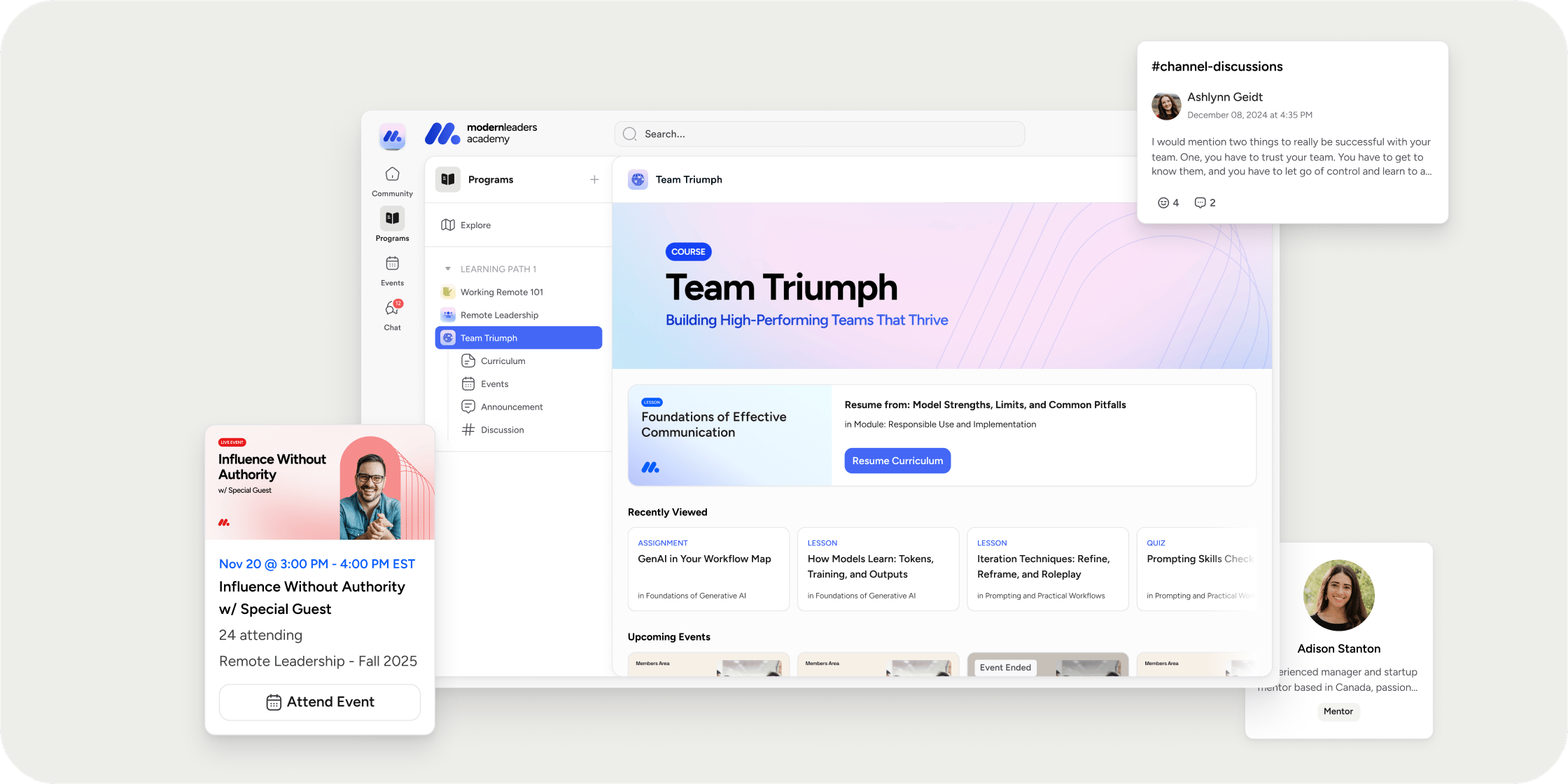
Every Program you create in Disco comes with a flexible dashboard, a left navigation, and a set of notification controls. You can add apps for curriculum, events, resources, and discussion channels, arrange content blocks on the dashboard, apply your brand colors to the cover and banner images, and decide which emails get sent to Members. The options below cover the most common customization tasks for Admins and Instructors running a Program.
## Open a Program to Customize It
1. Go to **Admin Area** → **Products**, or open the **Learn** section from your Academy sidebar.
2. Select the Program you want to customize.
Once the Program is open, you have access to the left navigation, the Program dashboard, **Product Settings**, and the overflow menu used for notifications.
## Add and Reorganize Apps
Apps are the building blocks of your Program. Each app gives Members a dedicated space for a type of content, such as curriculum, events, resources, or discussion channels.
1. Open the Program and locate the left navigation.
2. Select **Add App** and choose the app type you want to include.
3. Drag any app up or down in the list to reorder it.
4. Select an app to rename it or update its settings.
Reordering apps changes the order Members see in the Program navigation, so put the most important app at the top.
## Design the Program Dashboard
The Program dashboard is the first page Members land on when they open the Program. You control what appears there by editing the cover image and adding content blocks.
1. Open the Program and go to the dashboard view.
2. Select **Edit Dashboard** to enter editing mode.
3. Add blocks for the apps you want to surface, such as a hero banner, events, curriculum, posts, and discussions.
4. Drag blocks to reorder them on the page.
5. Select **Save** to publish your changes.
## Create Images for Your Program
You can generate on-brand cover images and banner images using your Academy's brand colors and theme. Your brand color comes from **Admin Area** → **Appearance** → **Theme** → **Primary Color**. If you have not set a brand color yet, Disco applies a default theme color automatically.
### Program Cover Image
1. Open the Program and go to **Product Settings**.
2. Under **General Details**, select the cover image to edit it.
3. In the media picker, select **Create an image using your brand asset**, or open the **Template** tab.
4. Select **Create Image**. Your brand colors and Program title are applied automatically.
5. Preview the image and select **Use Image**.
6. Select **Save as Draft** or **Publish Changes**.
### Program Dashboard Banner Image
1. In the **Program Banner** block on the dashboard, select the three-dot menu in the top right.
2. Select **Edit Block**.
3. In the modal, select **Create Image Using Template**.
4. Preview the image and select **Use Image**.
5. Select **Save**.
**POV:** Use the Template tab for your first pass. It applies your brand color and Program title automatically, which keeps every Program in your Academy visually consistent without design work. Upload a custom image only when you want something unique for a flagship Program.
## Configure Notifications
Notifications keep Members in the loop on activity inside a Program. You control which emails get sent and which address Members reply to.
1. Open the Program.
2. Select the three-dot overflow menu on the Program.
3. Go to **Settings** → **Notifications**.
4. Toggle each notification on or off, and update the reply-to email as needed.
5. Select **Save**.
The available notifications are:
* **New Comments & Replies.** Triggered when a new comment or reply is made on posts, assignments, lessons, and similar content.
* **Welcome Message.** Triggered when someone registers for your Program.
* **Early Access Started.** Triggered when early access begins.
* **Assignment Due Date Reminder.** Triggered 24 hours before the due date.
* **Reply-to Email.** The email that replies from Members are sent to.
**POV:** Set the **Reply-to Email** to a real inbox that someone on your team monitors. Without it, Member replies land at a system address no one checks, and Members feel like they are shouting into the void.
## FAQ
Open the Program, select the three-dot overflow menu, and go to **Settings** → **Notifications**.
By default, only the person listed as the Instructor on the Program receives Program notifications in Disco and connected channels like Slack. To give a second Admin visibility, add them as an Instructor on the Program so they can manage their own notification settings for it.
Yes. Open the Program, go to **Settings** → **Notifications**, and update the **Reply-to Email** field. Replies to Program notification emails are routed to that address.
Replies to Program notifications go to the reply-to email you configure in the Program. Replies to other notifications that do not have a configurable reply-to go to a system address that is not monitored. If this matters for your use case, talk to your Disco contact about the Custom Notification Email Domain feature on the Enterprise plan.
Disco applies a default theme color so your generated cover and banner images still look polished. Set your brand color in **Admin Area** → **Appearance** → **Theme** → **Primary Color** when you are ready to fully customize.
Yes. Drag apps up or down in the left navigation to change the order Members see.
Yes. In the media picker for the cover image or the Program Banner block, upload your image directly rather than selecting the template option.
The cover image appears at the top of the Program and on Program cards elsewhere in your Academy. If you uploaded a cover image and do not see it, make sure you selected **Publish Changes** in **Product Settings**.
Confirm the notification is toggled on under **Settings** → **Notifications**, and make sure the test account you used is actually registered for the Program. If you are testing with the same email that is registered as an Academy Owner or Admin, Disco treats you as the sender rather than a new registrant.
No, Disco does not provide tracking of email notifications.
Yes, there is an email notification that gets delivered when a new module becomes available. It is not one that can be turned off or customized.
## Overview
Every Program you create in Disco comes with a flexible dashboard, a left navigation, and a set of notification controls. You can add apps for curriculum, events, resources, and discussion channels, arrange content blocks on the dashboard, apply your brand colors to the cover and banner images, and decide which emails get sent to Members. The options below cover the most common customization tasks for Admins and Instructors running a Program.
## Open a Program to Customize It
1. Go to **Admin Area** → **Products**, or open the **Learn** section from your Academy sidebar.
2. Select the Program you want to customize.
Once the Program is open, you have access to the left navigation, the Program dashboard, **Product Settings**, and the overflow menu used for notifications.
## Add and Reorganize Apps
Apps are the building blocks of your Program. Each app gives Members a dedicated space for a type of content, such as curriculum, events, resources, or discussion channels.
1. Open the Program and locate the left navigation.
2. Select **Add App** and choose the app type you want to include.
3. Drag any app up or down in the list to reorder it.
4. Select an app to rename it or update its settings.
Reordering apps changes the order Members see in the Program navigation, so put the most important app at the top.
## Design the Program Dashboard
The Program dashboard is the first page Members land on when they open the Program. You control what appears there by editing the cover image and adding content blocks.
1. Open the Program and go to the dashboard view.
2. Select **Edit Dashboard** to enter editing mode.
3. Add blocks for the apps you want to surface, such as a hero banner, events, curriculum, posts, and discussions.
4. Drag blocks to reorder them on the page.
5. Select **Save** to publish your changes.
## Create Images for Your Program
You can generate on-brand cover images and banner images using your Academy's brand colors and theme. Your brand color comes from **Admin Area** → **Appearance** → **Theme** → **Primary Color**. If you have not set a brand color yet, Disco applies a default theme color automatically.
### Program Cover Image
1. Open the Program and go to **Product Settings**.
2. Under **General Details**, select the cover image to edit it.
3. In the media picker, select **Create an image using your brand asset**, or open the **Template** tab.
4. Select **Create Image**. Your brand colors and Program title are applied automatically.
5. Preview the image and select **Use Image**.
6. Select **Save as Draft** or **Publish Changes**.
### Program Dashboard Banner Image
1. In the **Program Banner** block on the dashboard, select the three-dot menu in the top right.
2. Select **Edit Block**.
3. In the modal, select **Create Image Using Template**.
4. Preview the image and select **Use Image**.
5. Select **Save**.
**POV:** Use the Template tab for your first pass. It applies your brand color and Program title automatically, which keeps every Program in your Academy visually consistent without design work. Upload a custom image only when you want something unique for a flagship Program.
## Configure Notifications
Notifications keep Members in the loop on activity inside a Program. You control which emails get sent and which address Members reply to.
1. Open the Program.
2. Select the three-dot overflow menu on the Program.
3. Go to **Settings** → **Notifications**.
4. Toggle each notification on or off, and update the reply-to email as needed.
5. Select **Save**.
The available notifications are:
* **New Comments & Replies.** Triggered when a new comment or reply is made on posts, assignments, lessons, and similar content.
* **Welcome Message.** Triggered when someone registers for your Program.
* **Early Access Started.** Triggered when early access begins.
* **Assignment Due Date Reminder.** Triggered 24 hours before the due date.
* **Reply-to Email.** The email that replies from Members are sent to.
**POV:** Set the **Reply-to Email** to a real inbox that someone on your team monitors. Without it, Member replies land at a system address no one checks, and Members feel like they are shouting into the void.
## FAQ
Open the Program, select the three-dot overflow menu, and go to **Settings** → **Notifications**.
By default, only the person listed as the Instructor on the Program receives Program notifications in Disco and connected channels like Slack. To give a second Admin visibility, add them as an Instructor on the Program so they can manage their own notification settings for it.
Yes. Open the Program, go to **Settings** → **Notifications**, and update the **Reply-to Email** field. Replies to Program notification emails are routed to that address.
Replies to Program notifications go to the reply-to email you configure in the Program. Replies to other notifications that do not have a configurable reply-to go to a system address that is not monitored. If this matters for your use case, talk to your Disco contact about the Custom Notification Email Domain feature on the Enterprise plan.
Disco applies a default theme color so your generated cover and banner images still look polished. Set your brand color in **Admin Area** → **Appearance** → **Theme** → **Primary Color** when you are ready to fully customize.
Yes. Drag apps up or down in the left navigation to change the order Members see.
Yes. In the media picker for the cover image or the Program Banner block, upload your image directly rather than selecting the template option.
The cover image appears at the top of the Program and on Program cards elsewhere in your Academy. If you uploaded a cover image and do not see it, make sure you selected **Publish Changes** in **Product Settings**.
Confirm the notification is toggled on under **Settings** → **Notifications**, and make sure the test account you used is actually registered for the Program. If you are testing with the same email that is registered as an Academy Owner or Admin, Disco treats you as the sender rather than a new registrant.
No, Disco does not provide tracking of email notifications.
Yes, there is an email notification that gets delivered when a new module becomes available. It is not one that can be turned off or customized.