> ## Documentation Index
> Fetch the complete documentation index at: https://docs.disco.co/llms.txt
> Use this file to discover all available pages before exploring further.
# Program Cloning
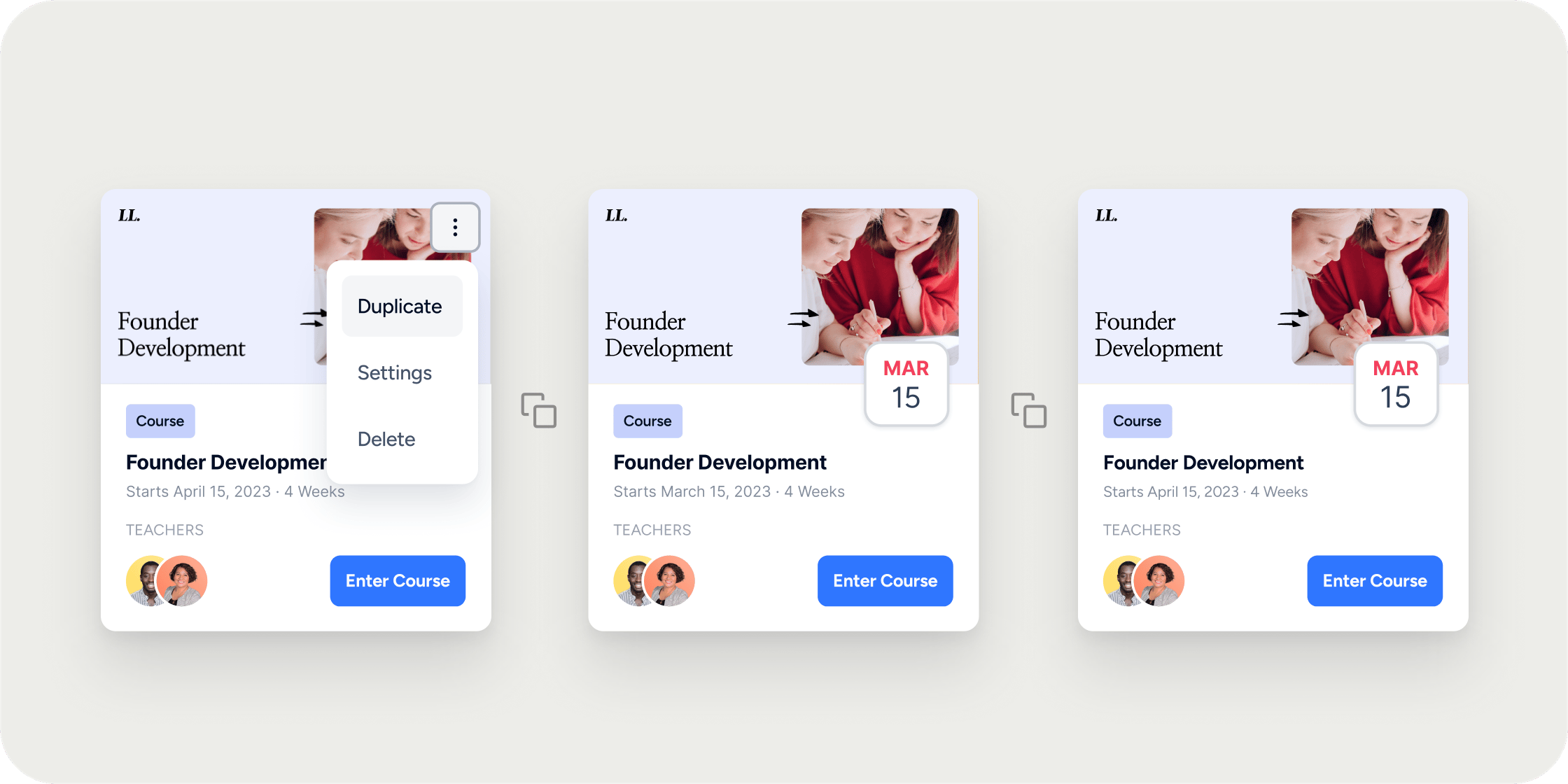
Program cloning is a feature that duplicates an existing Program, including its settings, apps, and content, so you can launch new Programs without rebuilding them from scratch.
 ## **Overview**
Creating learning Programs at scale takes time. Program cloning lets you spin up a new Program from an existing one in a few clicks. It is especially useful for teams running recurring cohort-based courses, where each new intake shares the same structure, modules, and events as the last. When you clone, you control which apps carry over and how dates shift for the new Program.
## **How Cloning Works**
From anywhere inside a Program, open the overflow menu and choose **Clone**. You then select which components to bring over, configure dates for events and content releases, and start the clone. Cloning runs in the background, so you can keep working in your Academy while Disco builds the new Program.
Cloned Programs stay linked to the source Program's content by default. When you edit content inside a clone, Disco asks whether you want the change to apply to every Program that shares that content, or only to the clone you are in. This is covered in detail in the **Editing Content in a Cloned Program** section below.
## **Clone a Program**
Follow these steps to clone a Program from any page inside it.
1. Navigate to the Program you want to clone.
2. Click the **overflow** icon (the three dots in the top right of the page).
3. Select **Clone**.
4. Choose which apps you want to bring into the new Program.
1. Curriculum
2. Events
5. Select if you would Managers and Instructors copied over.
6. Adjust the start date and review the dates for content releases and events.
7. Click **Clone**.
8. Keep working in your Academy. Disco finishes the clone in the background and notifies you when it is ready.
## **What Gets Cloned**
When you clone a Program, you choose which apps come with it. Apps you can bring over typically include Curriculum, Events, Assignments, Channels, and any other apps you have enabled on the source Program.
A few things behave differently from the rest of the content:
* Settings and branding from the source Program copy over by default.
* Content items stay linked to the original unless you duplicate them later.
* Events copy over with shifted dates based on the new Program start date.
* Members do not copy over unless **Auto-add** is enabled on the source Program and the Program is set to **Public** or **Members Only**.
## **Event Dates in a Cloned Program**
How event dates shift depends on whether the source Program has a fixed duration.
* If the source Program has a fixed duration, you can set a new start date when cloning, and event dates shift to match.
* If the source Program does not have a fixed duration, Disco sets cloned event dates to seven days after the original event dates. You will not see the start date picker during the clone flow for these Programs.
You can edit individual event dates during the clone flow, or adjust them later from inside the cloned Program.
For cohort-based courses, always set a fixed duration on your template Program before you start cloning. This unlocks the start date picker in the clone flow and lets Disco shift every event, content release, and module unlock to the correct dates for your new cohort automatically. It saves hours of manual date adjustment every time you launch.
## **Editing Content in a Cloned Program**
Cloned Programs keep a link to the source Program's content. When you save an edit inside a cloned Program, Disco prompts you with two options:
* **Update All Instances**: The change applies to the source Program and every clone that shares that content. Use this when you want a correction or improvement to propagate everywhere.
* **Duplicate Content**: Disco creates a separate copy of the content inside your cloned Program. The change applies only to the Program you are editing. Use this when you want the clone to diverge from the source.
If you want a fully independent Program from the start, create a new Program and pull content in through **Add Content → From Existing Content**. Then hover over the content you want to duplicate, and click the button with the copy icon (instead of **Use**). That breaks the shared link immediately. You can also clone the program, then edit each of the content within the program, choosing the **Duplicate Content** option as you save to decouple them from the original program one at a time.
## **Members and Cloned Programs**
Members from the source Program do not automatically move to the clone. There are two cases to be aware of:
* When the source Program is set to **Public** or **Members Only** and has **Auto-add** enabled, Disco adds existing Academy Members to the cloned Program. Those Members only see the Program after you publish it.
* Otherwise, Members on the source Program do not get access to the cloned Program unless they join it directly, either through a Membership that includes the cloned Program or by registering for it.
If you want a clone to be restricted to a new group of Members, set the clone to **Invite Only** before publishing, and make sure the source Program does not have **Auto-add** enabled for a Membership that overlaps with your new audience.
## **FAQ**
Disco gives you two options when saving. Choose **Update All Instances** to push the change to the source Program and every clone that shares the content. Choose **Duplicate Content** to apply the change only to the Program you are editing.
Yes. If a Program Manager or Instructor selects **Update All Instances** while editing content in a cloned Program, the change applies to every Program that shares that content, including Programs they cannot normally access. If you want to prevent this, create a new Program and use **Add Content → From Existing Content** instead of cloning, or edit each content after cloning and choose the **Duplicate Content** option upon saving.
The start date picker only appears when the source Program has a fixed duration. Open the source Program's settings, set a fixed duration, and then start the clone again. For Programs without a fixed duration, event dates default to seven days after the original dates.
Not by default. They only get added automatically if the source Program is set to **Public** or **Members Only** and has **Auto-add** enabled. In that case, existing Academy Members are added to the clone but only see it once you publish.
This usually happens when the source Program had **Auto-add** enabled, so they were added to the clone during the clone flow. Check **Members** on the cloned Program and remove anyone who should not have access, then confirm the Program is set to **Invite Only** and that the correct Memberships are selected under **Available Membership Plans**.
Only if you set the same start date as the source Program. For Programs with a fixed duration, matching the start date keeps event dates aligned. For Programs without a fixed duration, events always shift seven days after the originals. You can manually edit each event's date during the clone flow or after the Program is created.
First, check that the Events app was selected during the clone flow. If it was and the events are still missing, a third-party connection like Zoom may have become disconnected during the clone. Go to **Settings → Integrations**, reconnect the affected account using **Add Account**, and try cloning again. If events are still missing, contact support.
Cloning runs in the background and usually completes in a few minutes, depending on how much content and how many events the source Program has. You can navigate away and keep working while it runs. Disco notifies you when the clone is ready.
Today, the supported workflow is to clone your template Program for each new cohort. This keeps each cohort's Members, events, and progress separate. Scheduling multiple cohorts under a single Program is not currently supported.
Cloning duplicates the entire Program, including apps, settings, and linked content. **Add Content → From Existing Content** pulls a single item like a module or lesson into a new Program and breaks the shared link immediately, so edits stay isolated to the new Program. Use cloning when you want the full structure of a Program. Use **Add Content → From Existing Content** when you want to pull in specific content without linking it back to the original.
Yes, you may continue working while the Program is being cloned. Disco will notify you in-platform and send an email confirmation when the cloning is complete.
## **Overview**
Creating learning Programs at scale takes time. Program cloning lets you spin up a new Program from an existing one in a few clicks. It is especially useful for teams running recurring cohort-based courses, where each new intake shares the same structure, modules, and events as the last. When you clone, you control which apps carry over and how dates shift for the new Program.
## **How Cloning Works**
From anywhere inside a Program, open the overflow menu and choose **Clone**. You then select which components to bring over, configure dates for events and content releases, and start the clone. Cloning runs in the background, so you can keep working in your Academy while Disco builds the new Program.
Cloned Programs stay linked to the source Program's content by default. When you edit content inside a clone, Disco asks whether you want the change to apply to every Program that shares that content, or only to the clone you are in. This is covered in detail in the **Editing Content in a Cloned Program** section below.
## **Clone a Program**
Follow these steps to clone a Program from any page inside it.
1. Navigate to the Program you want to clone.
2. Click the **overflow** icon (the three dots in the top right of the page).
3. Select **Clone**.
4. Choose which apps you want to bring into the new Program.
1. Curriculum
2. Events
5. Select if you would Managers and Instructors copied over.
6. Adjust the start date and review the dates for content releases and events.
7. Click **Clone**.
8. Keep working in your Academy. Disco finishes the clone in the background and notifies you when it is ready.
## **What Gets Cloned**
When you clone a Program, you choose which apps come with it. Apps you can bring over typically include Curriculum, Events, Assignments, Channels, and any other apps you have enabled on the source Program.
A few things behave differently from the rest of the content:
* Settings and branding from the source Program copy over by default.
* Content items stay linked to the original unless you duplicate them later.
* Events copy over with shifted dates based on the new Program start date.
* Members do not copy over unless **Auto-add** is enabled on the source Program and the Program is set to **Public** or **Members Only**.
## **Event Dates in a Cloned Program**
How event dates shift depends on whether the source Program has a fixed duration.
* If the source Program has a fixed duration, you can set a new start date when cloning, and event dates shift to match.
* If the source Program does not have a fixed duration, Disco sets cloned event dates to seven days after the original event dates. You will not see the start date picker during the clone flow for these Programs.
You can edit individual event dates during the clone flow, or adjust them later from inside the cloned Program.
For cohort-based courses, always set a fixed duration on your template Program before you start cloning. This unlocks the start date picker in the clone flow and lets Disco shift every event, content release, and module unlock to the correct dates for your new cohort automatically. It saves hours of manual date adjustment every time you launch.
## **Editing Content in a Cloned Program**
Cloned Programs keep a link to the source Program's content. When you save an edit inside a cloned Program, Disco prompts you with two options:
* **Update All Instances**: The change applies to the source Program and every clone that shares that content. Use this when you want a correction or improvement to propagate everywhere.
* **Duplicate Content**: Disco creates a separate copy of the content inside your cloned Program. The change applies only to the Program you are editing. Use this when you want the clone to diverge from the source.
If you want a fully independent Program from the start, create a new Program and pull content in through **Add Content → From Existing Content**. Then hover over the content you want to duplicate, and click the button with the copy icon (instead of **Use**). That breaks the shared link immediately. You can also clone the program, then edit each of the content within the program, choosing the **Duplicate Content** option as you save to decouple them from the original program one at a time.
## **Members and Cloned Programs**
Members from the source Program do not automatically move to the clone. There are two cases to be aware of:
* When the source Program is set to **Public** or **Members Only** and has **Auto-add** enabled, Disco adds existing Academy Members to the cloned Program. Those Members only see the Program after you publish it.
* Otherwise, Members on the source Program do not get access to the cloned Program unless they join it directly, either through a Membership that includes the cloned Program or by registering for it.
If you want a clone to be restricted to a new group of Members, set the clone to **Invite Only** before publishing, and make sure the source Program does not have **Auto-add** enabled for a Membership that overlaps with your new audience.
## **FAQ**
Disco gives you two options when saving. Choose **Update All Instances** to push the change to the source Program and every clone that shares the content. Choose **Duplicate Content** to apply the change only to the Program you are editing.
Yes. If a Program Manager or Instructor selects **Update All Instances** while editing content in a cloned Program, the change applies to every Program that shares that content, including Programs they cannot normally access. If you want to prevent this, create a new Program and use **Add Content → From Existing Content** instead of cloning, or edit each content after cloning and choose the **Duplicate Content** option upon saving.
The start date picker only appears when the source Program has a fixed duration. Open the source Program's settings, set a fixed duration, and then start the clone again. For Programs without a fixed duration, event dates default to seven days after the original dates.
Not by default. They only get added automatically if the source Program is set to **Public** or **Members Only** and has **Auto-add** enabled. In that case, existing Academy Members are added to the clone but only see it once you publish.
This usually happens when the source Program had **Auto-add** enabled, so they were added to the clone during the clone flow. Check **Members** on the cloned Program and remove anyone who should not have access, then confirm the Program is set to **Invite Only** and that the correct Memberships are selected under **Available Membership Plans**.
Only if you set the same start date as the source Program. For Programs with a fixed duration, matching the start date keeps event dates aligned. For Programs without a fixed duration, events always shift seven days after the originals. You can manually edit each event's date during the clone flow or after the Program is created.
First, check that the Events app was selected during the clone flow. If it was and the events are still missing, a third-party connection like Zoom may have become disconnected during the clone. Go to **Settings → Integrations**, reconnect the affected account using **Add Account**, and try cloning again. If events are still missing, contact support.
Cloning runs in the background and usually completes in a few minutes, depending on how much content and how many events the source Program has. You can navigate away and keep working while it runs. Disco notifies you when the clone is ready.
Today, the supported workflow is to clone your template Program for each new cohort. This keeps each cohort's Members, events, and progress separate. Scheduling multiple cohorts under a single Program is not currently supported.
Cloning duplicates the entire Program, including apps, settings, and linked content. **Add Content → From Existing Content** pulls a single item like a module or lesson into a new Program and breaks the shared link immediately, so edits stay isolated to the new Program. Use cloning when you want the full structure of a Program. Use **Add Content → From Existing Content** when you want to pull in specific content without linking it back to the original.
Yes, you may continue working while the Program is being cloned. Disco will notify you in-platform and send an email confirmation when the cloning is complete.