> ## Documentation Index
> Fetch the complete documentation index at: https://docs.disco.co/llms.txt
> Use this file to discover all available pages before exploring further.
# Applications
Applications are a gated entry flow that ask prospective Members to answer a short set of custom questions before they are admitted to a Program.
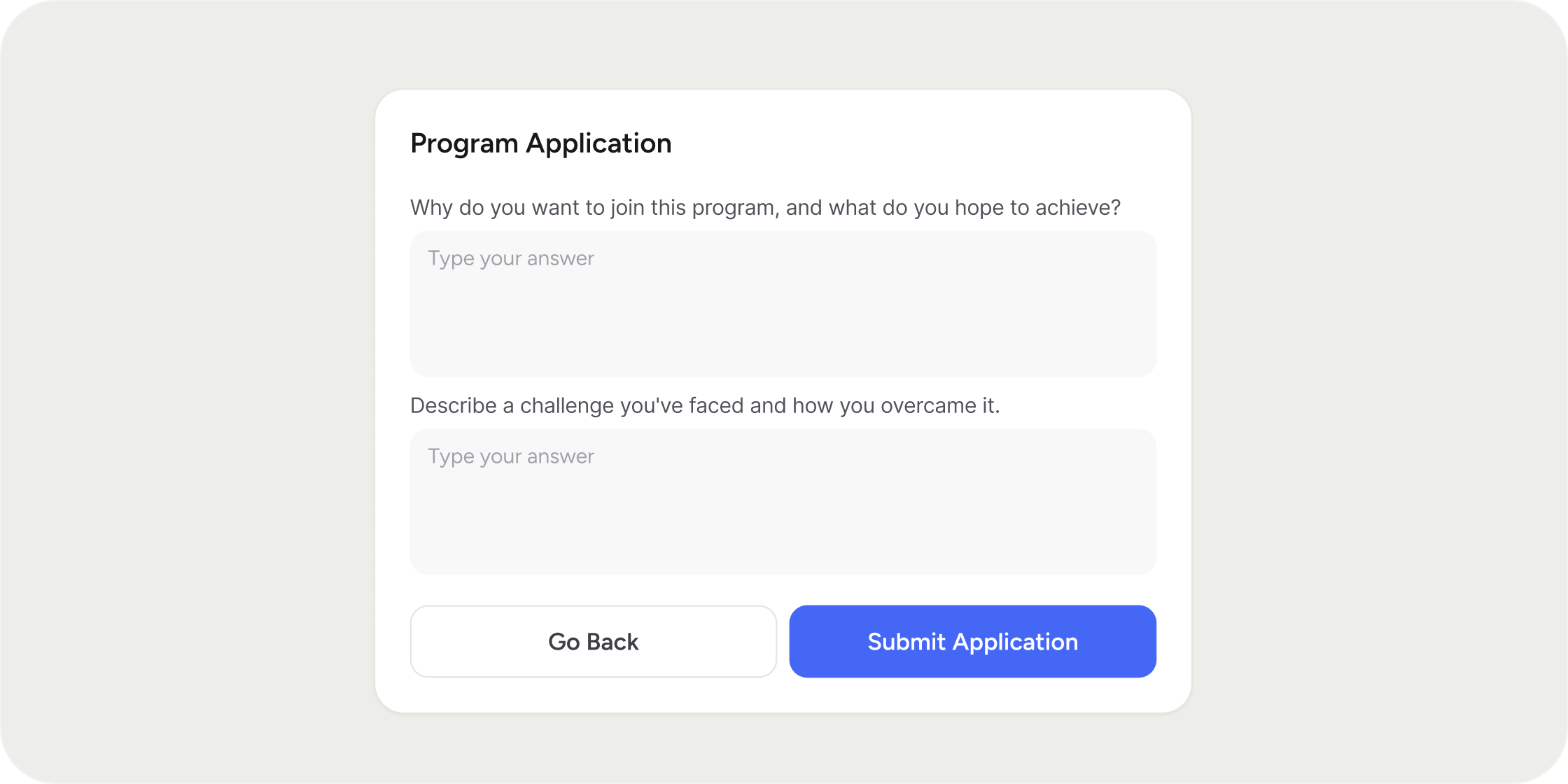 ## Overview
Applications let Admins review who joins a Program instead of admitting everyone at registration. When Application Required is turned on, Disco saves each submission for review, notifies the Admin, and keeps the Member out of the Program until the application is accepted or rejected. Admins can review submissions on the Program's **Members → Applications** tab or from the Academy-wide **Applications** page. If the Program is paid, the Member submits the application first and receives a registration link by email only after approval.
## Enable Applications on a Program
Turn on applications from the Program Settings drawer.
1. Open **Program Settings**, then select the **Access** tab.
2. Expand the **Enrollment** section and confirm the Program is available for registration.
3. Turn on **Application Required** to make approval part of the entry flow.
4. Click **Publish** to make the change live.
After you publish, Members see a **Start Application** button on the Program's registration card once they have verified their email or logged in to an existing account.
## **Add Application Questions**
All application questions are open-ended and written by you.
1. Under **Application Required**, click **Add Question**.
2. Type the prompt in the editor.
3. Repeat for each question you want Members to answer.
4. Click **Remove** on any question you no longer need.
5. Click **Publish** to save.
Every Program application must include at least one question. Blank questions cannot be saved.
**POV**
Keep your application short. Three to five focused questions give you enough signal to decide while keeping completion rates high. Long applications are where drop-off happens.
## **Review Applications for a Program**
Use the Program's Applications tab to manage submissions one Program at a time.
1. Open the Program and go to **Members → Applications**.
2. Use the search bar to look up an applicant by name or email.
3. Use the status filter to narrow the list to Pending, Accepted, Rejected, or Payment Failed.
4. Sort by any column header to reorder the list.
5. Click **Export** to download the current list as a CSV.
6. Select one or more applicants, then click **Email** to compose a message to the group.
7. Click **View Application** on any row to open the full response.
Each row shows the applicant's name, email, submission date, and current status. If no one has applied yet, the page shows an empty state.
## **Accept or Reject an Application**
Opening an application shows the applicant's name and email at the top of the modal, followed by each question and the Member's response.
1. Click **View Application** on the row you want to review.
2. Review the responses.
3. Click **Accept** to admit the applicant, or **Reject** to decline.
Once an application has been accepted or rejected, the modal is read-only. If an accepted paid application cannot be charged, the row shows a Payment Failed status so you can follow up.
## **Review Applications Across the Academy**
The Academy-wide Applications page gives Admins one place to manage submissions across every Program.
1. From the left navigation, open **Applications**.
2. Use search to look across every submission in the Academy.
3. Filter by status or by Program.
4. Sort by name, email, Program, or submission date.
5. Select applicants and click **Email** to message them in bulk.
This view adds a Program column so you can see which Program each application is tied to.
## **What the Member Sees**
A prospective Member's flow depends on whether the Program is free or paid.
For a free Program, the Member verifies their email, clicks **Start Application**, answers every question, and submits. The registration page then shows that the application is under review until an Admin makes a decision.
For a paid Program, the Member submits the application first. If approved, Disco emails them a link to complete registration and payment. The Member is only added to the Program once payment clears.
Members must answer every question before they can submit. Depending on your Academy setup, the flow can also include required acknowledgments the Member must complete before submitting.
## **FAQ**
Yes. Open **Program Settings → Access → Enrollment** and toggle **Application Required** off, then publish. Members who have already applied keep their existing application status.
Yes. The Applications table on both the Program view and the Academy-wide view includes an **Export** action that downloads the current filtered list as a CSV.
Not directly. Application questions only accept text. As a workaround, you can embed a Typeform or iFrame on the Program's registration page to collect file uploads, or ask Members to paste a link to their work in a text answer.
Yes. Each open-ended answer accepts up to 10,000 characters, which is long enough for detailed written responses and pasted links.
No. Each Member can only have one pending application per Program at a time.
No. Each Member can only have one pending application per Program at a time.
Each row shows one of Pending, Accepted, Rejected, or Payment Failed. Payment Failed only appears on paid Programs where an accepted applicant's card could not be charged.
Yes. Select the applicants you want to reach using the checkboxes on the Applications table, then click **Email** to compose a message to the group. This works on both the per-Program view and the Academy-wide view.
## Overview
Applications let Admins review who joins a Program instead of admitting everyone at registration. When Application Required is turned on, Disco saves each submission for review, notifies the Admin, and keeps the Member out of the Program until the application is accepted or rejected. Admins can review submissions on the Program's **Members → Applications** tab or from the Academy-wide **Applications** page. If the Program is paid, the Member submits the application first and receives a registration link by email only after approval.
## Enable Applications on a Program
Turn on applications from the Program Settings drawer.
1. Open **Program Settings**, then select the **Access** tab.
2. Expand the **Enrollment** section and confirm the Program is available for registration.
3. Turn on **Application Required** to make approval part of the entry flow.
4. Click **Publish** to make the change live.
After you publish, Members see a **Start Application** button on the Program's registration card once they have verified their email or logged in to an existing account.
## **Add Application Questions**
All application questions are open-ended and written by you.
1. Under **Application Required**, click **Add Question**.
2. Type the prompt in the editor.
3. Repeat for each question you want Members to answer.
4. Click **Remove** on any question you no longer need.
5. Click **Publish** to save.
Every Program application must include at least one question. Blank questions cannot be saved.
**POV**
Keep your application short. Three to five focused questions give you enough signal to decide while keeping completion rates high. Long applications are where drop-off happens.
## **Review Applications for a Program**
Use the Program's Applications tab to manage submissions one Program at a time.
1. Open the Program and go to **Members → Applications**.
2. Use the search bar to look up an applicant by name or email.
3. Use the status filter to narrow the list to Pending, Accepted, Rejected, or Payment Failed.
4. Sort by any column header to reorder the list.
5. Click **Export** to download the current list as a CSV.
6. Select one or more applicants, then click **Email** to compose a message to the group.
7. Click **View Application** on any row to open the full response.
Each row shows the applicant's name, email, submission date, and current status. If no one has applied yet, the page shows an empty state.
## **Accept or Reject an Application**
Opening an application shows the applicant's name and email at the top of the modal, followed by each question and the Member's response.
1. Click **View Application** on the row you want to review.
2. Review the responses.
3. Click **Accept** to admit the applicant, or **Reject** to decline.
Once an application has been accepted or rejected, the modal is read-only. If an accepted paid application cannot be charged, the row shows a Payment Failed status so you can follow up.
## **Review Applications Across the Academy**
The Academy-wide Applications page gives Admins one place to manage submissions across every Program.
1. From the left navigation, open **Applications**.
2. Use search to look across every submission in the Academy.
3. Filter by status or by Program.
4. Sort by name, email, Program, or submission date.
5. Select applicants and click **Email** to message them in bulk.
This view adds a Program column so you can see which Program each application is tied to.
## **What the Member Sees**
A prospective Member's flow depends on whether the Program is free or paid.
For a free Program, the Member verifies their email, clicks **Start Application**, answers every question, and submits. The registration page then shows that the application is under review until an Admin makes a decision.
For a paid Program, the Member submits the application first. If approved, Disco emails them a link to complete registration and payment. The Member is only added to the Program once payment clears.
Members must answer every question before they can submit. Depending on your Academy setup, the flow can also include required acknowledgments the Member must complete before submitting.
## **FAQ**
Yes. Open **Program Settings → Access → Enrollment** and toggle **Application Required** off, then publish. Members who have already applied keep their existing application status.
Yes. The Applications table on both the Program view and the Academy-wide view includes an **Export** action that downloads the current filtered list as a CSV.
Not directly. Application questions only accept text. As a workaround, you can embed a Typeform or iFrame on the Program's registration page to collect file uploads, or ask Members to paste a link to their work in a text answer.
Yes. Each open-ended answer accepts up to 10,000 characters, which is long enough for detailed written responses and pasted links.
No. Each Member can only have one pending application per Program at a time.
No. Each Member can only have one pending application per Program at a time.
Each row shows one of Pending, Accepted, Rejected, or Payment Failed. Payment Failed only appears on paid Programs where an accepted applicant's card could not be charged.
Yes. Select the applicants you want to reach using the checkboxes on the Applications table, then click **Email** to compose a message to the group. This works on both the per-Program view and the Academy-wide view.