> ## Documentation Index
> Fetch the complete documentation index at: https://docs.disco.co/llms.txt
> Use this file to discover all available pages before exploring further.
# Explore Page
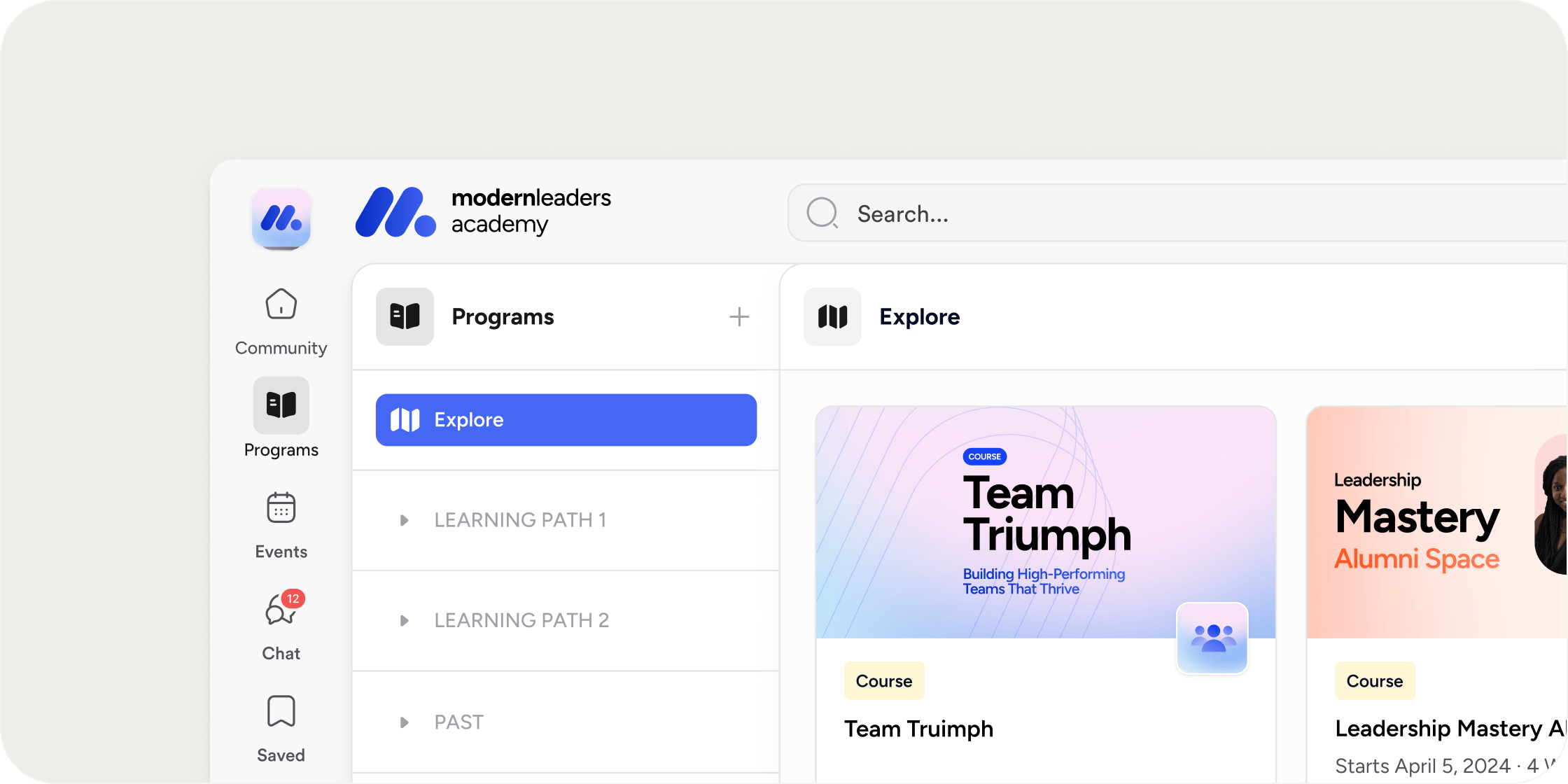
The Explore page is a self-service catalog that lets members discover, review, and register for programs and pathways available to them in their academy.
 ## **Overview**
The Explore page lives in the **Learning** tab of your academy's left sidebar. It gives members a way to browse available content and start the registration process on their own, without requiring admin action. Owners and admins see all programs and pathways across the academy; managers and members see only the content their role and registration settings permit.
## **Access the Explore Page**
Members and admins can reach the Explore page two ways:
1. Select **Learning** in the left sidebar of your academy.
2. If you are already inside a program or pathway, select the **Explore** tab in the **Learning** area sidebar.
## **Browse Programs and Pathways**
The Explore page organizes content across up to four tabs. Which tabs are visible depends on a member's role and the academy's content.
* **All:** displays all programs and pathways together. Only visible to members if the academy has at least one pathway.
* **Programs:** displays programs only.
* **Pathways:** displays pathways only. Like the **All** tab, this is only visible to members if the academy has at least one pathway.
* **Drafts:** displays programs and pathways still in draft status. Visible to owners and admins only. Managers can see their own draft programs in the **Learning** area sidebar but do not have access to this tab.
Clicking a program or pathway card does one of two things:
* **Not yet registered:** opens a details drawer with information about the program or pathway and an option to start the registration process.
* **Already registered:** navigates directly to the program or pathway dashboard.
## **Filter and Sort Programs**
Use filters to narrow what you see on the **Programs** or **Pathways** tabs. Filters are not available on the **All** or **Drafts** tabs.
Available filters:
* **Status:** All, Upcoming & Active, or Past
* **Registration:** All, Registered, or Available (programs you can register for but haven't yet)
* **Tags:** customizable labels managed by owners and admins under **Settings** > **Tags** in the Admin area
To change how programs are ordered, open the overflow menu on the **Explore** tab in the sidebar or the three-dots menu on the page, then select **Sort by**:
* **Order in Left Nav:** matches the drag-and-drop order set in the **Learning** area sidebar
* **Alphabetical:** sorted by program name
* **Date published**
## **Add Programs and Pathways**
Owners and admins can create new programs and pathways directly from the Explore page. Select the **Add** button in the upper right.
* On the **All** or **Drafts** tab, the primary action is **Add Program**, with a dropdown option to add a pathway instead.
* On the **Programs** tab, the button adds a program.
* On the **Pathways** tab, the button adds a pathway.
## **Understand Who Sees What**
What a member sees on the Explore page depends on their role and each program's registration setting.
**By role:**
* **Owners and admins** see all programs and pathways in the academy.
* **Managers** see programs they manage, are registered for, or are available for them to register for.
* **Members** see programs they are registered for or can register for.
**By registration setting:**
* **Public:** visible to all members and to the public
* **All Members:** visible to all members in the academy
* **Private:** visible only to specified members or groups
* **Invite-Only:** requires an invitation to register; not shown on the Explore page
Use **Private** visibility when you want to surface a program to a specific group, like a paying cohort or a certification track, without making it available to your whole academy. Use **Invite-Only** when you want no self-service discovery at all and prefer to control enrollment entirely through invitations.
## **Configure Explore Page Settings**
Access these settings from the overflow menu on the **Explore** tab in the sidebar, or from the three-dots menu on the page.
**Hide for Members**
Selecting **Hide for members** removes the **Explore** tab from all members' view. The tab remains visible and accessible to owners and admins, and can be re-enabled at any time from the same menu.
When the Explore page is hidden:
* Members who select **Learning** see only programs and pathways they have already registered for.
* The registration filter is removed from the page's filter options.
* Members can only join programs through auto-join or direct registration links shared by an admin.
Keep the Explore page visible unless you are running a closed or invite-only academy. Hiding it removes self-service discovery and puts the full burden of enrollment on admins. If your concern is preventing unauthorized registration, consider using **Invite-Only** or **Private** visibility on individual programs rather than hiding the page entirely.
## **FAQ**
No. Only members of your Academy can view your Explore page.
Filters are only available on the **Programs** and **Pathways** tabs. Switch to the relevant tab to use the Status, Registration, or Tags filters.
Check the program's registration setting. Programs set to **Invite-Only** do not appear on the Explore page at all. If the setting is **Private**, confirm the member belongs to the specified group or member list.
The left sidebar in the **Learning** area shows only programs a member has already registered for. The Explore page shows programs that are available to register for but not yet joined. Once a member registers, the program appears in their sidebar.
Yes. Hiding the Explore page removes self-service registration for members. After hiding it, share direct registration links with members who have completed payment, or use auto-join rules to grant access automatically.
No. The **Drafts** tab is visible to owners and admins only. Managers can see their own draft programs in the **Learning** area sidebar but do not have access to the **Drafts** tab on the Explore page.
No. The Explore page is not available in the Disco mobile app. Members using mobile can only view programs and pathways they have already registered for.
Yes. Open the overflow menu on the **Explore** tab in the sidebar or the three-dots menu on the page, select **Sort by**, and choose **Order in Left Nav**. Then rearrange programs using drag-and-drop in the **Learning** area sidebar to update the display order.
## **Overview**
The Explore page lives in the **Learning** tab of your academy's left sidebar. It gives members a way to browse available content and start the registration process on their own, without requiring admin action. Owners and admins see all programs and pathways across the academy; managers and members see only the content their role and registration settings permit.
## **Access the Explore Page**
Members and admins can reach the Explore page two ways:
1. Select **Learning** in the left sidebar of your academy.
2. If you are already inside a program or pathway, select the **Explore** tab in the **Learning** area sidebar.
## **Browse Programs and Pathways**
The Explore page organizes content across up to four tabs. Which tabs are visible depends on a member's role and the academy's content.
* **All:** displays all programs and pathways together. Only visible to members if the academy has at least one pathway.
* **Programs:** displays programs only.
* **Pathways:** displays pathways only. Like the **All** tab, this is only visible to members if the academy has at least one pathway.
* **Drafts:** displays programs and pathways still in draft status. Visible to owners and admins only. Managers can see their own draft programs in the **Learning** area sidebar but do not have access to this tab.
Clicking a program or pathway card does one of two things:
* **Not yet registered:** opens a details drawer with information about the program or pathway and an option to start the registration process.
* **Already registered:** navigates directly to the program or pathway dashboard.
## **Filter and Sort Programs**
Use filters to narrow what you see on the **Programs** or **Pathways** tabs. Filters are not available on the **All** or **Drafts** tabs.
Available filters:
* **Status:** All, Upcoming & Active, or Past
* **Registration:** All, Registered, or Available (programs you can register for but haven't yet)
* **Tags:** customizable labels managed by owners and admins under **Settings** > **Tags** in the Admin area
To change how programs are ordered, open the overflow menu on the **Explore** tab in the sidebar or the three-dots menu on the page, then select **Sort by**:
* **Order in Left Nav:** matches the drag-and-drop order set in the **Learning** area sidebar
* **Alphabetical:** sorted by program name
* **Date published**
## **Add Programs and Pathways**
Owners and admins can create new programs and pathways directly from the Explore page. Select the **Add** button in the upper right.
* On the **All** or **Drafts** tab, the primary action is **Add Program**, with a dropdown option to add a pathway instead.
* On the **Programs** tab, the button adds a program.
* On the **Pathways** tab, the button adds a pathway.
## **Understand Who Sees What**
What a member sees on the Explore page depends on their role and each program's registration setting.
**By role:**
* **Owners and admins** see all programs and pathways in the academy.
* **Managers** see programs they manage, are registered for, or are available for them to register for.
* **Members** see programs they are registered for or can register for.
**By registration setting:**
* **Public:** visible to all members and to the public
* **All Members:** visible to all members in the academy
* **Private:** visible only to specified members or groups
* **Invite-Only:** requires an invitation to register; not shown on the Explore page
Use **Private** visibility when you want to surface a program to a specific group, like a paying cohort or a certification track, without making it available to your whole academy. Use **Invite-Only** when you want no self-service discovery at all and prefer to control enrollment entirely through invitations.
## **Configure Explore Page Settings**
Access these settings from the overflow menu on the **Explore** tab in the sidebar, or from the three-dots menu on the page.
**Hide for Members**
Selecting **Hide for members** removes the **Explore** tab from all members' view. The tab remains visible and accessible to owners and admins, and can be re-enabled at any time from the same menu.
When the Explore page is hidden:
* Members who select **Learning** see only programs and pathways they have already registered for.
* The registration filter is removed from the page's filter options.
* Members can only join programs through auto-join or direct registration links shared by an admin.
Keep the Explore page visible unless you are running a closed or invite-only academy. Hiding it removes self-service discovery and puts the full burden of enrollment on admins. If your concern is preventing unauthorized registration, consider using **Invite-Only** or **Private** visibility on individual programs rather than hiding the page entirely.
## **FAQ**
No. Only members of your Academy can view your Explore page.
Filters are only available on the **Programs** and **Pathways** tabs. Switch to the relevant tab to use the Status, Registration, or Tags filters.
Check the program's registration setting. Programs set to **Invite-Only** do not appear on the Explore page at all. If the setting is **Private**, confirm the member belongs to the specified group or member list.
The left sidebar in the **Learning** area shows only programs a member has already registered for. The Explore page shows programs that are available to register for but not yet joined. Once a member registers, the program appears in their sidebar.
Yes. Hiding the Explore page removes self-service registration for members. After hiding it, share direct registration links with members who have completed payment, or use auto-join rules to grant access automatically.
No. The **Drafts** tab is visible to owners and admins only. Managers can see their own draft programs in the **Learning** area sidebar but do not have access to the **Drafts** tab on the Explore page.
No. The Explore page is not available in the Disco mobile app. Members using mobile can only view programs and pathways they have already registered for.
Yes. Open the overflow menu on the **Explore** tab in the sidebar or the three-dots menu on the page, select **Sort by**, and choose **Order in Left Nav**. Then rearrange programs using drag-and-drop in the **Learning** area sidebar to update the display order.