> ## Documentation Index
> Fetch the complete documentation index at: https://docs.disco.co/llms.txt
> Use this file to discover all available pages before exploring further.
# Custom Pages
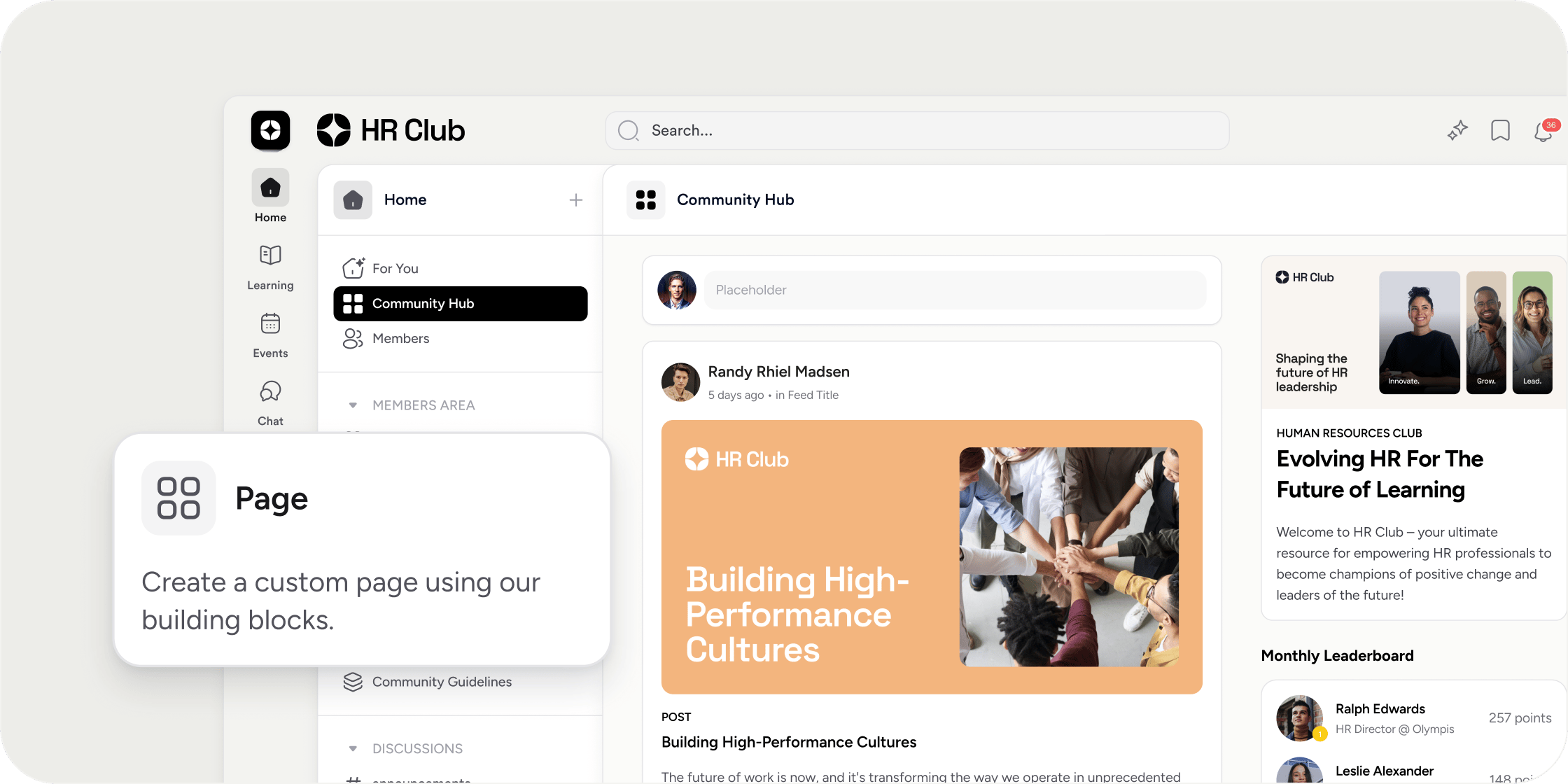
The Custom Page App is an app that lets admins build fully customized pages for any purpose, from branded welcome experiences to engagement leaderboards and merchandising hubs.
 ## **Overview**
Custom Page Apps give admins complete control over the layout and content of pages within their Academy. Each page is built from blocks: individual content modules you can add, remove, and rearrange to match the purpose of the page. Admins control who sees each page through access settings, and choose between a 1-column or 2-column layout to suit the content type.
You can create as many Custom Page Apps as you need. Common uses include branded welcome pages, social hubs, leaderboard showcases, and promotional pages for Programs and memberships.
## **Create a Custom Page App**
1. Select the **+** icon in the top right of the left navigation.
2. Select **Add App**.
3. Choose **Custom Page App**.
4. Enter a name and select an icon for the page.
5. Adjust the **Access** settings to control which Members can see this page.
6. Select a page layout: **1-column** or **2-column**.
7. Click **Complete Setup**.
Once created, the page appears in your left navigation and is ready to customize with blocks.
## **Customize Your Page with Blocks**
Blocks are the building units of a Custom Page. Each block displays a specific type of content, and you can combine them in any order to shape the page experience.
**To add a block:**
1. On the Custom Page, hover between any existing blocks to reveal the **+ Add Block** button.
2. Click **+ Add Block** and select a block type from the modal that appears.
3. Follow the on-screen instructions to configure the block.
**To reorder blocks:** Grab any block and drag it to a new position on the page.
## **Available Blocks**
Custom Page Apps support two categories of blocks: Standard and Personalized.
### **Standard Blocks**
Standard blocks display the same content to all Members who have access to the page.
* **Academy Details** Welcomes Members to your Academy and communicates your offering.
* **Members** Surfaces Member profiles to encourage social connections between Members.
* **Leaderboard** Displays a ranked list of Members based on engagement score. You can configure the time period and number of Members shown within the block settings.
* **Rich Text** A free-form block using the Rich Text Editor. Use it for custom messages, announcements, rules, or any formatted content.
* **Featured Products** Spotlights specific Programs you choose to highlight.
* **Featured Memberships** Spotlights memberships available in your Academy.
* **Content** Embeds existing content from your Academy inline on the page.
### **Personalized Blocks**
Personalized blocks adapt their content to each individual Member viewing the page.
* **Hero Banner** Displays a full-width banner with a custom background (image or solid color) and an optional welcome message. The Hero Banner is always the first block on the page and expands to fill the entire screen width, regardless of the layout selected. In a 2-column layout, the 2-column structure applies only to the blocks below the Hero Banner.
* **Jump Back In** Shows each Member their incomplete courses that have a curriculum, helping them resume where they left off. Members see their enrolled, incomplete courses. Admins see their own incomplete enrollments. Selecting a course redirects to the curriculum page and expands the last accessed module.
* **Recently Viewed** Tracks and displays content the Member has accessed across Programs and Collections. Content appears in this block after being viewed for at least 3 seconds, and includes materials from courses, collections, and other learning resources.
* **Posts** Highlights the latest posts from across all feeds in the Academy. In a 2-column layout, Posts displays in carousel or scroll format when placed in the middle column, and in carousel format only when placed in the side column. In a 1-column layout, Posts always uses carousel format.
* **Events** Highlights the most recent and upcoming events in your Academy.
## **Page Templates**
The following templates are starting points for common use cases. Use them as inspiration when building your own Custom Page Apps.
The **For You** page is the default home page for all Members in your Academy. It delivers a personalized experience based on each Member's learning journey. Unlike other Custom Page Apps, the For You page is always visible to everyone and cannot be reordered or removed from the left navigation.
Admins can customize the For You page with 1-column or 2-column layout and use the drag-and-drop editor to arrange blocks or add new ones. Recommended blocks: **Hero Banner**, **Jump Back In**, **Recently Viewed**, **Members**.
A page where Members interact, share updates, and engage with each other to boost participation across the Academy.
**Setup:** 2-column layout, access set to All Members.
Recommended blocks:
* Middle column: **Posts**
* Side column: **Community Details**, **Members**, **Events**
A page dedicated to showcasing Member engagement rankings across multiple time periods.
**Setup:** 2-column layout, access set to All Members.
Recommended blocks:
* Middle column: **Leaderboard** block, renamed "All-time Leaderboard", configured to show the top 15 Members from the last 365 days.
* Side column:
* **Rich Text** block explaining how Members earn points and qualify for the leaderboard.
* **Leaderboard** block, renamed "Monthly Leaderboard", configured to show the top 5 Members from the last 30 days.
* **Leaderboard** block, renamed "Weekly Leaderboard", configured to show the top 5 Members from the last 7 days.
A page to promote Programs, events, and memberships all in one place.
**Setup:** 1-column layout, access set to All Members. Suggested name: "Shop" or "Merchandising".
Recommended blocks: **Events**, **Featured Products**, **Featured Memberships**.
## **FAQ**
There is no limit. Admins can create as many Custom Page Apps as needed.
Yes. Drag and drop any Custom Page App to reorder it within the left navigation, and move it in or out of navigation sections. The For You page is always in the first position and cannot be reordered.
Yes. The For You page supports 1-column and 2-column layouts. Use the drag-and-drop editor to add and arrange blocks, the same as any other Custom Page App.
Use an image that is 1600px wide by 400px tall for best results.
Clicking **+ Add Block** opens a modal listing all available block types. Select any block from the list to add and configure it on the page.
Yes. In the Leaderboard block settings, set the **Time Period** to **Last Month** or **Last 30 Days** to display scores from that period. If you want to track multiple time periods simultaneously, add separate Leaderboard blocks to the page and configure each with a different time period.
## **Overview**
Custom Page Apps give admins complete control over the layout and content of pages within their Academy. Each page is built from blocks: individual content modules you can add, remove, and rearrange to match the purpose of the page. Admins control who sees each page through access settings, and choose between a 1-column or 2-column layout to suit the content type.
You can create as many Custom Page Apps as you need. Common uses include branded welcome pages, social hubs, leaderboard showcases, and promotional pages for Programs and memberships.
## **Create a Custom Page App**
1. Select the **+** icon in the top right of the left navigation.
2. Select **Add App**.
3. Choose **Custom Page App**.
4. Enter a name and select an icon for the page.
5. Adjust the **Access** settings to control which Members can see this page.
6. Select a page layout: **1-column** or **2-column**.
7. Click **Complete Setup**.
Once created, the page appears in your left navigation and is ready to customize with blocks.
## **Customize Your Page with Blocks**
Blocks are the building units of a Custom Page. Each block displays a specific type of content, and you can combine them in any order to shape the page experience.
**To add a block:**
1. On the Custom Page, hover between any existing blocks to reveal the **+ Add Block** button.
2. Click **+ Add Block** and select a block type from the modal that appears.
3. Follow the on-screen instructions to configure the block.
**To reorder blocks:** Grab any block and drag it to a new position on the page.
## **Available Blocks**
Custom Page Apps support two categories of blocks: Standard and Personalized.
### **Standard Blocks**
Standard blocks display the same content to all Members who have access to the page.
* **Academy Details** Welcomes Members to your Academy and communicates your offering.
* **Members** Surfaces Member profiles to encourage social connections between Members.
* **Leaderboard** Displays a ranked list of Members based on engagement score. You can configure the time period and number of Members shown within the block settings.
* **Rich Text** A free-form block using the Rich Text Editor. Use it for custom messages, announcements, rules, or any formatted content.
* **Featured Products** Spotlights specific Programs you choose to highlight.
* **Featured Memberships** Spotlights memberships available in your Academy.
* **Content** Embeds existing content from your Academy inline on the page.
### **Personalized Blocks**
Personalized blocks adapt their content to each individual Member viewing the page.
* **Hero Banner** Displays a full-width banner with a custom background (image or solid color) and an optional welcome message. The Hero Banner is always the first block on the page and expands to fill the entire screen width, regardless of the layout selected. In a 2-column layout, the 2-column structure applies only to the blocks below the Hero Banner.
* **Jump Back In** Shows each Member their incomplete courses that have a curriculum, helping them resume where they left off. Members see their enrolled, incomplete courses. Admins see their own incomplete enrollments. Selecting a course redirects to the curriculum page and expands the last accessed module.
* **Recently Viewed** Tracks and displays content the Member has accessed across Programs and Collections. Content appears in this block after being viewed for at least 3 seconds, and includes materials from courses, collections, and other learning resources.
* **Posts** Highlights the latest posts from across all feeds in the Academy. In a 2-column layout, Posts displays in carousel or scroll format when placed in the middle column, and in carousel format only when placed in the side column. In a 1-column layout, Posts always uses carousel format.
* **Events** Highlights the most recent and upcoming events in your Academy.
## **Page Templates**
The following templates are starting points for common use cases. Use them as inspiration when building your own Custom Page Apps.
The **For You** page is the default home page for all Members in your Academy. It delivers a personalized experience based on each Member's learning journey. Unlike other Custom Page Apps, the For You page is always visible to everyone and cannot be reordered or removed from the left navigation.
Admins can customize the For You page with 1-column or 2-column layout and use the drag-and-drop editor to arrange blocks or add new ones. Recommended blocks: **Hero Banner**, **Jump Back In**, **Recently Viewed**, **Members**.
A page where Members interact, share updates, and engage with each other to boost participation across the Academy.
**Setup:** 2-column layout, access set to All Members.
Recommended blocks:
* Middle column: **Posts**
* Side column: **Community Details**, **Members**, **Events**
A page dedicated to showcasing Member engagement rankings across multiple time periods.
**Setup:** 2-column layout, access set to All Members.
Recommended blocks:
* Middle column: **Leaderboard** block, renamed "All-time Leaderboard", configured to show the top 15 Members from the last 365 days.
* Side column:
* **Rich Text** block explaining how Members earn points and qualify for the leaderboard.
* **Leaderboard** block, renamed "Monthly Leaderboard", configured to show the top 5 Members from the last 30 days.
* **Leaderboard** block, renamed "Weekly Leaderboard", configured to show the top 5 Members from the last 7 days.
A page to promote Programs, events, and memberships all in one place.
**Setup:** 1-column layout, access set to All Members. Suggested name: "Shop" or "Merchandising".
Recommended blocks: **Events**, **Featured Products**, **Featured Memberships**.
## **FAQ**
There is no limit. Admins can create as many Custom Page Apps as needed.
Yes. Drag and drop any Custom Page App to reorder it within the left navigation, and move it in or out of navigation sections. The For You page is always in the first position and cannot be reordered.
Yes. The For You page supports 1-column and 2-column layouts. Use the drag-and-drop editor to add and arrange blocks, the same as any other Custom Page App.
Use an image that is 1600px wide by 400px tall for best results.
Clicking **+ Add Block** opens a modal listing all available block types. Select any block from the list to add and configure it on the page.
Yes. In the Leaderboard block settings, set the **Time Period** to **Last Month** or **Last 30 Days** to display scores from that period. If you want to track multiple time periods simultaneously, add separate Leaderboard blocks to the page and configure each with a different time period.