> ## Documentation Index
> Fetch the complete documentation index at: https://docs.disco.co/llms.txt
> Use this file to discover all available pages before exploring further.
# Custom Domains
Custom Domains let you replace your default Disco URL with a branded domain like [learn.yourcompany.com](http://learn.yourcompany.com), so every link Disco generates uses your brand instead of the default address.
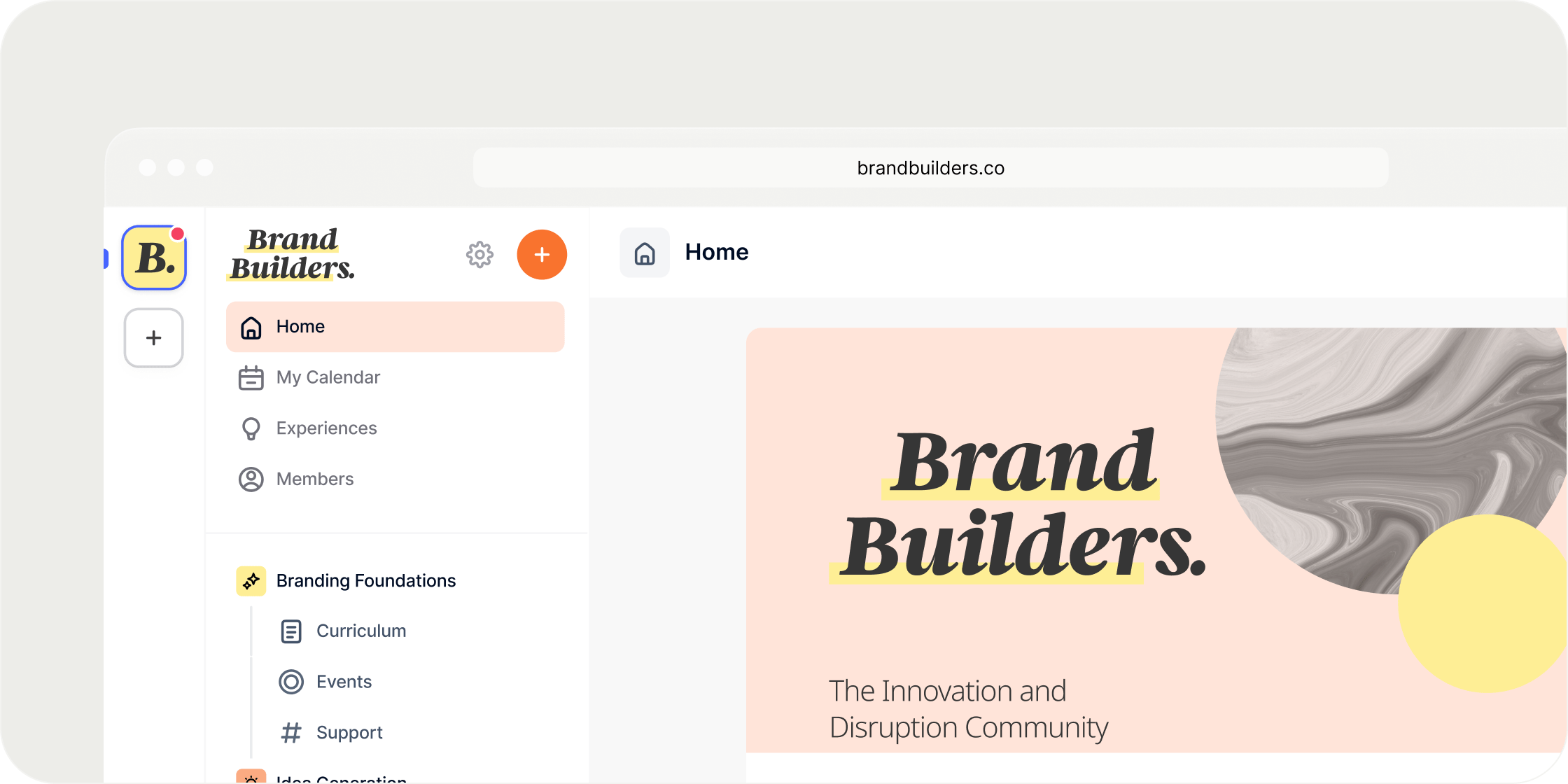 ## **Overview**
Custom Domains gives Admins control over the web URL members use to access an Academy. Once a custom domain is set as the primary domain, every link Disco generates (including email notifications, sign-in links, and calendar invites) uses that domain. The default [yourcompany.disco.co](http://yourcompany.disco.co) address continues to work and cannot be disabled. Custom Domains applies only to the web URL; email sender domains are configured separately. The feature is available on all paid plans.
## **Set Up a Custom Domain**
Setting up a custom domain takes two steps: add the domain in Disco, then add DNS records at your domain registrar.
1. Go to **Admin Console → Appearance → Domain**.
2. Click **Add Custom Domain**.
3. Enter the bare hostname. Do not include https\:// or a path. For example, enter [learn.yourcompany.com](http://learn.yourcompany.com) or [yourcompany.com](http://www.yourcompany.com).
4. Click **Add**. Disco generates the DNS records you need to add at your registrar.
The records shown depend on whether you entered a subdomain or a root domain.
For a subdomain like [learn.yourcompany.com](http://learn.yourcompany.com):
* One TXT record for ownership verification
* Two A records pointing to Disco's servers
For a root (apex) domain like [yourcompany.com](http://yourcompany.com):
* One TXT record for ownership verification
* Two A records pointing to Disco's servers
* One CNAME record pointing [www.yourcompany.com](http://www.yourcompany.com) to [yourcompany.com](http://yourcompany.com)
Copy the type, name, and value for each record into your registrar. Most registrars want only the relative part of the record name, not the full hostname. For a record shown as [learn.yourcompany.com](http://learn.yourcompany.com) in Disco, enter only learn in your registrar's name field. For a record at the root domain, most registrars expect @ in the name field.
Once all records are detected, Disco provisions an SSL certificate automatically. DNS propagation typically takes less than an hour, but timing varies by registrar.
## **Set the Primary Domain**
Once your domain reaches **OK** status, you can make it the primary domain for your Academy. The primary domain determines which URL Disco uses to generate outbound links.
1. On the **Domain** page, find the verified domain.
2. Open the three-dot menu on the domain row.
3. Select **Set as Primary Domain**.
Your Academy is now accessible at the custom domain, and every Disco-generated link uses it. You can change the primary domain at any time by toggling a different verified domain to primary.
Use a subdomain such as [learn.yourcompany.com](http://learn.yourcompany.com) rather than your root domain. A subdomain keeps your marketing site and your Academy independent, makes DNS setup simpler, and avoids routing conflicts if you run another service on the root.
## **The Domain Page**
The Domain page lists every domain mapped to your Academy. Each domain appears as an expandable card showing the domain name, the date it was added, and a status.
Status values:
* **OK**: the domain is verified and the SSL certificate is active.
* **Provisioning**: DNS records are detected but the SSL certificate is still being issued.
* **Setup Incomplete**: DNS records have not been detected yet.
* **Failure**: the SSL certificate failed to issue or renew.
Inline controls on each card depend on status. A verified domain shows a **Primary Domain** toggle you can use to set or remove it as primary. A domain in **Failure** state shows a **Retry** button that re-attempts SSL provisioning.
Expanding a card reveals the DNS records table with each record's type, name, value, and individual status (**OK** or **Missing**). Verified domains are collapsed by default; domains still in setup are expanded automatically.
The three-dot menu on each card has two actions:
* **Refresh** manually triggers a DNS check and status update.
* **Delete** removes the domain. If the deleted domain was primary, the Academy falls back to the default [disco.co](http://disco.co) address automatically.
The **Add Custom Domain** button stays visible at the bottom of the page so you can add another domain at any time.
## **Settings and Configurations**
**Primary domain.** The primary domain controls which URL Disco uses to generate all outbound links, including email notifications, sign-in links, calendar invites, and OAuth redirects. Only one domain can be primary at a time. The previous primary domain remains accessible after you switch, but Disco stops using it for link generation.
**SSL certificate management.** Disco provisions and renews SSL certificates automatically for every custom domain. No configuration is required from the Admin. If a certificate renewal fails, the domain enters **Failure** status and a **Retry** button appears on its card.
## **FAQ**
Less than an hour in most cases, though some registrars take several hours. You can leave the Domain page and come back later. The status updates on your next visit once the records propagate.
Open the three-dot menu on the domain card and click **Refresh**. If the status still shows **Missing** after an hour, double-check that you entered only the relative part of the record name in your registrar (for example, learn instead of [learn.acme.com](http://learn.acme.com)), and that the record values exactly match what Disco provided, with no extra characters at the end.
Most registrars expect the relative part of the record name. For an apex A record, enter @ in the name field instead of the full domain. For a CNAME, enter www as the name. For the TXT verification record, enter \_disco\_verify as the name. Disco shows the full hostname for reference; your registrar combines the relative name with your zone automatically.
The **Set as Primary Domain** option only appears once the domain reaches **OK** status. A domain with missing DNS records or a pending SSL certificate cannot be made primary. Wait for the status to show **OK**, then open the three-dot menu again.
It works automatically. Once the domain is set as primary, typing the custom URL in a browser routes directly to your Academy. You do not need to add a redirect from your main website. The Academy experience is identical at the custom URL and at the default URL.
Yes. Because the URL changes, every signed-in member (Admins included) is asked to log in the first time they visit the new address. This is a one-time prompt per browser.
No. The default address stays live and cannot be disabled. Members who visit the old URL can still access the Academy. There is no way to redirect or turn off the default address.
This is almost always browser-side. Ask the member to clear their browser cache, restart their browser, and visit the Academy again. If the error persists on other devices or browsers, send a support ticket with the member's email so Disco can check SSL status for your domain.
No. When you add an apex domain like [acme.com](http://acme.com), Disco includes a CNAME record for [www.acme.com](http://www.acme.com) in the setup instructions. Once verified, both [acme.com](http://acme.com) and [www.acme.com](http://www.acme.com) route to your Academy.
Certain formats are not accepted. Remove any https\:// prefix or path from the hostname. Single-label names such as localhost are rejected. Subdomains of [disco.co](http://disco.co) or [dancefloor.dev](http://dancefloor.dev) are also rejected, since those are Disco's own domains.
The domain has already been added, possibly by another Admin or during an earlier attempt. Find it on the Domain page to continue setup, or delete it first if you want to start fresh.
Disco automatically reverts the Academy to the default [yourcompany.disco.co](http://yourcompany.disco.co) address and clears the custom domain as primary. Members keep their access on the default address. Click **Retry** on the failed domain to re-attempt provisioning once the underlying issue is resolved.
Only that domain is affected. Your primary domain and your Academy's live URL keep working normally.
our Academy immediately falls back to the default [disco.co](http://disco.co) address. You can add and verify a new custom domain at any time.
## **Overview**
Custom Domains gives Admins control over the web URL members use to access an Academy. Once a custom domain is set as the primary domain, every link Disco generates (including email notifications, sign-in links, and calendar invites) uses that domain. The default [yourcompany.disco.co](http://yourcompany.disco.co) address continues to work and cannot be disabled. Custom Domains applies only to the web URL; email sender domains are configured separately. The feature is available on all paid plans.
## **Set Up a Custom Domain**
Setting up a custom domain takes two steps: add the domain in Disco, then add DNS records at your domain registrar.
1. Go to **Admin Console → Appearance → Domain**.
2. Click **Add Custom Domain**.
3. Enter the bare hostname. Do not include https\:// or a path. For example, enter [learn.yourcompany.com](http://learn.yourcompany.com) or [yourcompany.com](http://www.yourcompany.com).
4. Click **Add**. Disco generates the DNS records you need to add at your registrar.
The records shown depend on whether you entered a subdomain or a root domain.
For a subdomain like [learn.yourcompany.com](http://learn.yourcompany.com):
* One TXT record for ownership verification
* Two A records pointing to Disco's servers
For a root (apex) domain like [yourcompany.com](http://yourcompany.com):
* One TXT record for ownership verification
* Two A records pointing to Disco's servers
* One CNAME record pointing [www.yourcompany.com](http://www.yourcompany.com) to [yourcompany.com](http://yourcompany.com)
Copy the type, name, and value for each record into your registrar. Most registrars want only the relative part of the record name, not the full hostname. For a record shown as [learn.yourcompany.com](http://learn.yourcompany.com) in Disco, enter only learn in your registrar's name field. For a record at the root domain, most registrars expect @ in the name field.
Once all records are detected, Disco provisions an SSL certificate automatically. DNS propagation typically takes less than an hour, but timing varies by registrar.
## **Set the Primary Domain**
Once your domain reaches **OK** status, you can make it the primary domain for your Academy. The primary domain determines which URL Disco uses to generate outbound links.
1. On the **Domain** page, find the verified domain.
2. Open the three-dot menu on the domain row.
3. Select **Set as Primary Domain**.
Your Academy is now accessible at the custom domain, and every Disco-generated link uses it. You can change the primary domain at any time by toggling a different verified domain to primary.
Use a subdomain such as [learn.yourcompany.com](http://learn.yourcompany.com) rather than your root domain. A subdomain keeps your marketing site and your Academy independent, makes DNS setup simpler, and avoids routing conflicts if you run another service on the root.
## **The Domain Page**
The Domain page lists every domain mapped to your Academy. Each domain appears as an expandable card showing the domain name, the date it was added, and a status.
Status values:
* **OK**: the domain is verified and the SSL certificate is active.
* **Provisioning**: DNS records are detected but the SSL certificate is still being issued.
* **Setup Incomplete**: DNS records have not been detected yet.
* **Failure**: the SSL certificate failed to issue or renew.
Inline controls on each card depend on status. A verified domain shows a **Primary Domain** toggle you can use to set or remove it as primary. A domain in **Failure** state shows a **Retry** button that re-attempts SSL provisioning.
Expanding a card reveals the DNS records table with each record's type, name, value, and individual status (**OK** or **Missing**). Verified domains are collapsed by default; domains still in setup are expanded automatically.
The three-dot menu on each card has two actions:
* **Refresh** manually triggers a DNS check and status update.
* **Delete** removes the domain. If the deleted domain was primary, the Academy falls back to the default [disco.co](http://disco.co) address automatically.
The **Add Custom Domain** button stays visible at the bottom of the page so you can add another domain at any time.
## **Settings and Configurations**
**Primary domain.** The primary domain controls which URL Disco uses to generate all outbound links, including email notifications, sign-in links, calendar invites, and OAuth redirects. Only one domain can be primary at a time. The previous primary domain remains accessible after you switch, but Disco stops using it for link generation.
**SSL certificate management.** Disco provisions and renews SSL certificates automatically for every custom domain. No configuration is required from the Admin. If a certificate renewal fails, the domain enters **Failure** status and a **Retry** button appears on its card.
## **FAQ**
Less than an hour in most cases, though some registrars take several hours. You can leave the Domain page and come back later. The status updates on your next visit once the records propagate.
Open the three-dot menu on the domain card and click **Refresh**. If the status still shows **Missing** after an hour, double-check that you entered only the relative part of the record name in your registrar (for example, learn instead of [learn.acme.com](http://learn.acme.com)), and that the record values exactly match what Disco provided, with no extra characters at the end.
Most registrars expect the relative part of the record name. For an apex A record, enter @ in the name field instead of the full domain. For a CNAME, enter www as the name. For the TXT verification record, enter \_disco\_verify as the name. Disco shows the full hostname for reference; your registrar combines the relative name with your zone automatically.
The **Set as Primary Domain** option only appears once the domain reaches **OK** status. A domain with missing DNS records or a pending SSL certificate cannot be made primary. Wait for the status to show **OK**, then open the three-dot menu again.
It works automatically. Once the domain is set as primary, typing the custom URL in a browser routes directly to your Academy. You do not need to add a redirect from your main website. The Academy experience is identical at the custom URL and at the default URL.
Yes. Because the URL changes, every signed-in member (Admins included) is asked to log in the first time they visit the new address. This is a one-time prompt per browser.
No. The default address stays live and cannot be disabled. Members who visit the old URL can still access the Academy. There is no way to redirect or turn off the default address.
This is almost always browser-side. Ask the member to clear their browser cache, restart their browser, and visit the Academy again. If the error persists on other devices or browsers, send a support ticket with the member's email so Disco can check SSL status for your domain.
No. When you add an apex domain like [acme.com](http://acme.com), Disco includes a CNAME record for [www.acme.com](http://www.acme.com) in the setup instructions. Once verified, both [acme.com](http://acme.com) and [www.acme.com](http://www.acme.com) route to your Academy.
Certain formats are not accepted. Remove any https\:// prefix or path from the hostname. Single-label names such as localhost are rejected. Subdomains of [disco.co](http://disco.co) or [dancefloor.dev](http://dancefloor.dev) are also rejected, since those are Disco's own domains.
The domain has already been added, possibly by another Admin or during an earlier attempt. Find it on the Domain page to continue setup, or delete it first if you want to start fresh.
Disco automatically reverts the Academy to the default [yourcompany.disco.co](http://yourcompany.disco.co) address and clears the custom domain as primary. Members keep their access on the default address. Click **Retry** on the failed domain to re-attempt provisioning once the underlying issue is resolved.
Only that domain is affected. Your primary domain and your Academy's live URL keep working normally.
our Academy immediately falls back to the default [disco.co](http://disco.co) address. You can add and verify a new custom domain at any time.