> ## Documentation Index
> Fetch the complete documentation index at: https://docs.disco.co/llms.txt
> Use this file to discover all available pages before exploring further.
# Curriculum
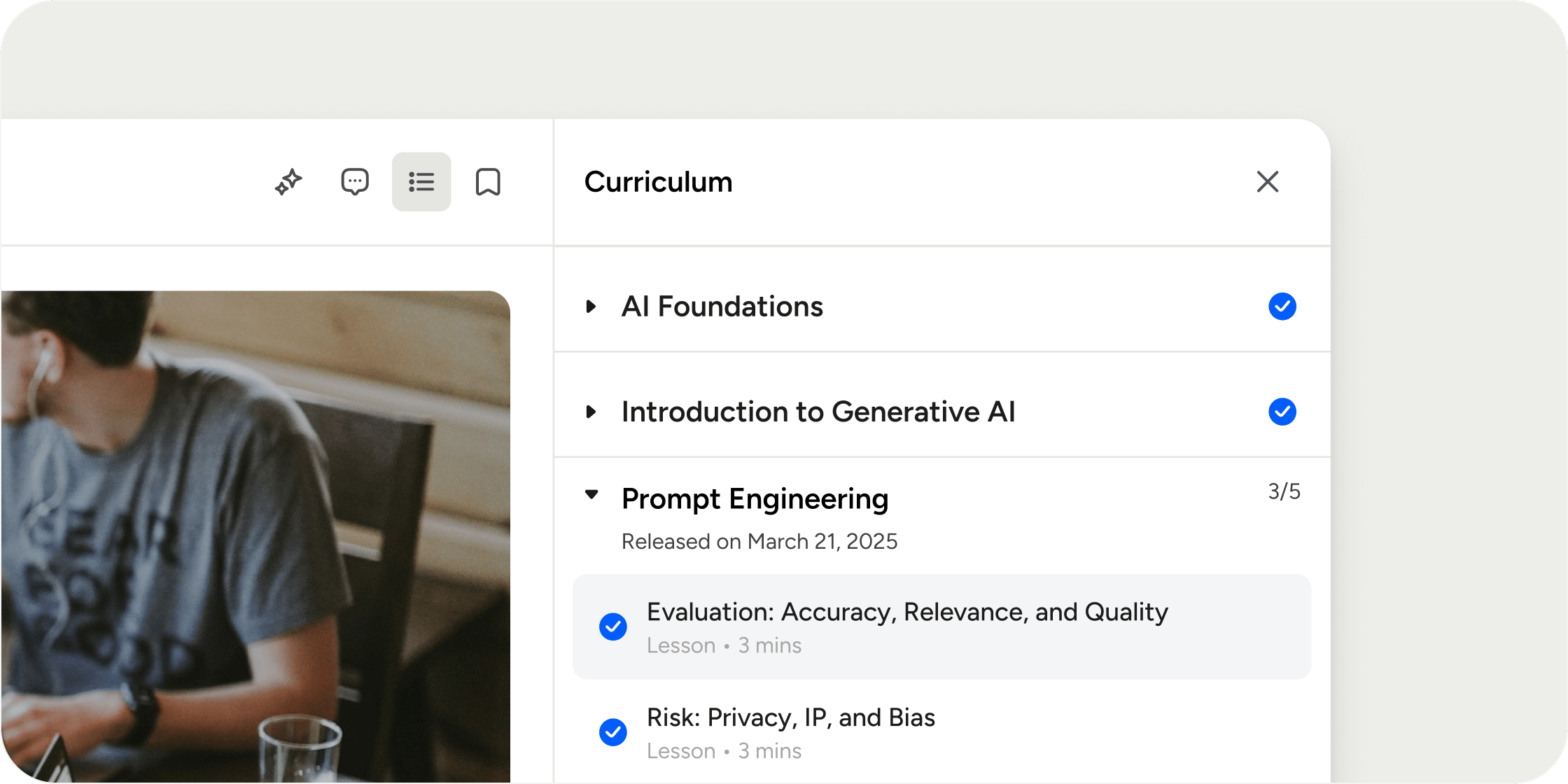
The Curriculum app is the primary learning resource within a Program that enables you to create, organize, and deliver a structured sequence of Modules and lessons to your members.
 ## **Overview**
The Curriculum app is the vehicle for delivering traditional course experiences in Disco. You build your course by creating Modules, populating each Module with lessons, and optionally associating events. Cohort-based and self-paced Programs include the Curriculum app by default. For blank Programs and event series Programs, you add it manually. Only one Curriculum app can exist per Program, and it can only be added at the Program level.
## **Add the Curriculum App to a Program**
All members can access a Curriculum app as soon as it is added to a Program, even if it contains no content. If your Program is live, members will see an empty Curriculum until you publish content. To avoid this, build out your Curriculum while the Program is in draft mode and publish when you are ready.
1. Navigate to your Program in the left nav.
2. Click the **+** icon next to the Program name.
3. In the **Add App** modal, select **Curriculum**.
The Curriculum app now appears in the left nav under your Program.
## **Configure Curriculum App Settings**
You can update the Curriculum app's name and icon at any time. Access permissions are fixed: all members can view the Curriculum, and all admins, instructors, and program managers can manage it. These permissions cannot be changed.
1. Hover over the Curriculum app in the left nav.
2. Click the overflow icon (**...**) and select **Edit**.
3. Update the Icon & title fields as needed. Keep the title brief since it displays in the left nav.
4. Toggle **Show Completed Members** on to make module completion visible to all members.
5. Click **Save**.
## **Add a Module**
Modules are the top-level containers that organize your lessons. You can generate an entire curriculum structure using **Ask AI**, or build Modules manually one at a time.
1. Inside the Curriculum app, click **Add Module**.
2. Enter a required Name for the Module.
3. Optionally add a Description to provide context for members.
4. To schedule the Module for a future release, toggle on **Release module in future** and set a date and time.
5. To require members to complete other Modules first, select one or more Modules under **Prerequisites**. Prerequisites can only be set when the curriculum contains more than one Module.
6. To display a time estimate next to the Module title, enable **Time estimate** and enter a value. This estimate aggregates the time estimates of each lesson inside the Module. It does not include the duration of any associated events.
7. Click **Save**.
The new Module appears at the top of your Curriculum and is expanded by default.
## **Add Lessons to a Module**
Each Module holds one or more lessons. You can create new content from scratch, reuse existing content from your Academy, or generate content using **Ask AI**.
1. Click the **+** icon on the top-right of the Module.
2. In the content modal, choose a content type: **Lessons**
* **Text** — a rich text page
* **Video** — an embedded or uploaded video
* **Audio** — an audio file
3. **Tasks** (require members to take a specific action)
* **Assignment** — members submit work for review
* **Quiz** — members answer questions to test their knowledge. Quizzes can only be added inside the Curriculum app.
* **Survey** — members respond to open-ended or structured questions
* **Complete Profile** — members update their member profile
* **Event RSVP** — members RSVP to an event (requires an Events app on the Program)
* **Connect Slack** — members link their Slack account to their Academy account (requires Slack integration)
4. Enter a required Title for the lesson.
5. Add lesson content and configure any lesson-level prerequisites or confirmation checkboxes as needed.
6. Click **Save**.
The lesson appears inside the Module. If a time estimate is enabled on the Module, the Module's total estimate updates automatically.
## **Associate Events with a Module**
Associating events with a Module surfaces them alongside that Module's lessons for context. Attending an associated event does not count toward curriculum completion or member progress.
1. Hover over the Module and click the overflow icon (**...**).
2. Select **Associate Events**.
3. Search for events by name, or filter by **Upcoming**, **Past**, or **All**.
4. Select one or more events to add them to the association list.
5. To remove an event, click the **X** icon next to it.
6. Click **Save**.
The Module updates to show two sections: **Events** listing associated events, and **Content** listing the Module's lessons.
## **Schedule or Hide a Module**
You can hide a Module from members and release it at a future date — useful for drip-style content releases in cohort courses. Hiding a Module after members have already completed it does not remove their completion status. It only restricts access for members who have not yet completed it.
1. Hover over the Module and click the overflow icon (**...**).
2. Select **Edit**.
3. Toggle on **Release module in future** and set a release date and time.
4. Click **Save**.
To make the Module immediately accessible, return to the Module settings, disable the **Release module in future** toggle, and save.
## **Clone a Module**
Cloning lets you duplicate a Module within the same Curriculum or copy it to another Program.
1. Hover over the Module and click the overflow icon (**...**).
2. Select **Clone**.
3. Choose one of two options: **Clone within this Curriculum**
* Edit the Name if needed. By default, the clone is named with a "copy" suffix.
* Set a release date, or leave it unscheduled so members can access it immediately.
* Click **Save**.
4. **Clone to another Program**
* Edit the Name if needed.
* Select a target Program from the dropdown. The target Program must be published. You cannot clone a Module to a draft Program.
* Set an optional release date and time.
* Click **Save**.
## **Reorder Modules and Lessons**
Reordering changes the visual sequence of content only. It does not affect prerequisite logic or completion tracking.
* To reorder Modules, drag and drop them within the Curriculum dashboard.
* To reorder lessons within a Module, drag and drop lessons within the Module.
* To move a lesson to a different Module, drag the lesson and drop it into the target Module.
We recommend keeping your Program in draft mode while you build out your Curriculum. Once you add the Curriculum app, members can see it — even if it's empty. Drafting first means members get a polished, complete experience on day one.
## **FAQ**
No. Each Program supports only one Curriculum app.
No. Prerequisites require at least two Modules in the Curriculum. Add a second Module first, then configure prerequisites.
No. You can only clone a Module to a published Program. Publish the target Program before cloning.
No. Certificates already issued are not revoked. New content added to the Curriculum only applies to members who have not yet completed it.
Deleting the Curriculum app permanently deletes all learning content and all member progress associated with it. This action cannot be undone.
No. Associated events are contextual only. Attending them does not affect a member's progress or completion status.
No. Quizzes can only be added to the Curriculum app.
## **Overview**
The Curriculum app is the vehicle for delivering traditional course experiences in Disco. You build your course by creating Modules, populating each Module with lessons, and optionally associating events. Cohort-based and self-paced Programs include the Curriculum app by default. For blank Programs and event series Programs, you add it manually. Only one Curriculum app can exist per Program, and it can only be added at the Program level.
## **Add the Curriculum App to a Program**
All members can access a Curriculum app as soon as it is added to a Program, even if it contains no content. If your Program is live, members will see an empty Curriculum until you publish content. To avoid this, build out your Curriculum while the Program is in draft mode and publish when you are ready.
1. Navigate to your Program in the left nav.
2. Click the **+** icon next to the Program name.
3. In the **Add App** modal, select **Curriculum**.
The Curriculum app now appears in the left nav under your Program.
## **Configure Curriculum App Settings**
You can update the Curriculum app's name and icon at any time. Access permissions are fixed: all members can view the Curriculum, and all admins, instructors, and program managers can manage it. These permissions cannot be changed.
1. Hover over the Curriculum app in the left nav.
2. Click the overflow icon (**...**) and select **Edit**.
3. Update the Icon & title fields as needed. Keep the title brief since it displays in the left nav.
4. Toggle **Show Completed Members** on to make module completion visible to all members.
5. Click **Save**.
## **Add a Module**
Modules are the top-level containers that organize your lessons. You can generate an entire curriculum structure using **Ask AI**, or build Modules manually one at a time.
1. Inside the Curriculum app, click **Add Module**.
2. Enter a required Name for the Module.
3. Optionally add a Description to provide context for members.
4. To schedule the Module for a future release, toggle on **Release module in future** and set a date and time.
5. To require members to complete other Modules first, select one or more Modules under **Prerequisites**. Prerequisites can only be set when the curriculum contains more than one Module.
6. To display a time estimate next to the Module title, enable **Time estimate** and enter a value. This estimate aggregates the time estimates of each lesson inside the Module. It does not include the duration of any associated events.
7. Click **Save**.
The new Module appears at the top of your Curriculum and is expanded by default.
## **Add Lessons to a Module**
Each Module holds one or more lessons. You can create new content from scratch, reuse existing content from your Academy, or generate content using **Ask AI**.
1. Click the **+** icon on the top-right of the Module.
2. In the content modal, choose a content type: **Lessons**
* **Text** — a rich text page
* **Video** — an embedded or uploaded video
* **Audio** — an audio file
3. **Tasks** (require members to take a specific action)
* **Assignment** — members submit work for review
* **Quiz** — members answer questions to test their knowledge. Quizzes can only be added inside the Curriculum app.
* **Survey** — members respond to open-ended or structured questions
* **Complete Profile** — members update their member profile
* **Event RSVP** — members RSVP to an event (requires an Events app on the Program)
* **Connect Slack** — members link their Slack account to their Academy account (requires Slack integration)
4. Enter a required Title for the lesson.
5. Add lesson content and configure any lesson-level prerequisites or confirmation checkboxes as needed.
6. Click **Save**.
The lesson appears inside the Module. If a time estimate is enabled on the Module, the Module's total estimate updates automatically.
## **Associate Events with a Module**
Associating events with a Module surfaces them alongside that Module's lessons for context. Attending an associated event does not count toward curriculum completion or member progress.
1. Hover over the Module and click the overflow icon (**...**).
2. Select **Associate Events**.
3. Search for events by name, or filter by **Upcoming**, **Past**, or **All**.
4. Select one or more events to add them to the association list.
5. To remove an event, click the **X** icon next to it.
6. Click **Save**.
The Module updates to show two sections: **Events** listing associated events, and **Content** listing the Module's lessons.
## **Schedule or Hide a Module**
You can hide a Module from members and release it at a future date — useful for drip-style content releases in cohort courses. Hiding a Module after members have already completed it does not remove their completion status. It only restricts access for members who have not yet completed it.
1. Hover over the Module and click the overflow icon (**...**).
2. Select **Edit**.
3. Toggle on **Release module in future** and set a release date and time.
4. Click **Save**.
To make the Module immediately accessible, return to the Module settings, disable the **Release module in future** toggle, and save.
## **Clone a Module**
Cloning lets you duplicate a Module within the same Curriculum or copy it to another Program.
1. Hover over the Module and click the overflow icon (**...**).
2. Select **Clone**.
3. Choose one of two options: **Clone within this Curriculum**
* Edit the Name if needed. By default, the clone is named with a "copy" suffix.
* Set a release date, or leave it unscheduled so members can access it immediately.
* Click **Save**.
4. **Clone to another Program**
* Edit the Name if needed.
* Select a target Program from the dropdown. The target Program must be published. You cannot clone a Module to a draft Program.
* Set an optional release date and time.
* Click **Save**.
## **Reorder Modules and Lessons**
Reordering changes the visual sequence of content only. It does not affect prerequisite logic or completion tracking.
* To reorder Modules, drag and drop them within the Curriculum dashboard.
* To reorder lessons within a Module, drag and drop lessons within the Module.
* To move a lesson to a different Module, drag the lesson and drop it into the target Module.
We recommend keeping your Program in draft mode while you build out your Curriculum. Once you add the Curriculum app, members can see it — even if it's empty. Drafting first means members get a polished, complete experience on day one.
## **FAQ**
No. Each Program supports only one Curriculum app.
No. Prerequisites require at least two Modules in the Curriculum. Add a second Module first, then configure prerequisites.
No. You can only clone a Module to a published Program. Publish the target Program before cloning.
No. Certificates already issued are not revoked. New content added to the Curriculum only applies to members who have not yet completed it.
Deleting the Curriculum app permanently deletes all learning content and all member progress associated with it. This action cannot be undone.
No. Associated events are contextual only. Attending them does not affect a member's progress or completion status.
No. Quizzes can only be added to the Curriculum app.