> ## Documentation Index
> Fetch the complete documentation index at: https://docs.disco.co/llms.txt
> Use this file to discover all available pages before exploring further.
# Community Agent Overview
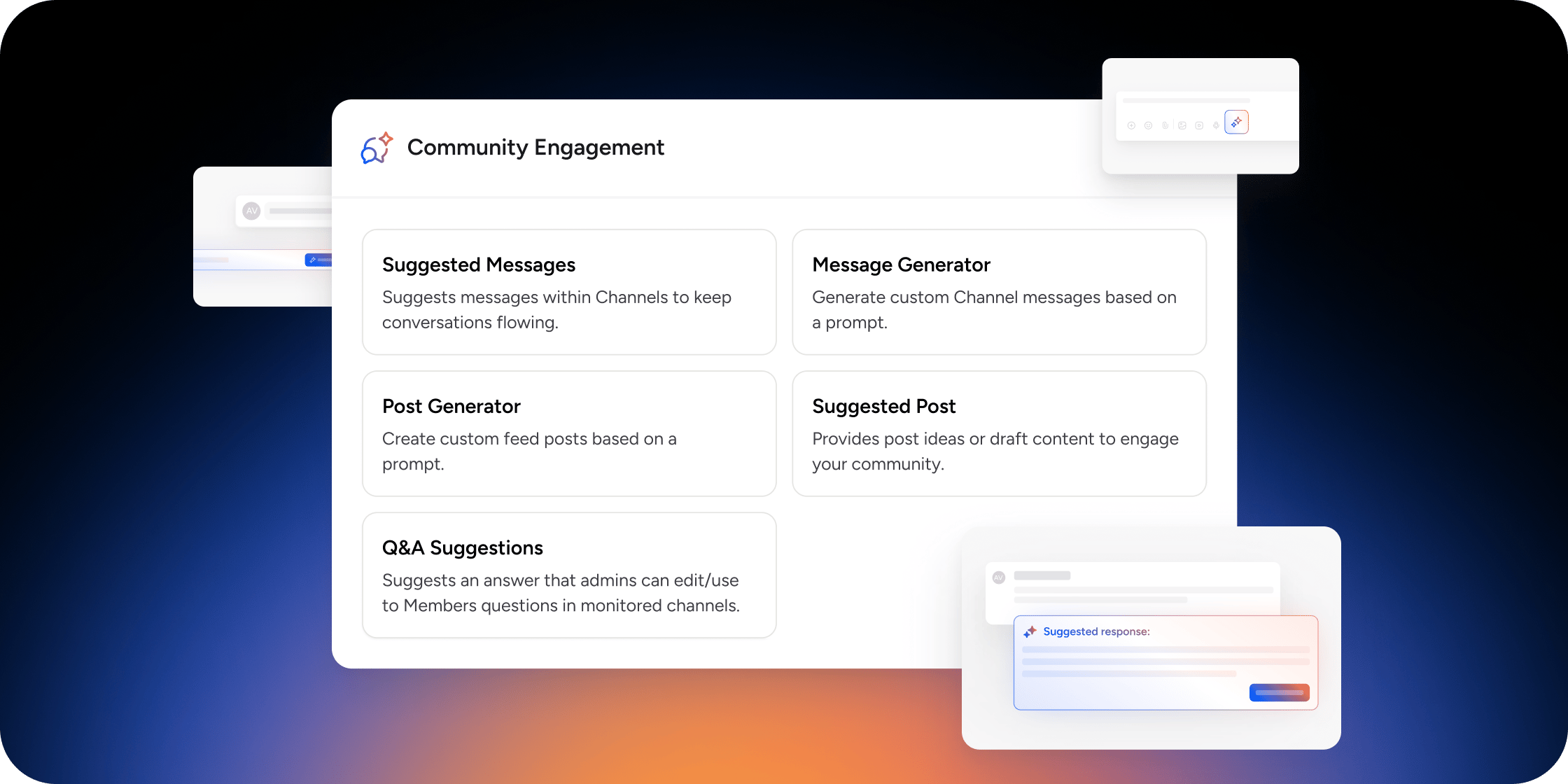
Community Engagement AI is a set of AI tools built into Disco that help Admins generate content, spark conversations, and respond to Members across channels and feeds with minimal manual effort.
 ## Overview
Community Engagement AI includes five tools: Suggested Channel Replies, AI Suggested Messages, AI Message Generation, AI Suggested Posts, and AI Post Generation. Each tool appears contextually where it is most useful: inline in channel threads, as banners in inactive channels or feeds, or on demand via the AI icon in the post and message editors. Suggested Channel Replies also work across connected Slack workspaces.
Only Owners, Admins, and Product Managers can use AI Suggested Replies. All five tools are available to Owners and Admins. Instructors and Members do not see AI-generated suggestions.
## Set Up Community Engagement AI
Before using the tools, configure your sources and monitored channels in the Admin Area.
1. Go to **Admin Area** > **Disco AI** > **Community Engagement** and click **Edit**.
2. Open the **Details** tab. Under Q\&A Suggestions, configure:
* Disco Channel Monitored: The Disco community channels to watch for Member messages.
* Slack Channel Monitored: The Slack channels to watch for Member messages.
* Slack Admin Channel: The Slack channel where suggested replies appear for Admin review.
3. Open the **Sources** tab. Toggle internal and external sources on or off:
* Internal: Content, Documents, Videos, Member Profiles, Disco Channel Messages, Slack Channel Messages
* External: Links, Knowledge Bases
4. Click **Update** to save.
At least one channel source must be enabled. Feed posts are always used as a source regardless of your settings.
To monitor Slack channels, first connect a Slack workspace under **Admin Area** > **Integrations** > **Slack**. Only Suggested Channel Replies works in Slack. The other four tools are available only within Disco.
Detects Member messages in channels and generates a draft reply.
Use AI to draft messages and posts to spark discussions.
## FAQ
Owners and Admins can access all five tools. Product Managers can use Suggested Channel Replies. Instructors and Members do not have access to any Community Engagement AI tools.
Only Owners and Admins can configure sources in the **Sources** tab.
No. Members see the posted content the same way they see any other message or post. Only Admins and editors see generation details.
Yes. You can select multiple Disco channels and multiple Slack channels to monitor simultaneously in the **Details** tab.
Yes. Slack is only required to use Suggested Channel Replies in Slack channels. Suggested Messages, Message Generator, Suggested Posts, and Post Generator all work entirely within Disco without a Slack connection.
No. Web search is only available in the Message Generator and Post Generator. It is not available for Suggested Channel Replies, Suggested Messages, or Suggested Posts.
First, confirm your Slack workspace is connected under **Admin Area** > **Integrations** > **Slack**. Next, check that your Admin account is linked. If your Slack account was added after the initial workspace connection was made, your account may not have been linked automatically. Open the Disco app inside Slack and click **Connect Now** to link your account. Only public Slack channels are supported for monitoring. Private Slack channels cannot be connected to Community Engagement AI.
Yes. Only public Slack channels can be monitored by Disco AI. Private Slack channels are not supported.
Only Suggested Channel Replies extends to Slack. When a Member asks a question in a monitored Slack channel, the AI generates a suggested reply and delivers it to your designated Slack Admin Channel for review. You approve or edit the reply there, and it is then posted into the original Slack channel thread. The Message Generator, Post Generator, Suggested Messages, and Suggested Posts are only available within Disco.
Start by verifying your Community Engagement AI configuration under **Admin Area** > **Disco AI** > **Community Engagement**. Confirm that at least one channel source is enabled and that the channels you want to monitor are still selected. If Suggested Channel Replies was toggled off in a specific channel's settings drawer, re-enable it from the **Details** tab in that channel's settings.
## Overview
Community Engagement AI includes five tools: Suggested Channel Replies, AI Suggested Messages, AI Message Generation, AI Suggested Posts, and AI Post Generation. Each tool appears contextually where it is most useful: inline in channel threads, as banners in inactive channels or feeds, or on demand via the AI icon in the post and message editors. Suggested Channel Replies also work across connected Slack workspaces.
Only Owners, Admins, and Product Managers can use AI Suggested Replies. All five tools are available to Owners and Admins. Instructors and Members do not see AI-generated suggestions.
## Set Up Community Engagement AI
Before using the tools, configure your sources and monitored channels in the Admin Area.
1. Go to **Admin Area** > **Disco AI** > **Community Engagement** and click **Edit**.
2. Open the **Details** tab. Under Q\&A Suggestions, configure:
* Disco Channel Monitored: The Disco community channels to watch for Member messages.
* Slack Channel Monitored: The Slack channels to watch for Member messages.
* Slack Admin Channel: The Slack channel where suggested replies appear for Admin review.
3. Open the **Sources** tab. Toggle internal and external sources on or off:
* Internal: Content, Documents, Videos, Member Profiles, Disco Channel Messages, Slack Channel Messages
* External: Links, Knowledge Bases
4. Click **Update** to save.
At least one channel source must be enabled. Feed posts are always used as a source regardless of your settings.
To monitor Slack channels, first connect a Slack workspace under **Admin Area** > **Integrations** > **Slack**. Only Suggested Channel Replies works in Slack. The other four tools are available only within Disco.
Detects Member messages in channels and generates a draft reply.
Use AI to draft messages and posts to spark discussions.
## FAQ
Owners and Admins can access all five tools. Product Managers can use Suggested Channel Replies. Instructors and Members do not have access to any Community Engagement AI tools.
Only Owners and Admins can configure sources in the **Sources** tab.
No. Members see the posted content the same way they see any other message or post. Only Admins and editors see generation details.
Yes. You can select multiple Disco channels and multiple Slack channels to monitor simultaneously in the **Details** tab.
Yes. Slack is only required to use Suggested Channel Replies in Slack channels. Suggested Messages, Message Generator, Suggested Posts, and Post Generator all work entirely within Disco without a Slack connection.
No. Web search is only available in the Message Generator and Post Generator. It is not available for Suggested Channel Replies, Suggested Messages, or Suggested Posts.
First, confirm your Slack workspace is connected under **Admin Area** > **Integrations** > **Slack**. Next, check that your Admin account is linked. If your Slack account was added after the initial workspace connection was made, your account may not have been linked automatically. Open the Disco app inside Slack and click **Connect Now** to link your account. Only public Slack channels are supported for monitoring. Private Slack channels cannot be connected to Community Engagement AI.
Yes. Only public Slack channels can be monitored by Disco AI. Private Slack channels are not supported.
Only Suggested Channel Replies extends to Slack. When a Member asks a question in a monitored Slack channel, the AI generates a suggested reply and delivers it to your designated Slack Admin Channel for review. You approve or edit the reply there, and it is then posted into the original Slack channel thread. The Message Generator, Post Generator, Suggested Messages, and Suggested Posts are only available within Disco.
Start by verifying your Community Engagement AI configuration under **Admin Area** > **Disco AI** > **Community Engagement**. Confirm that at least one channel source is enabled and that the channels you want to monitor are still selected. If Suggested Channel Replies was toggled off in a specific channel's settings drawer, re-enable it from the **Details** tab in that channel's settings.