> ## Documentation Index
> Fetch the complete documentation index at: https://docs.disco.co/llms.txt
> Use this file to discover all available pages before exploring further.
# Certificates
Certificates are branded, shareable images that recognize Members for completing a course or pathway.
 ## **Overview**
Certificates let Admins issue designed, social-ready recognition when Members finish a program. Each certificate is an image featuring the Member's name, the completion date, and custom text the Admin chooses. Members can download their certificates from their profile and share them on social platforms like LinkedIn. You can create multiple certificates for a single course or pathway, which is useful when you want different designs for different cohorts, audiences, or milestones.
## **Open the Certificates drawer**
Certificates are configured per course or pathway.
1. Navigate to the course or pathway detail page.
2. Open the three-dot menu in the Admin header.
3. Select **Certificates**.
The Certificates drawer opens and lists every template created for that program.
## **Create a certificate**
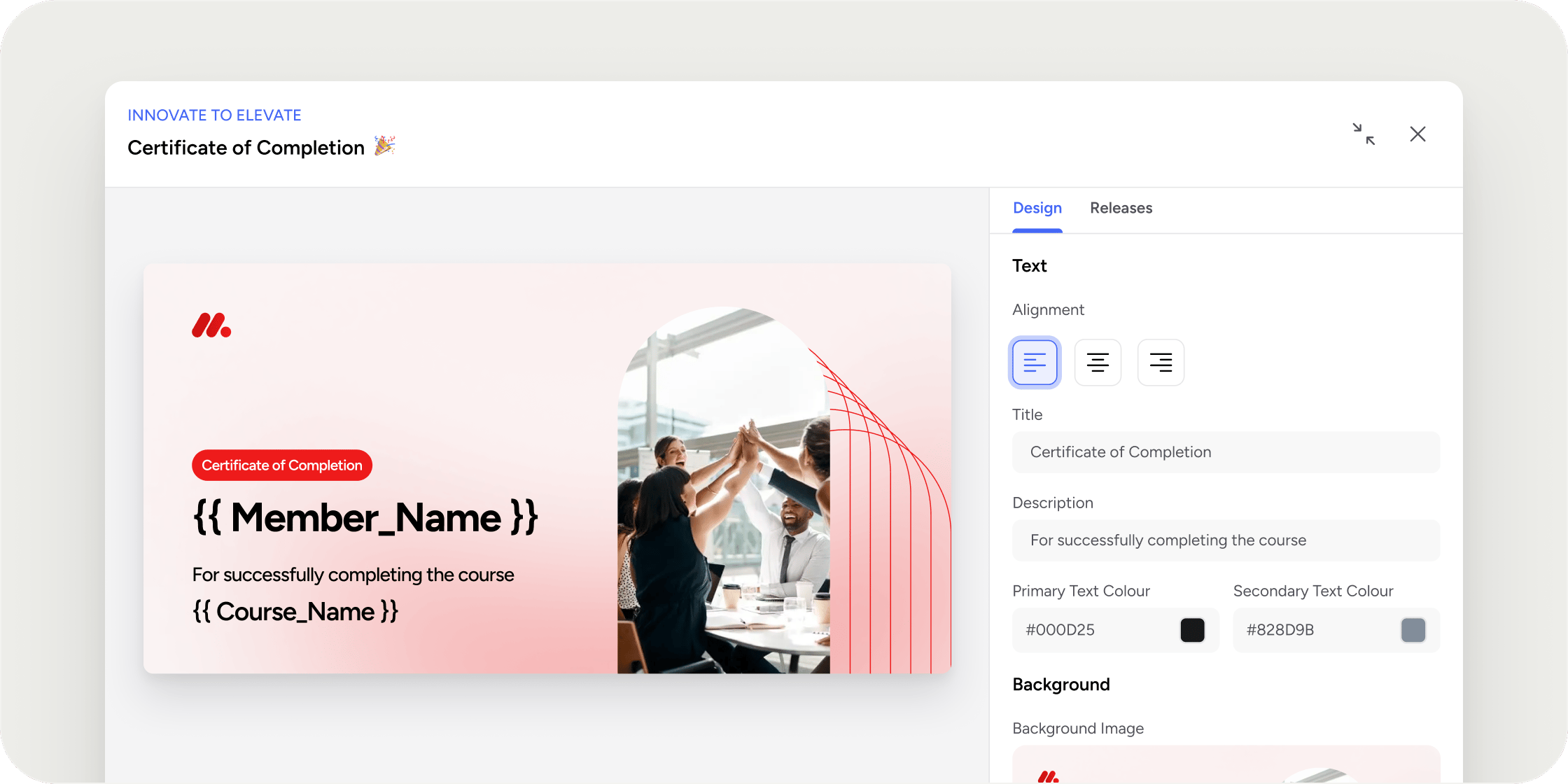
Inside the Certificates drawer, click **Add Certificate**. The editor opens alongside a live preview that updates as you make changes.
Fill in the template fields:
* Name: an internal label visible only to Admins
* Title: the heading printed on the certificate image (required)
* Subtitle: an optional line below the title
* Background image: a PNG or JPEG file. Disco applies a default background if you leave this blank
* Text colors: a primary and secondary color for text on the image
* Text alignment: center, left, or right
* Custom course name: overrides the course name as it appears on the certificate, up to 100 characters
* Additional text: an optional footnote line, up to 100 characters
Once the template is designed, choose a release option and save. Disco generates each Member's certificate at release time, filling in their name and the release date automatically.
## **Choose when to release**
The release option controls when Members receive their certificate. Pick the one that fits how your program runs:
* **Draft**: saves the template without releasing anything. No automation is created.
* **Release on completion**: issues a certificate to each Member at the moment they complete the course or pathway.
* **Release on course end date**: issues certificates to all enrolled Members when the course end date passes. Not available for pathways.
* **Schedule release**: issues certificates to all enrolled Members on a specific date and time you choose.
* **Release immediately**: issues certificates to all currently enrolled Members right away. This is irreversible.
Once you pick any option other than Draft and save the template, the release automation is configured for you. No additional setup is needed.
**POV**: For cohort-based courses with a fixed end date, use **Release on course end date** so every Member gets their certificate at the same moment, which makes for a stronger graduation-day experience. For self-paced courses and pathways, use **Release on completion** so Members are recognized the instant they finish.
## **Customize the release email**
The template editor includes an optional **Release Message** section for personalizing the email Members receive when their certificate is issued. You can set a custom subject line and rich-text body.
The following variables are available inside the message:
* user.firstName
* user.lastName
* [product.name](http://product.name)
When a custom Release Message is configured, it replaces Disco's default notification email entirely.
## **Manage templates**
Every template you create appears in the Certificates drawer as a card. Each card shows a thumbnail, the template name, the release option, and a color-coded status chip:
* **Grey**: Draft
* **Yellow**: Scheduled
* **Blue**: Ongoing (used for completion-based release, since certificates are issued per Member over time)
* **Green**: Released
Click the thumbnail to open a larger preview in a modal. Click the three-dot menu on any card for two actions:
* **Edit**: opens the certificate editor. Editing is disabled once a certificate has been released.
* **Delete**: removes the template. If the certificate has already been released, a warning confirms that every previously issued certificate will also be removed from Member profiles.
## **What Members see**
When a certificate is released, each eligible Member receives an email notification. The certificate image also appears in the **Achievements** section of their profile, where they can download it and share it externally. The date on each certificate is formatted in the individual Member's timezone, so Members in different regions may see different dates even when the certificates were released at the same moment.
## **FAQ**
Not automatically. Certificates are issued going forward from the moment the template is created and the release rule fires. Members who completed the curriculum before the certificate was created do not receive one retroactively. For small groups, you can use **Release immediately** to issue the certificate to everyone currently enrolled, or send a certificate outside Disco to those specific Members.
Use **Release on completion**. Disco issues the certificate to each Member at the moment their curriculum completion is recorded, so Members who never finish never receive one.
Not today. Certificates are released by automation based on completion, end date, or schedule. Admins cannot select specific Members from a participant list. If a Member completed the work outside of Disco, a common workaround is to mark their curriculum progress complete inside Disco so the completion-based automation fires for them.
Yes. When a certificate is released, the Member receives an email notification with their certificate. You can customize the subject line and body of that email in the **Release Message** section of the template editor.
In the **Achievements** section of their profile. Members can download the image and share it on LinkedIn or any other social platform.
No. Once a certificate's status is Released, the template is locked. To change anything, delete the template and create a new one. Deleting a released template also removes every previously issued certificate from Member profiles, so notify Members first.
Certificates are generated as image files. The background image you upload to the template must be a PNG or JPEG.
The full name on the Member's Disco profile at the time the certificate is generated. If a Member signed up via Google or another OAuth provider, their profile may reflect the name on that account. Ask Members to update their profile name in account settings before the certificate fires.
This option requires a Curriculum app on the course. Add a Curriculum app to the course first and the option becomes selectable. Pathways do not need a Curriculum app for completion-based release.
This option is only available for courses with a fixed end date. Set a course end date in the course settings first and the option becomes selectable.
Pathways support **Draft** and **Release on completion** only. Release on end date, scheduled release, and release immediately are not available for pathways.
No. Release immediately is irreversible. Admins see a warning before confirming, and once the template is released it becomes read-only.
Yes. You can create multiple templates per program, which is useful for running different cohorts, audiences, or milestone recognitions under the same course.
Most scripts render correctly, but some non-Latin characters can display as empty boxes depending on the background and font. If Member names in your Academy use non-Latin scripts, release the certificate to one test Member first and confirm the image renders before releasing at scale.
## **Overview**
Certificates let Admins issue designed, social-ready recognition when Members finish a program. Each certificate is an image featuring the Member's name, the completion date, and custom text the Admin chooses. Members can download their certificates from their profile and share them on social platforms like LinkedIn. You can create multiple certificates for a single course or pathway, which is useful when you want different designs for different cohorts, audiences, or milestones.
## **Open the Certificates drawer**
Certificates are configured per course or pathway.
1. Navigate to the course or pathway detail page.
2. Open the three-dot menu in the Admin header.
3. Select **Certificates**.
The Certificates drawer opens and lists every template created for that program.
## **Create a certificate**
Inside the Certificates drawer, click **Add Certificate**. The editor opens alongside a live preview that updates as you make changes.
Fill in the template fields:
* Name: an internal label visible only to Admins
* Title: the heading printed on the certificate image (required)
* Subtitle: an optional line below the title
* Background image: a PNG or JPEG file. Disco applies a default background if you leave this blank
* Text colors: a primary and secondary color for text on the image
* Text alignment: center, left, or right
* Custom course name: overrides the course name as it appears on the certificate, up to 100 characters
* Additional text: an optional footnote line, up to 100 characters
Once the template is designed, choose a release option and save. Disco generates each Member's certificate at release time, filling in their name and the release date automatically.
## **Choose when to release**
The release option controls when Members receive their certificate. Pick the one that fits how your program runs:
* **Draft**: saves the template without releasing anything. No automation is created.
* **Release on completion**: issues a certificate to each Member at the moment they complete the course or pathway.
* **Release on course end date**: issues certificates to all enrolled Members when the course end date passes. Not available for pathways.
* **Schedule release**: issues certificates to all enrolled Members on a specific date and time you choose.
* **Release immediately**: issues certificates to all currently enrolled Members right away. This is irreversible.
Once you pick any option other than Draft and save the template, the release automation is configured for you. No additional setup is needed.
**POV**: For cohort-based courses with a fixed end date, use **Release on course end date** so every Member gets their certificate at the same moment, which makes for a stronger graduation-day experience. For self-paced courses and pathways, use **Release on completion** so Members are recognized the instant they finish.
## **Customize the release email**
The template editor includes an optional **Release Message** section for personalizing the email Members receive when their certificate is issued. You can set a custom subject line and rich-text body.
The following variables are available inside the message:
* user.firstName
* user.lastName
* [product.name](http://product.name)
When a custom Release Message is configured, it replaces Disco's default notification email entirely.
## **Manage templates**
Every template you create appears in the Certificates drawer as a card. Each card shows a thumbnail, the template name, the release option, and a color-coded status chip:
* **Grey**: Draft
* **Yellow**: Scheduled
* **Blue**: Ongoing (used for completion-based release, since certificates are issued per Member over time)
* **Green**: Released
Click the thumbnail to open a larger preview in a modal. Click the three-dot menu on any card for two actions:
* **Edit**: opens the certificate editor. Editing is disabled once a certificate has been released.
* **Delete**: removes the template. If the certificate has already been released, a warning confirms that every previously issued certificate will also be removed from Member profiles.
## **What Members see**
When a certificate is released, each eligible Member receives an email notification. The certificate image also appears in the **Achievements** section of their profile, where they can download it and share it externally. The date on each certificate is formatted in the individual Member's timezone, so Members in different regions may see different dates even when the certificates were released at the same moment.
## **FAQ**
Not automatically. Certificates are issued going forward from the moment the template is created and the release rule fires. Members who completed the curriculum before the certificate was created do not receive one retroactively. For small groups, you can use **Release immediately** to issue the certificate to everyone currently enrolled, or send a certificate outside Disco to those specific Members.
Use **Release on completion**. Disco issues the certificate to each Member at the moment their curriculum completion is recorded, so Members who never finish never receive one.
Not today. Certificates are released by automation based on completion, end date, or schedule. Admins cannot select specific Members from a participant list. If a Member completed the work outside of Disco, a common workaround is to mark their curriculum progress complete inside Disco so the completion-based automation fires for them.
Yes. When a certificate is released, the Member receives an email notification with their certificate. You can customize the subject line and body of that email in the **Release Message** section of the template editor.
In the **Achievements** section of their profile. Members can download the image and share it on LinkedIn or any other social platform.
No. Once a certificate's status is Released, the template is locked. To change anything, delete the template and create a new one. Deleting a released template also removes every previously issued certificate from Member profiles, so notify Members first.
Certificates are generated as image files. The background image you upload to the template must be a PNG or JPEG.
The full name on the Member's Disco profile at the time the certificate is generated. If a Member signed up via Google or another OAuth provider, their profile may reflect the name on that account. Ask Members to update their profile name in account settings before the certificate fires.
This option requires a Curriculum app on the course. Add a Curriculum app to the course first and the option becomes selectable. Pathways do not need a Curriculum app for completion-based release.
This option is only available for courses with a fixed end date. Set a course end date in the course settings first and the option becomes selectable.
Pathways support **Draft** and **Release on completion** only. Release on end date, scheduled release, and release immediately are not available for pathways.
No. Release immediately is irreversible. Admins see a warning before confirming, and once the template is released it becomes read-only.
Yes. You can create multiple templates per program, which is useful for running different cohorts, audiences, or milestone recognitions under the same course.
Most scripts render correctly, but some non-Latin characters can display as empty boxes depending on the background and font. If Member names in your Academy use non-Latin scripts, release the certificate to one test Member first and confirm the image renders before releasing at scale.