> ## Documentation Index
> Fetch the complete documentation index at: https://docs.disco.co/llms.txt
> Use this file to discover all available pages before exploring further.
# Bulk Messaging
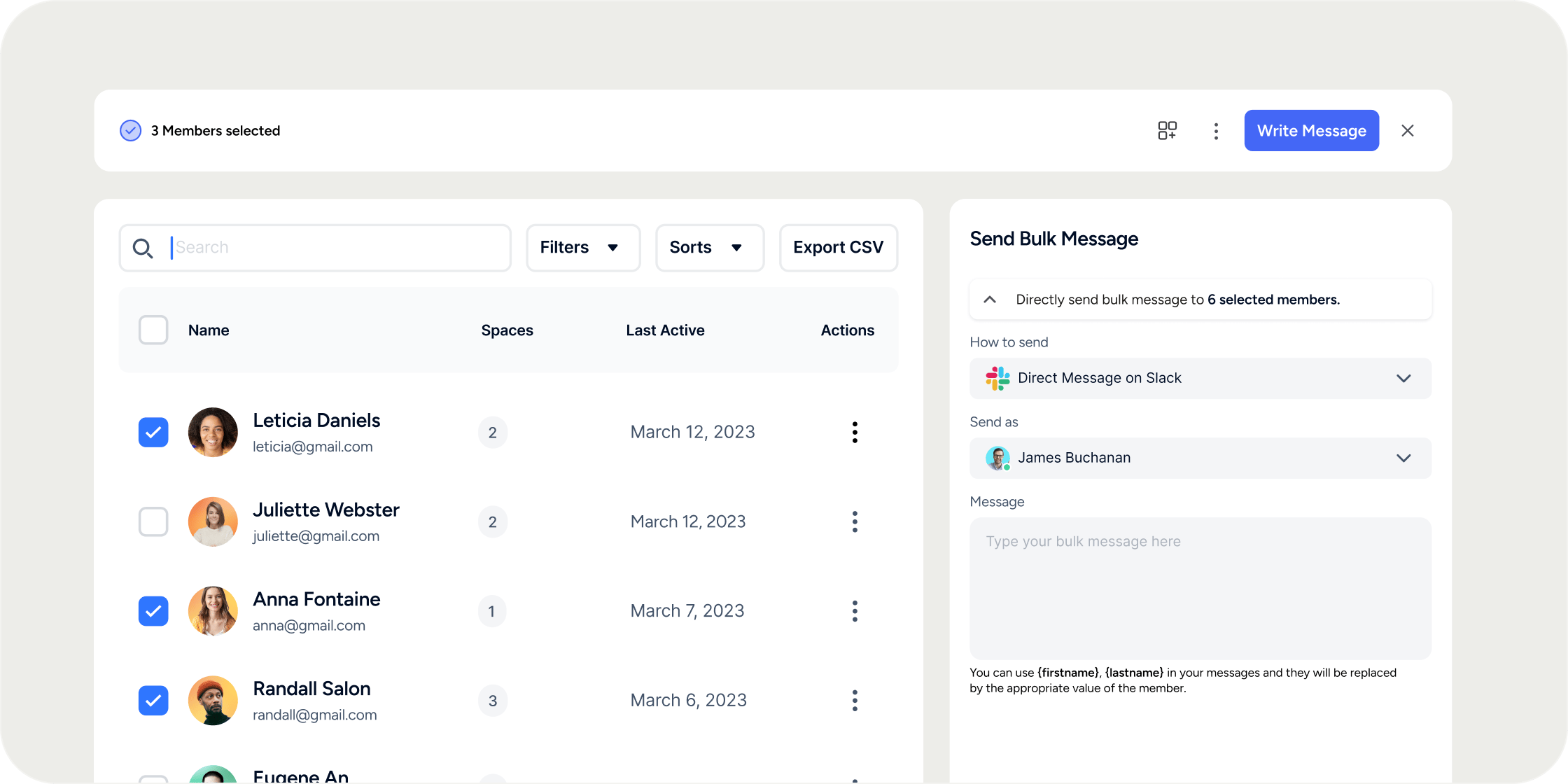
Bulk Messaging is a communication tool that lets admins send a personalized email or Slack direct message to multiple members at once, directly from the Members table.
 ## Overview
Bulk Messaging allows you to reach multiple members simultaneously without creating a group conversation. Each recipient receives an individual message, keeping communication one-to-one. You can deliver messages by email or, if Slack is connected to your Academy, by Slack direct message.
Messages support personalization variables so you can address each member by name at scale.
Bulk Messaging is available to community admins, program managers, program instructors, and group leads.
## Send a Bulk Message
1. Navigate to **Admin** → **Members**.
2. Check the boxes next to the members you want to contact.
3. In the action bar that appears, click **Send Message**.
4. A drawer opens. Select your delivery method: **Email** or **Slack Direct Message**.
* The **Slack Direct Message** option only appears if your Academy has Slack connected.
5. Write your message. Use personalization variables to address each member by name (see [Personalize Your Message](#personalize-your-message) below).
6. Click **Send**.
Each member receives their own individual message. Recipients cannot see each other or each other's replies.
## Send a Bulk Message from a Program
You can also send a bulk message directly from within a Program. This is the fastest way to reach all members enrolled in a specific Program without filtering from the main Members table.
1. Navigate to the Program and open the **Members** tab.
2. Use the **Select All** toggle to select every enrolled member, or check individual boxes to select specific members.
3. Click **Compose Email**.
4. Write your message and click **Send**.
**POV:** When you need to contact members about something specific to a Program (such as a schedule change or a new lesson), sending from the Program's Members tab is faster and reduces the risk of accidentally messaging members who are not enrolled.
## Personalize Your Message
Two variables are available to personalize bulk messages:
| Variable | What it outputs |
| :--------------------- | :---------------------- |
| `{{ user.firstName }}` | The member's first name |
| `{{ user.lastName }}` | The member's last name |
For example, starting your message with `Hi {{ user.firstName }},` will greet each recipient by their first name when the message is delivered.
## FAQ
Community admins, program managers, program instructors, and group leads can all send bulk messages to members.
No. The **Slack Direct Message** option only appears if your Academy has an active Slack integration. If Slack is not connected, **Email** is the only available delivery method.
Yes. Navigate to the Program, open the **Members** tab, and use the **Select All** toggle to select all enrolled members at once, then click **Compose Email**.
Yes. Navigate to the event, open the **Attendees** tab, use the **Select All** toggle, and click **Send Email**. This follows the same flow as bulk messaging from the Members table.
Members can reply to bulk emails and their reply will arrive as an individual email to the sender. For Slack direct messages, the member can reply within the direct message thread.
Not currently. There is no sent-messages log in Disco for bulk messages. As a workaround, include yourself as a recipient when you send so a copy lands in your own inbox.
No. Bulk message analytics are not currently available in Disco.
No. Bulk messages do not support draft saving. Review your message carefully before clicking **Send**, as there is no way to save and return to a draft later.
Try opening Disco in an Incognito or private browsing window and attempt to send the message again. Browser extensions or cached sessions can sometimes interfere. If the error persists across browsers, contact Disco support.
## Overview
Bulk Messaging allows you to reach multiple members simultaneously without creating a group conversation. Each recipient receives an individual message, keeping communication one-to-one. You can deliver messages by email or, if Slack is connected to your Academy, by Slack direct message.
Messages support personalization variables so you can address each member by name at scale.
Bulk Messaging is available to community admins, program managers, program instructors, and group leads.
## Send a Bulk Message
1. Navigate to **Admin** → **Members**.
2. Check the boxes next to the members you want to contact.
3. In the action bar that appears, click **Send Message**.
4. A drawer opens. Select your delivery method: **Email** or **Slack Direct Message**.
* The **Slack Direct Message** option only appears if your Academy has Slack connected.
5. Write your message. Use personalization variables to address each member by name (see [Personalize Your Message](#personalize-your-message) below).
6. Click **Send**.
Each member receives their own individual message. Recipients cannot see each other or each other's replies.
## Send a Bulk Message from a Program
You can also send a bulk message directly from within a Program. This is the fastest way to reach all members enrolled in a specific Program without filtering from the main Members table.
1. Navigate to the Program and open the **Members** tab.
2. Use the **Select All** toggle to select every enrolled member, or check individual boxes to select specific members.
3. Click **Compose Email**.
4. Write your message and click **Send**.
**POV:** When you need to contact members about something specific to a Program (such as a schedule change or a new lesson), sending from the Program's Members tab is faster and reduces the risk of accidentally messaging members who are not enrolled.
## Personalize Your Message
Two variables are available to personalize bulk messages:
| Variable | What it outputs |
| :--------------------- | :---------------------- |
| `{{ user.firstName }}` | The member's first name |
| `{{ user.lastName }}` | The member's last name |
For example, starting your message with `Hi {{ user.firstName }},` will greet each recipient by their first name when the message is delivered.
## FAQ
Community admins, program managers, program instructors, and group leads can all send bulk messages to members.
No. The **Slack Direct Message** option only appears if your Academy has an active Slack integration. If Slack is not connected, **Email** is the only available delivery method.
Yes. Navigate to the Program, open the **Members** tab, and use the **Select All** toggle to select all enrolled members at once, then click **Compose Email**.
Yes. Navigate to the event, open the **Attendees** tab, use the **Select All** toggle, and click **Send Email**. This follows the same flow as bulk messaging from the Members table.
Members can reply to bulk emails and their reply will arrive as an individual email to the sender. For Slack direct messages, the member can reply within the direct message thread.
Not currently. There is no sent-messages log in Disco for bulk messages. As a workaround, include yourself as a recipient when you send so a copy lands in your own inbox.
No. Bulk message analytics are not currently available in Disco.
No. Bulk messages do not support draft saving. Review your message carefully before clicking **Send**, as there is no way to save and return to a draft later.
Try opening Disco in an Incognito or private browsing window and attempt to send the message again. Browser extensions or cached sessions can sometimes interfere. If the error persists across browsers, contact Disco support.