> ## Documentation Index
> Fetch the complete documentation index at: https://docs.disco.co/llms.txt
> Use this file to discover all available pages before exploring further.
# Brand Customization
Brand Customization is a set of appearance settings that lets you tailor your Academy's visual identity to match your brand.
 ## **Overview**
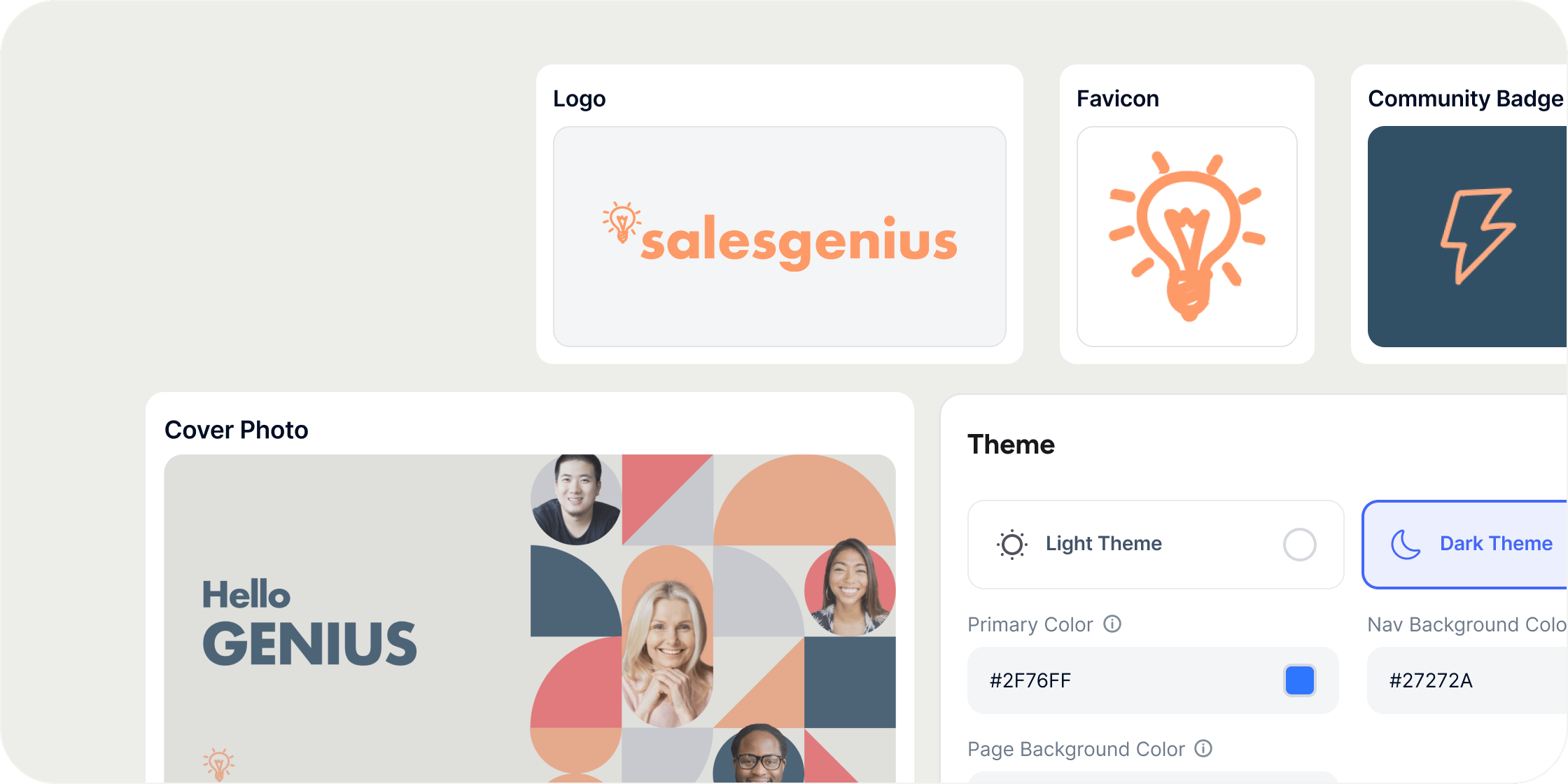
Brand Customization lives in the **Appearance** section of your admin area. It covers your Academy's badge, logo, favicon, cover image, color theme, custom domain, role labels, and sidebar navigation. These settings give your Academy a cohesive, professional look that reflects your organization's identity.
## **Set Your Academy Badge**
Your Academy badge appears in the top left of the academy switcher and serves as the primary visual identifier for your Academy.
1. Navigate to **Admin** → **Appearance**.
2. Click **Community Badge**.
3. Click **Edit**.
4. Choose one of the following options:
* **Icon**: select from a library of icons
* **Emoji**: pick an emoji
* **Color with initials**: display your Academy's initials on a colored background
* **Upload**: use your own image file
## **Upload Your Logo**
Your logo appears across your Academy and adapts to light and dark themes. Upload separate versions for each background to ensure your logo always looks its best.
1. Navigate to **Admin** → **Appearance**.
2. Click **Logo**.
3. Upload a logo for light backgrounds and a separate logo for dark backgrounds.
4. For each version, choose from your **Assets**, upload a file, browse **Unsplash**, or generate one using **AI**.
The light logo displays only when the light theme is active. The dark logo displays only when the dark theme is active. If you upload only one version, no logo will appear when a member switches to the other theme.
## **Set Your Favicon**
Your favicon appears in browser tabs and bookmarks.
1. Navigate to **Admin** → **Appearance**.
2. Click **Favicon**.
3. Choose from your **Assets**, upload a file, browse **Unsplash**, or generate one using **AI**.
## **Upload a Cover Image**
Your cover image appears on invitations, landing pages, and as the default image in link previews.
1. Navigate to **Admin** → **Appearance**.
2. Click **Cover Image**.
3. Choose from your **Assets**, upload a file, browse **Unsplash**, or generate one using **AI**.
## **Customize Your Theme and Colors**
Your theme and color settings define the visual tone of your Academy. The default theme is light.
1. Navigate to **Admin** → **Appearance**.
2. Under **Theme**, select **Light** or **Dark**.
3. Set your Primary Color, Nav Background Color, and Page Background Color.
If the colors you select have a low contrast ratio, Disco displays a warning. You can still save and continue, but we recommend selecting colors with sufficient contrast for readability.
**POV:** We recommend keeping your primary color consistent with your brand guidelines and testing both light and dark themes before publishing. A strong contrast ratio between your primary and background colors improves readability for all members.
## **Connect a Custom Domain**
By default, your Academy is accessible at [yourname.disco.co](http://yourname.disco.co). You can connect a custom domain to use your own URL instead.
1. Navigate to **Admin** → **Appearance** → **Domain**.
2. Fill out the form with your custom domain details.
## **Customize Labels**
Labels control the terminology used throughout your Academy for roles and content types. You can rename each label to match your organization's language.
Supported labels include: experienced member, experienced instructor, experienced manager, community member, admin owner, product, curriculum, and pathway.
1. Navigate to **Admin** → **Appearance** → **Labels**.
2. Click any label to edit it.
3. Enter your preferred term and save.
## **Configure the Sidebar**
The sidebar is the primary navigation for your Academy. By default it includes tabs for home, learning, events, chat, and admin. You can adjust its layout and visibility to match your Academy's structure.
1. Navigate to **Admin** → **Appearance** → **Sidebar**.
2. Toggle off **Text Labels** to display icons only.
3. To disable specific features, turn off any of the following:
* **Chat** (entirely), or disable only **Channels** or **Direct Messages** individually
* **Learning** tab (hides all Programs from navigation)
* **Events** tab (removes events from navigation)
4. To rename navigation tabs, update the labels for **Home**, **Learning**, **Events**, and **Chat**.
Disabling a tab hides it from navigation but does not delete the content behind it. You can re-enable any tab at any time.
## **Generate Branded Images**
Branded image generation uses your Academy's primary color and active theme to create on-brand cover images for Programs, events, and dashboard banner blocks.
1. Open a Program, event, or dashboard banner block and navigate to its cover image setting.
2. Click into the media modal.
3. Select the **Template** tab.
4. Click **Generate** to create a branded image using your current theme and primary color.
The generated image typically includes the content type label and the name of the item (for example, a Program's label and title).
If you update your Academy's theme or primary color after generating branded images, those images do not automatically update. A notice will appear on each affected image indicating the theme has changed. Regenerate each image manually from the content item's media modal.
If a field used to generate the image (such as a Program name or label) changes, a notice will appear on the cover image prompting you to regenerate.
## **FAQ**
No. You can upload one or both versions. For the best experience across both themes, upload a logo for each background. If only one version is uploaded, members using the other theme will see no logo.
Disco displays a warning that your colors have a low contrast ratio. You can still save your settings and continue, but we recommend choosing colors that are accessible for all members.
No. Changing your theme or primary color does not automatically regenerate existing branded images. A notice will appear on each affected image. Regenerate them individually from each content item's media modal.
Yes. Disabling the **Learning** or **Events** tab from the sidebar hides the tab from navigation but does not delete your Programs or events. Re-enable the tab at any time to restore access.
Yes. Navigate to **Admin** → **Appearance** → **Domain** and connect your custom domain. Fill out the form with your domain details to complete the setup.
## **Overview**
Brand Customization lives in the **Appearance** section of your admin area. It covers your Academy's badge, logo, favicon, cover image, color theme, custom domain, role labels, and sidebar navigation. These settings give your Academy a cohesive, professional look that reflects your organization's identity.
## **Set Your Academy Badge**
Your Academy badge appears in the top left of the academy switcher and serves as the primary visual identifier for your Academy.
1. Navigate to **Admin** → **Appearance**.
2. Click **Community Badge**.
3. Click **Edit**.
4. Choose one of the following options:
* **Icon**: select from a library of icons
* **Emoji**: pick an emoji
* **Color with initials**: display your Academy's initials on a colored background
* **Upload**: use your own image file
## **Upload Your Logo**
Your logo appears across your Academy and adapts to light and dark themes. Upload separate versions for each background to ensure your logo always looks its best.
1. Navigate to **Admin** → **Appearance**.
2. Click **Logo**.
3. Upload a logo for light backgrounds and a separate logo for dark backgrounds.
4. For each version, choose from your **Assets**, upload a file, browse **Unsplash**, or generate one using **AI**.
The light logo displays only when the light theme is active. The dark logo displays only when the dark theme is active. If you upload only one version, no logo will appear when a member switches to the other theme.
## **Set Your Favicon**
Your favicon appears in browser tabs and bookmarks.
1. Navigate to **Admin** → **Appearance**.
2. Click **Favicon**.
3. Choose from your **Assets**, upload a file, browse **Unsplash**, or generate one using **AI**.
## **Upload a Cover Image**
Your cover image appears on invitations, landing pages, and as the default image in link previews.
1. Navigate to **Admin** → **Appearance**.
2. Click **Cover Image**.
3. Choose from your **Assets**, upload a file, browse **Unsplash**, or generate one using **AI**.
## **Customize Your Theme and Colors**
Your theme and color settings define the visual tone of your Academy. The default theme is light.
1. Navigate to **Admin** → **Appearance**.
2. Under **Theme**, select **Light** or **Dark**.
3. Set your Primary Color, Nav Background Color, and Page Background Color.
If the colors you select have a low contrast ratio, Disco displays a warning. You can still save and continue, but we recommend selecting colors with sufficient contrast for readability.
**POV:** We recommend keeping your primary color consistent with your brand guidelines and testing both light and dark themes before publishing. A strong contrast ratio between your primary and background colors improves readability for all members.
## **Connect a Custom Domain**
By default, your Academy is accessible at [yourname.disco.co](http://yourname.disco.co). You can connect a custom domain to use your own URL instead.
1. Navigate to **Admin** → **Appearance** → **Domain**.
2. Fill out the form with your custom domain details.
## **Customize Labels**
Labels control the terminology used throughout your Academy for roles and content types. You can rename each label to match your organization's language.
Supported labels include: experienced member, experienced instructor, experienced manager, community member, admin owner, product, curriculum, and pathway.
1. Navigate to **Admin** → **Appearance** → **Labels**.
2. Click any label to edit it.
3. Enter your preferred term and save.
## **Configure the Sidebar**
The sidebar is the primary navigation for your Academy. By default it includes tabs for home, learning, events, chat, and admin. You can adjust its layout and visibility to match your Academy's structure.
1. Navigate to **Admin** → **Appearance** → **Sidebar**.
2. Toggle off **Text Labels** to display icons only.
3. To disable specific features, turn off any of the following:
* **Chat** (entirely), or disable only **Channels** or **Direct Messages** individually
* **Learning** tab (hides all Programs from navigation)
* **Events** tab (removes events from navigation)
4. To rename navigation tabs, update the labels for **Home**, **Learning**, **Events**, and **Chat**.
Disabling a tab hides it from navigation but does not delete the content behind it. You can re-enable any tab at any time.
## **Generate Branded Images**
Branded image generation uses your Academy's primary color and active theme to create on-brand cover images for Programs, events, and dashboard banner blocks.
1. Open a Program, event, or dashboard banner block and navigate to its cover image setting.
2. Click into the media modal.
3. Select the **Template** tab.
4. Click **Generate** to create a branded image using your current theme and primary color.
The generated image typically includes the content type label and the name of the item (for example, a Program's label and title).
If you update your Academy's theme or primary color after generating branded images, those images do not automatically update. A notice will appear on each affected image indicating the theme has changed. Regenerate each image manually from the content item's media modal.
If a field used to generate the image (such as a Program name or label) changes, a notice will appear on the cover image prompting you to regenerate.
## **FAQ**
No. You can upload one or both versions. For the best experience across both themes, upload a logo for each background. If only one version is uploaded, members using the other theme will see no logo.
Disco displays a warning that your colors have a low contrast ratio. You can still save your settings and continue, but we recommend choosing colors that are accessible for all members.
No. Changing your theme or primary color does not automatically regenerate existing branded images. A notice will appear on each affected image. Regenerate them individually from each content item's media modal.
Yes. Disabling the **Learning** or **Events** tab from the sidebar hides the tab from navigation but does not delete your Programs or events. Re-enable the tab at any time to restore access.
Yes. Navigate to **Admin** → **Appearance** → **Domain** and connect your custom domain. Fill out the form with your domain details to complete the setup.