> ## Documentation Index
> Fetch the complete documentation index at: https://docs.disco.co/llms.txt
> Use this file to discover all available pages before exploring further.
# Apps
Apps are modular features you add to your sidebar to extend the functionality of your organization or product.
 ## **Overview**
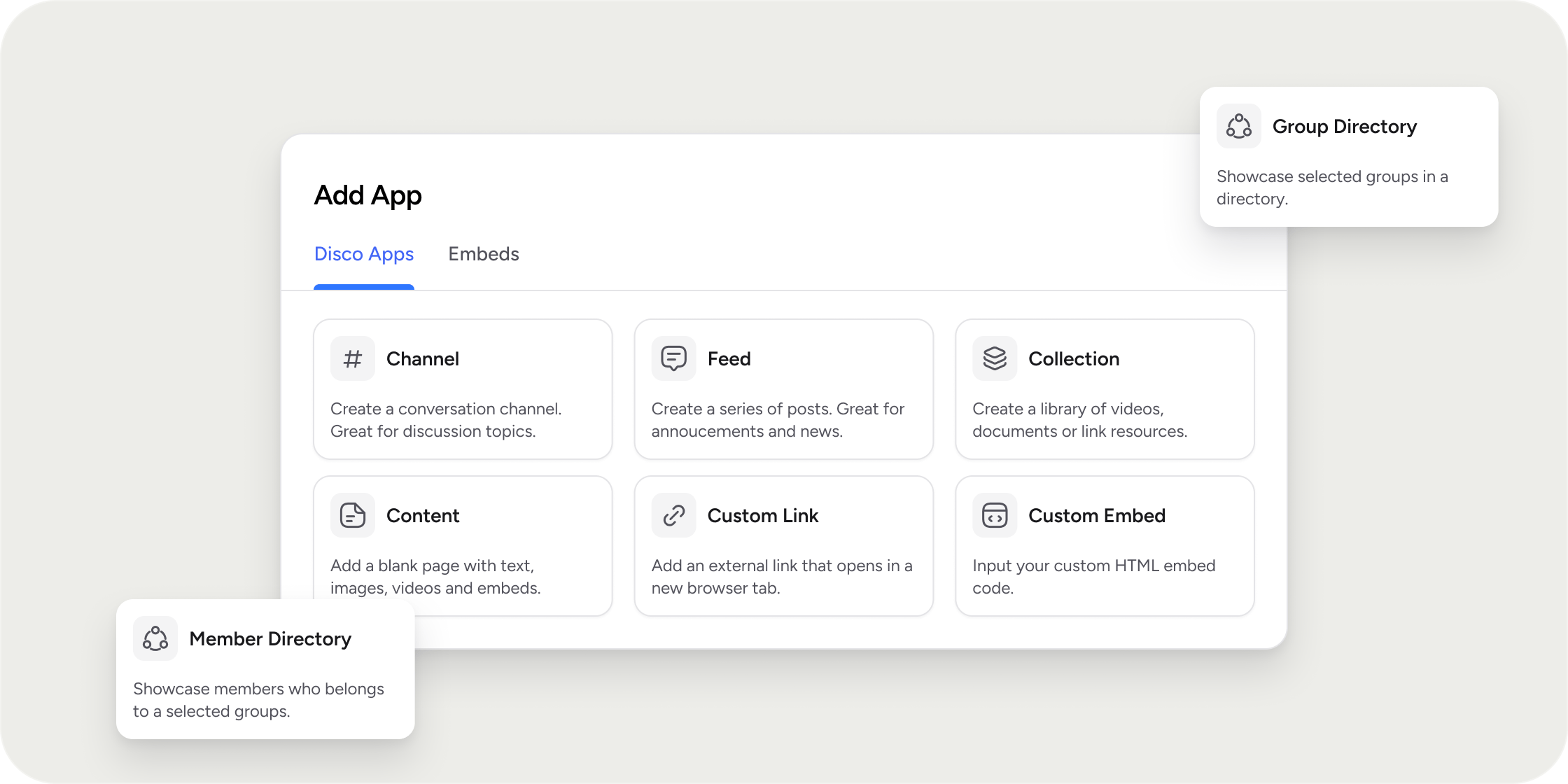
Apps are the building blocks of any Disco experience. Each app adds a distinct capability to the sidebar, covering discussion feeds, chat channels, embedded third-party tools, structured curricula, and more. Apps can be added at two levels: the organization level and the product level. Most app types are available at both levels, with a few exceptions (the Curriculum app, for example, is only available at the product level). Configuration works the same way regardless of where an app lives.
## **Add and Reorder Apps**
Add apps to your sidebar from the organization or product view.
1. Navigate to your organization sidebar or open a product.
2. Click **Add App** to open the app selector.
3. Select the app type you want to add.
4. Once added, drag apps up or down in the sidebar to reorder them however you like.
## **Configure Common App Settings**
Every app shares a set of core settings you can edit at any time.
1. Hover over the app in the sidebar and click **Edit**.
2. Update the Title field to set the name displayed in the sidebar.
3. Customize the **Badge** by choosing a background color, adjusting transparency, and adding an emoji or leaving it as the default icon.
4. Under **Who can access**, choose one of the following:
* **All members**: every member of the organization or product can see and use the app.
* **Private**: only specific groups or individual members you select can access the app. Members without access will not see the app in the sidebar at all.
5. Click **Save** to apply your changes.
To remove an app, open its edit panel and select **Remove**.
## **App Types**
### **Feed**
The Feed app is a social-style post feed where members can create posts, react, and comment.
A setting unique to Feed is **Who can post**. By default, only managers and instructors can post. To open it up, change this to **Everyone** or configure custom groups or individual members who are allowed to post.
You can also pin a post in the Feed. Pinned posts stay visible at the top of the feed, making them useful for keeping announcements front and center. To pin a post, open it and select **Pin post**. To remove the pin, select **Unpin**.
### **Collections**
The Collections app lets you organize resources such as documents, videos, and files into browsable folders.
Use Collections to build resource libraries, host supplemental course materials, or surface curated content your members need to reference over time.
### **Chat Channels**
The Chat Channels app gives members a real-time messaging space inside your product or organization.
When creating a channel, set the access level at creation time. Access cannot be changed from **All members** to a restricted audience after the channel is created, though you can still adjust which specific groups or individuals have access within a private channel.
Additional channel settings include:
* **Description**: helps members understand the purpose of the channel.
* **Notifications**: set notification behavior to mentions only, all messages, or off.
* **Members**: view a list of all members in the channel.
### **Curriculum**
The Curriculum app delivers a structured learning experience with modules that contain lessons, assignments, and other content.
This app is available at the product level only and cannot be added to the organization sidebar.
### **Events**
The Events app lets you manage live events, either online or in person.
When creating an event, you can add a Google Meet or Zoom link (if your account is connected) or enter a physical address for in-person events.
### **Content**
The Content app surfaces a single reusable piece of content (a lesson, assignment, or other content type) as its own tab in the sidebar.
When configuring the app, choose to create new content or select an existing piece of content you want to highlight.
### **Embed**
The Embed app lets you bring third-party content directly into the sidebar.
1. Click **Add** and switch to the **Embed** tab.
2. Select your embed type from the available options, which include Discord, Airtable, Google Docs, YouTube, and SCORM files.
3. Depending on the integration, either paste the URL or provide an iframe embed code.
SCORM file uploads are also supported for teams delivering compliance or packaged e-learning content.
### **Link**
The Link app adds a navigation item in the sidebar that opens an external URL.
Use Link apps to point members toward external tools, reference websites, or resources that live outside Disco.
### **Member Directory and Group Directory**
The Member Directory and Group Directory apps give members a way to browse and discover other members or groups within the community.
These apps work well in membership communities and professional networks where connection and discovery are core to the experience.
### **Folder**
A Folder is not an app itself, but a way to group apps together into a collapsible section in the sidebar.
Use folders to reduce visual clutter or organize related apps, for example by grouping all community apps together and all learning apps in a separate section. Members can expand or collapse folders as needed.
For cohort courses and bootcamps, we recommend keeping the Curriculum app as the primary sidebar item and using a Folder to group supplemental apps like Collections, Feed, and Chat Channels. This keeps the learning path front and center while still giving members access to community and resources.
## **Examples**
**Professional community:** Add a Feed app for member announcements, a Chat Channels app for networking conversations, and a Member Directory so members can find each other.
**Cohort course:** Add a Curriculum app as the core experience, a Collections app for supplemental materials, a Chat Channels app for cohort discussions, and an Events app for live sessions.
**Membership site:** Use a Link app to point members to an external community forum, an Embed app to surface a Google Doc resource guide, and a Group Directory to help members find relevant subgroups.
## **FAQ**
Yes, for most apps you can edit access settings at any time by opening the app's edit panel and updating the **Who can access** setting. Chat channels are the exception. You cannot change a channel from all-member access to private after it has been created, though you can still adjust the specific groups or individuals who have access within a private channel.
No. The Curriculum app is only available at the product level. If you want to deliver structured learning content, create a product and add the Curriculum app there.
The Content app surfaces a single piece of reusable content as its own sidebar tab. Collections lets you organize multiple resources into folders for browsing. Use Content to highlight one specific item; use Collections to build a library.
Yes. You can add multiple Chat Channel apps to a single product sidebar, each configured with its own name, description, and access settings. This allows you to create dedicated channels for different topics or groups.
Discord and some other integrations require you to paste an iframe embed code. Most others, including Airtable and YouTube, accept a direct URL. The Embed app will prompt you for the correct input type depending on which integration you select.
## **Overview**
Apps are the building blocks of any Disco experience. Each app adds a distinct capability to the sidebar, covering discussion feeds, chat channels, embedded third-party tools, structured curricula, and more. Apps can be added at two levels: the organization level and the product level. Most app types are available at both levels, with a few exceptions (the Curriculum app, for example, is only available at the product level). Configuration works the same way regardless of where an app lives.
## **Add and Reorder Apps**
Add apps to your sidebar from the organization or product view.
1. Navigate to your organization sidebar or open a product.
2. Click **Add App** to open the app selector.
3. Select the app type you want to add.
4. Once added, drag apps up or down in the sidebar to reorder them however you like.
## **Configure Common App Settings**
Every app shares a set of core settings you can edit at any time.
1. Hover over the app in the sidebar and click **Edit**.
2. Update the Title field to set the name displayed in the sidebar.
3. Customize the **Badge** by choosing a background color, adjusting transparency, and adding an emoji or leaving it as the default icon.
4. Under **Who can access**, choose one of the following:
* **All members**: every member of the organization or product can see and use the app.
* **Private**: only specific groups or individual members you select can access the app. Members without access will not see the app in the sidebar at all.
5. Click **Save** to apply your changes.
To remove an app, open its edit panel and select **Remove**.
## **App Types**
### **Feed**
The Feed app is a social-style post feed where members can create posts, react, and comment.
A setting unique to Feed is **Who can post**. By default, only managers and instructors can post. To open it up, change this to **Everyone** or configure custom groups or individual members who are allowed to post.
You can also pin a post in the Feed. Pinned posts stay visible at the top of the feed, making them useful for keeping announcements front and center. To pin a post, open it and select **Pin post**. To remove the pin, select **Unpin**.
### **Collections**
The Collections app lets you organize resources such as documents, videos, and files into browsable folders.
Use Collections to build resource libraries, host supplemental course materials, or surface curated content your members need to reference over time.
### **Chat Channels**
The Chat Channels app gives members a real-time messaging space inside your product or organization.
When creating a channel, set the access level at creation time. Access cannot be changed from **All members** to a restricted audience after the channel is created, though you can still adjust which specific groups or individuals have access within a private channel.
Additional channel settings include:
* **Description**: helps members understand the purpose of the channel.
* **Notifications**: set notification behavior to mentions only, all messages, or off.
* **Members**: view a list of all members in the channel.
### **Curriculum**
The Curriculum app delivers a structured learning experience with modules that contain lessons, assignments, and other content.
This app is available at the product level only and cannot be added to the organization sidebar.
### **Events**
The Events app lets you manage live events, either online or in person.
When creating an event, you can add a Google Meet or Zoom link (if your account is connected) or enter a physical address for in-person events.
### **Content**
The Content app surfaces a single reusable piece of content (a lesson, assignment, or other content type) as its own tab in the sidebar.
When configuring the app, choose to create new content or select an existing piece of content you want to highlight.
### **Embed**
The Embed app lets you bring third-party content directly into the sidebar.
1. Click **Add** and switch to the **Embed** tab.
2. Select your embed type from the available options, which include Discord, Airtable, Google Docs, YouTube, and SCORM files.
3. Depending on the integration, either paste the URL or provide an iframe embed code.
SCORM file uploads are also supported for teams delivering compliance or packaged e-learning content.
### **Link**
The Link app adds a navigation item in the sidebar that opens an external URL.
Use Link apps to point members toward external tools, reference websites, or resources that live outside Disco.
### **Member Directory and Group Directory**
The Member Directory and Group Directory apps give members a way to browse and discover other members or groups within the community.
These apps work well in membership communities and professional networks where connection and discovery are core to the experience.
### **Folder**
A Folder is not an app itself, but a way to group apps together into a collapsible section in the sidebar.
Use folders to reduce visual clutter or organize related apps, for example by grouping all community apps together and all learning apps in a separate section. Members can expand or collapse folders as needed.
For cohort courses and bootcamps, we recommend keeping the Curriculum app as the primary sidebar item and using a Folder to group supplemental apps like Collections, Feed, and Chat Channels. This keeps the learning path front and center while still giving members access to community and resources.
## **Examples**
**Professional community:** Add a Feed app for member announcements, a Chat Channels app for networking conversations, and a Member Directory so members can find each other.
**Cohort course:** Add a Curriculum app as the core experience, a Collections app for supplemental materials, a Chat Channels app for cohort discussions, and an Events app for live sessions.
**Membership site:** Use a Link app to point members to an external community forum, an Embed app to surface a Google Doc resource guide, and a Group Directory to help members find relevant subgroups.
## **FAQ**
Yes, for most apps you can edit access settings at any time by opening the app's edit panel and updating the **Who can access** setting. Chat channels are the exception. You cannot change a channel from all-member access to private after it has been created, though you can still adjust the specific groups or individuals who have access within a private channel.
No. The Curriculum app is only available at the product level. If you want to deliver structured learning content, create a product and add the Curriculum app there.
The Content app surfaces a single piece of reusable content as its own sidebar tab. Collections lets you organize multiple resources into folders for browsing. Use Content to highlight one specific item; use Collections to build a library.
Yes. You can add multiple Chat Channel apps to a single product sidebar, each configured with its own name, description, and access settings. This allows you to create dedicated channels for different topics or groups.
Discord and some other integrations require you to paste an iframe embed code. Most others, including Airtable and YouTube, accept a direct URL. The Embed app will prompt you for the correct input type depending on which integration you select.