> ## Documentation Index
> Fetch the complete documentation index at: https://docs.disco.co/llms.txt
> Use this file to discover all available pages before exploring further.
# AI Video Enhancement
AI Video Enhancements is a Disco AI workflow that automatically generates transcripts, summaries, chapter markers, and subtitles for eligible video and audio assets in your media library.
 ## Overview
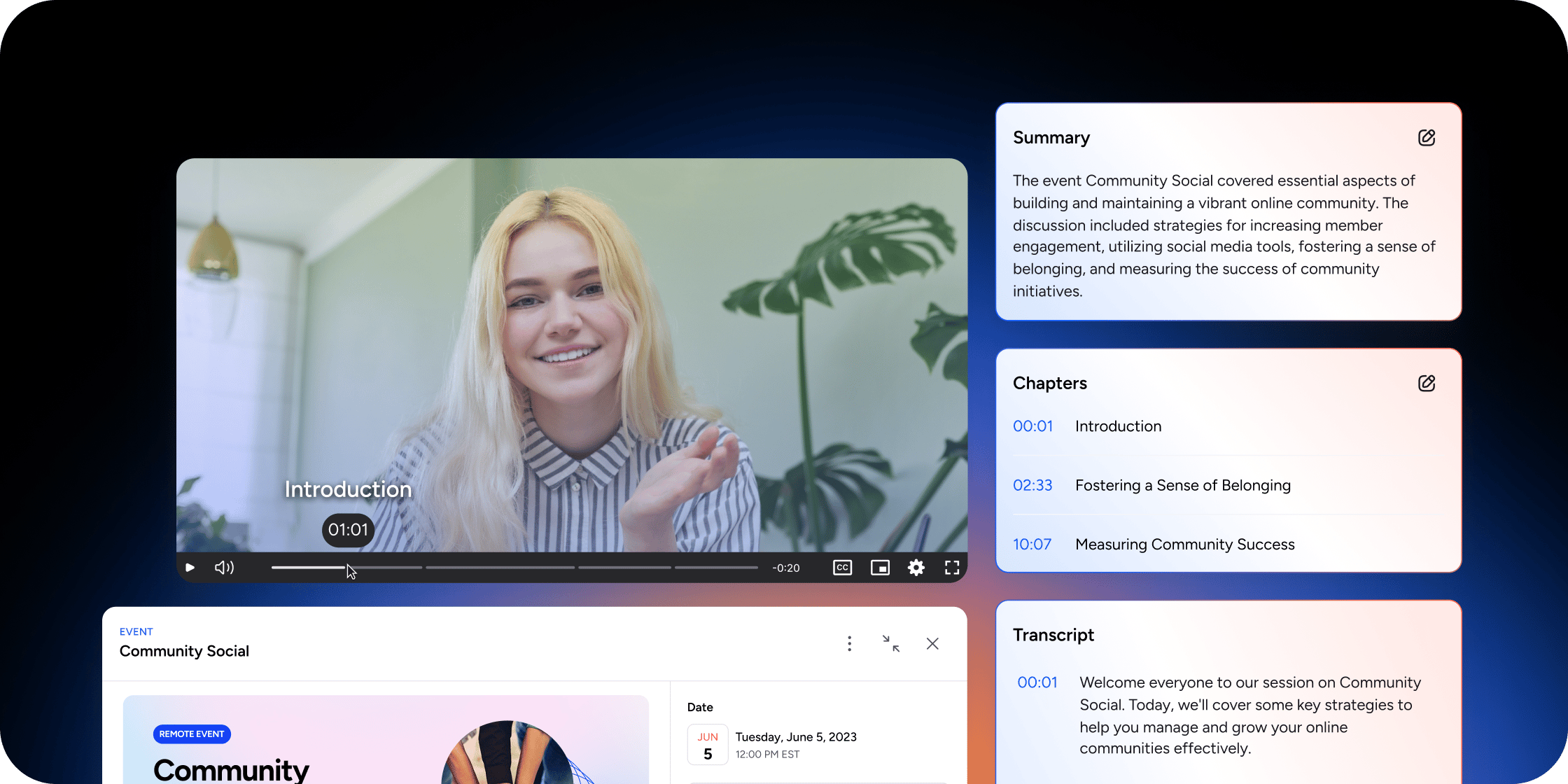
AI Video Enhancements processes video and audio assets to produce structured learning content without manual effort. For video assets, the workflow generates a transcript, a summary, chapter markers, and an auto-generated subtitle track. For audio assets, it generates a transcript, summary, and chapters. Subtitles are not available for audio. The feature is especially useful when a media asset appears across multiple lessons, pages, or event recordings, because the AI-generated content supports every place that asset is reused.
## Open a Media Asset
The most direct path to AI Video Enhancements is through the media library.
1. Go to **Admin** → **Content** → **Media Assets**.
2. Use the search bar or file-type filters to locate the target asset.
3. Open the row menu for the asset and click **Details**.
The **Details** drawer opens full-screen and displays the asset name, a media player, and AI enhancement controls. This drawer is where you generate, review, edit, and publish AI enhancement output for eligible video and audio assets.
The **Details** action appears for video, audio, and PDF assets. For AI Video Enhancements, only video and audio assets are eligible.
## Generate AI Enhancements
If no AI assets exist yet for an eligible media asset, the player displays a generation button in place of any transcript content.
1. Open the **Details** drawer for a video or audio asset.
2. Click **Generate AI Transcript and Summary**.
3. Wait for processing to complete. The drawer displays a spinner and a Processing state while the job runs. Processing may take a few minutes. You can check back later or refresh the page.
Once generation succeeds, the player expands to show three tabs: **Overview**, **Transcript**, and **Subtitles**.
We recommend generating AI enhancements before publishing a media asset to members. Reviewing the transcript and summary in draft state gives you a chance to catch errors and edit chapters before anything surfaces to your Academy.
## Review Enhancement Output
Each tab surfaces a different part of the AI-generated content.
**Overview tab:** The main editable area. Displays the AI-generated **Summary** and **Chapters**, along with edit controls for admins with the right permissions.
**Transcript tab:** The full transcript reading experience. The transcript is linked to media playback, so clicking a passage navigates to the corresponding timestamp. This tab is for reading and navigation, not direct manual editing.
**Subtitles tab:** Available for video assets. Displays subtitle controls and the auto-generated subtitle output. If no subtitle track existed before generation, the system creates an auto-generated track shell so subtitles have a place to land once processing completes.
## Edit Summary and Chapters
You can update the AI-generated summary and chapter markers at any time from the **Overview** tab.
1. Open the **Overview** tab in the **Details** drawer.
2. Click the edit icon.
3. Update the Summary field or the Chapters field as needed.
4. Click **Save Changes**.
Saving writes your updates back to the transcription record. Edits apply to the asset everywhere it is used across your Academy.
### Chapter formatting rules
The chapter editor validates your input before saving. Each chapter must follow this format:
* One chapter per line
* A timestamp followed by a chapter title (for example: 01:30 Introduction to Pricing)
* Timestamps in MM:SS or HH:MM:SS format
* Chapters listed in ascending order
* At least two chapters total
## Publish or Hide AI Enhancements
The transcription record has a visibility toggle that controls whether members can see the AI-generated content.
1. Open the **Details** drawer for the asset.
2. Click the eye icon to toggle visibility between **Published** and **Draft**.
When set to **Published**, the transcript, summary, chapters, and subtitles are visible to members. When set to **Draft**, the content is hidden from members and only accessible to admins with media-transcription permissions.
## Understand Eligibility and Access
Several conditions determine whether AI Video Enhancements appear for a given asset.
**Supported media types:** The feature runs on video and audio assets only. Images and documents are not eligible.
**Synthetic audio:** Assets generated from synthetic audio are excluded from transcription generation.
**Entitlements:** The generation button checks for an active entitlement based on media type. Video assets require the ai\_video\_transcription entitlement; audio assets require ai\_audio\_transcription.
**Feature flag:** AI Video Enhancements must be enabled for your workspace. If the feature is not active, the enhancement tabs and generation controls will not appear even for eligible assets.
**Permissions:** Only admins with media-transcription management permissions can see the generation button and edit enhancement output.
## Handle Errors and Retries
AI Video Enhancements surfaces clear feedback when something goes wrong.
**Generic processing failure:** If generation fails, the drawer offers a re-generation action. Click it to retry without rebuilding the asset from scratch.
**No audio detected:** If the media file has no detectable audio, the drawer displays No audio detected and generation is blocked. This is expected behavior for silent video files.
## FAQ
Yes. The workflow runs on both video and audio assets. Audio assets generate a transcript, summary, and chapter markers. Subtitles are not available for audio.
No. The **Transcript** tab is read-only. You can edit the **Summary** and **Chapters** fields on the **Overview** tab. If you need to correct transcript text, contact Disco support.
Your changes update the transcription record for that asset. Because the record is shared, the updates appear everywhere the asset is used across your Academy.
If generation fails, you can retry using the re-generation action in the drawer. Re-running on a successfully processed asset is not available. Edit the existing output instead.
Several things can prevent the button from appearing: the asset is not a video or audio file, your workspace does not have the AI Video Enhancements feature enabled, you do not have the required entitlement, or you lack the media-transcription management permission. Check with your workspace owner if you expect access but do not see the option.
It means the video file contains no detectable audio track. Generation cannot proceed. This is expected for silent video files and is not a product error.
## Overview
AI Video Enhancements processes video and audio assets to produce structured learning content without manual effort. For video assets, the workflow generates a transcript, a summary, chapter markers, and an auto-generated subtitle track. For audio assets, it generates a transcript, summary, and chapters. Subtitles are not available for audio. The feature is especially useful when a media asset appears across multiple lessons, pages, or event recordings, because the AI-generated content supports every place that asset is reused.
## Open a Media Asset
The most direct path to AI Video Enhancements is through the media library.
1. Go to **Admin** → **Content** → **Media Assets**.
2. Use the search bar or file-type filters to locate the target asset.
3. Open the row menu for the asset and click **Details**.
The **Details** drawer opens full-screen and displays the asset name, a media player, and AI enhancement controls. This drawer is where you generate, review, edit, and publish AI enhancement output for eligible video and audio assets.
The **Details** action appears for video, audio, and PDF assets. For AI Video Enhancements, only video and audio assets are eligible.
## Generate AI Enhancements
If no AI assets exist yet for an eligible media asset, the player displays a generation button in place of any transcript content.
1. Open the **Details** drawer for a video or audio asset.
2. Click **Generate AI Transcript and Summary**.
3. Wait for processing to complete. The drawer displays a spinner and a Processing state while the job runs. Processing may take a few minutes. You can check back later or refresh the page.
Once generation succeeds, the player expands to show three tabs: **Overview**, **Transcript**, and **Subtitles**.
We recommend generating AI enhancements before publishing a media asset to members. Reviewing the transcript and summary in draft state gives you a chance to catch errors and edit chapters before anything surfaces to your Academy.
## Review Enhancement Output
Each tab surfaces a different part of the AI-generated content.
**Overview tab:** The main editable area. Displays the AI-generated **Summary** and **Chapters**, along with edit controls for admins with the right permissions.
**Transcript tab:** The full transcript reading experience. The transcript is linked to media playback, so clicking a passage navigates to the corresponding timestamp. This tab is for reading and navigation, not direct manual editing.
**Subtitles tab:** Available for video assets. Displays subtitle controls and the auto-generated subtitle output. If no subtitle track existed before generation, the system creates an auto-generated track shell so subtitles have a place to land once processing completes.
## Edit Summary and Chapters
You can update the AI-generated summary and chapter markers at any time from the **Overview** tab.
1. Open the **Overview** tab in the **Details** drawer.
2. Click the edit icon.
3. Update the Summary field or the Chapters field as needed.
4. Click **Save Changes**.
Saving writes your updates back to the transcription record. Edits apply to the asset everywhere it is used across your Academy.
### Chapter formatting rules
The chapter editor validates your input before saving. Each chapter must follow this format:
* One chapter per line
* A timestamp followed by a chapter title (for example: 01:30 Introduction to Pricing)
* Timestamps in MM:SS or HH:MM:SS format
* Chapters listed in ascending order
* At least two chapters total
## Publish or Hide AI Enhancements
The transcription record has a visibility toggle that controls whether members can see the AI-generated content.
1. Open the **Details** drawer for the asset.
2. Click the eye icon to toggle visibility between **Published** and **Draft**.
When set to **Published**, the transcript, summary, chapters, and subtitles are visible to members. When set to **Draft**, the content is hidden from members and only accessible to admins with media-transcription permissions.
## Understand Eligibility and Access
Several conditions determine whether AI Video Enhancements appear for a given asset.
**Supported media types:** The feature runs on video and audio assets only. Images and documents are not eligible.
**Synthetic audio:** Assets generated from synthetic audio are excluded from transcription generation.
**Entitlements:** The generation button checks for an active entitlement based on media type. Video assets require the ai\_video\_transcription entitlement; audio assets require ai\_audio\_transcription.
**Feature flag:** AI Video Enhancements must be enabled for your workspace. If the feature is not active, the enhancement tabs and generation controls will not appear even for eligible assets.
**Permissions:** Only admins with media-transcription management permissions can see the generation button and edit enhancement output.
## Handle Errors and Retries
AI Video Enhancements surfaces clear feedback when something goes wrong.
**Generic processing failure:** If generation fails, the drawer offers a re-generation action. Click it to retry without rebuilding the asset from scratch.
**No audio detected:** If the media file has no detectable audio, the drawer displays No audio detected and generation is blocked. This is expected behavior for silent video files.
## FAQ
Yes. The workflow runs on both video and audio assets. Audio assets generate a transcript, summary, and chapter markers. Subtitles are not available for audio.
No. The **Transcript** tab is read-only. You can edit the **Summary** and **Chapters** fields on the **Overview** tab. If you need to correct transcript text, contact Disco support.
Your changes update the transcription record for that asset. Because the record is shared, the updates appear everywhere the asset is used across your Academy.
If generation fails, you can retry using the re-generation action in the drawer. Re-running on a successfully processed asset is not available. Edit the existing output instead.
Several things can prevent the button from appearing: the asset is not a video or audio file, your workspace does not have the AI Video Enhancements feature enabled, you do not have the required entitlement, or you lack the media-transcription management permission. Check with your workspace owner if you expect access but do not see the option.
It means the video file contains no detectable audio track. Generation cannot proceed. This is expected for silent video files and is not a product error.