> ## Documentation Index
> Fetch the complete documentation index at: https://docs.disco.co/llms.txt
> Use this file to discover all available pages before exploring further.
# AI Program Generator
AI Program Generation is an AI-powered tool that creates a complete learning program from a single prompt, generating the program outline, curriculum structure, and all content in minutes.
 ## Overview
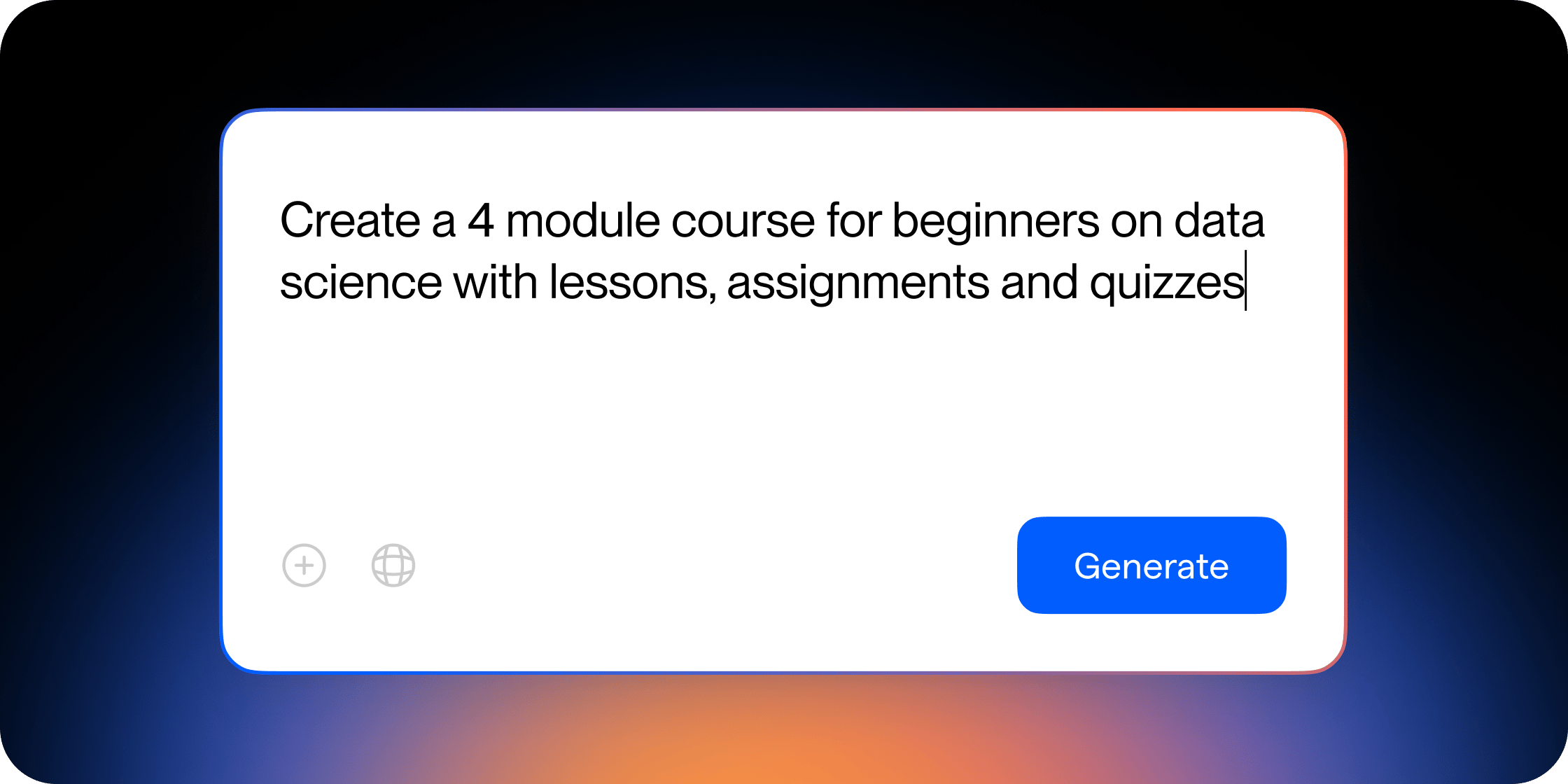
AI Program Generation lets Owners and Admins describe a program they want to build and receive a fully structured draft in return, including title, description, label, registration settings, and a curriculum with modules, lessons, assignments, and quizzes. The same AI canvas is available as Curriculum Generation for existing programs that have an empty curriculum app, which allows Program Managers and Instructors to generate curriculum without creating a new program. Generation works out of the box with no configuration required, though you can optionally attach your own sources to enrich the output.
## Create a Program with AI
You can launch AI Program Generation from several places in your Academy. Click **Add Program** from the **Explore** page, or **Admin > Products > Programs** to open the Add Program modal.
1. In the Add Program modal, write a custom prompt describing the program you want to create. Alternatively, select a template (**Bootcamp**, **Cohort Based Training**, or **Self Paced Skill Development**) to populate the prompt input with a guided structure and placeholder variables to fill in. Each template also includes a full example prompt you can copy.
2. Optionally toggle on **Web Search** to pull from public internet sources, or **Community** to search across your Academy's indexed content.
3. Optionally click the **+** icon to attach specific sources:
* **Attach Media**: Existing videos or PDFs from your media library
* **Attach Content**: Reusable content items such as lessons, assignments, or quizzes
* **Upload File**: Upload new PDFs or videos (maximum 5 items)
* **Add Link**: Enter a URL to crawl or select existing web-crawled sources (maximum 5 items)
4. Submit your prompt. The Program Generator canvas opens automatically and begins generating a preview of the program outline.
## Generate Curriculum for an Existing Program
Curriculum Generation uses the same AI canvas as Program Generation but generates only the curriculum for a program that already exists. Program Managers and Instructors can access this flow; they do not need Admin access.
To access Curriculum Generation, the program's curriculum app must have no modules. If modules already exist, delete them manually or delete and recreate the curriculum app.
1. Open the program's curriculum app or program dashboard.
2. Click **Generate Curriculum** — visible on the curriculum app page or in the curriculum app section of the program dashboard.
3. The Program Generator canvas opens. Write a prompt, attach sources if needed, and submit.
## Work with the Program Generator Canvas
After submitting your prompt, the Program Generator canvas opens as a split-pane view. The left panel displays your prompt and an **Editing preview** loading indicator. The right panel shows the program preview being generated with placeholder skeleton content. Once complete, the right panel displays the full program outline: title, description, and a curriculum structure with modules, content items (lessons, assignments, quizzes), and descriptions for each.
**Iterating on the preview**
Use the chat input at the bottom of the left panel to refine the outline. For example, type "Add a quiz to each module" or "Make it 4 weeks instead of 2." Each iteration creates a new version of the outline, labeled sequentially (V1, V2, V3, etc.) and displayed as clickable cards in the left panel. Click any version card to display that outline in the right panel. You can also target specific parts of the curriculum: provide prompts for individual modules or content items, or delete specific modules and content items before generating the next version. If you prefer an earlier version, select it and continue from there.
**Generating the final program**
Once satisfied with a version, select it and click **Generate**.
For program generation, you are taken to the program dashboard where a status popup tracks four progressive steps: **Program Setup**, **Images**, **Modules**, and **Content**. For curriculum generation, you are taken to the curriculum app with the same progressive loading state. You can navigate away at any time. An email notification is sent when generation is complete.
The program is created in draft. Review all generated content — including lesson bodies, quiz questions, and assignment instructions — before publishing to Members.
## Configure AI Sources
AI Program Generation works without any setup. Optionally, Owners and Admins can control which content sources the AI draws from by navigating to **Admin Area > Disco AI > Learning Design**, clicking **Edit**, then opening the **Sources** tab. Available sources include Content, Documents, Videos, Links, and Knowledge Bases. All sources are enabled by default.
Source access varies by role. Owners and Admins can browse and attach any source across the Academy. Program Managers and Instructors can only access sources from within the specific program they are generating curriculum for.
Write your prompt with as much specificity as possible before attaching sources. A strong prompt names the target audience, desired outcomes, number of modules, and preferred content types, and produces a cleaner first draft with fewer iterations needed. Treat source attachments as supplementary material: they add depth and specificity, but the quality of the outline still depends heavily on the prompt itself.
## Examples
**Bootcamp for a professional Academy** An Admin running a leadership development Academy wants to launch a 6-week bootcamp. They select the **Bootcamp** template, fill in the placeholder variables for audience and topic, attach a PDF of their existing workshop materials, and submit. The AI generates a structured program with six modules, each containing two lessons, an assignment, and a quiz.
**Self-paced course for a membership Academy** An Admin wants to add a foundational course Members can take at any time. They write a custom prompt describing the course title, key topics, and preferred format, enable the **Community** toggle to pull from existing lessons, and submit. The AI creates a self-paced outline they iterate on to adjust module depth before generating the final program.
**Curriculum generation for an existing cohort program** An Instructor on a cohort-based course has an empty curriculum app. They click **Generate Curriculum**, write a prompt with specific week-by-week learning objectives, and attach a set of pre-existing content items using **Attach Content**. The AI generates a curriculum aligned to the cohort schedule, including start and end dates specified in the prompt.
## FAQ
Owners and Admins can create new programs with AI. Program Managers and Instructors can generate curriculum for existing programs but cannot create new programs.
You can attach existing media (videos or PDFs from your media library), reusable content items (lessons, assignments, quizzes), uploaded files (PDFs or videos), and web links. Upload File and Add Link are each limited to a maximum of 5 items. Attach Media and Attach Content have no item limit.
Yes. The AI infers the program label (for example, "Course," "Bootcamp," or "Workshop") from the prompt. There is no manual program type selector. If the result is not what you expected, adjust it in the program settings after generation.
Start and end dates can be included in the generation prompt for cohort-based course programs. Other program types do not support date configuration during generation.
Generation typically takes a few minutes. The time depends on the number of modules and lessons being created and the amount of source material provided. You receive an email notification when it is complete, so you can navigate away from the page while it runs.
Yes. All generated content, including lesson bodies, quiz questions, and assignment instructions is fully editable. The program is created in draft and is not visible to Members until you publish it.
Yes, but you must first delete all existing modules from the curriculum app before the **Generate Curriculum** button becomes available. Alternatively, delete and recreate the curriculum app to start fresh.
Use the chat input on the canvas to iterate before generating the final program. Prompts like "Add more detail to Module 2" or "Break this lesson into three separate lessons" refine the outline. After generation, you can also edit all lesson bodies and content items directly.
If generation fails or hangs for more than a few minutes, reopen the canvas, select an earlier version or adjust your prompt, and try again. Restarting your browser can also resolve transient issues. If the problem persists after retrying, contact Disco support, it may indicate a temporary platform issue rather than a problem with your prompt.
Writing your prompt in another language may produce output in that language, but generation is optimized for English and results in other languages may vary in quality. There is no dedicated language setting in the generator.
No. Sources attached in the generation form are used as context for that specific generation session only. They are not used to train any underlying AI model and do not affect other Admins' generations.
No. The **Web Search** toggle pulls only from public internet sources. The **Academy** toggle performs a semantic search across your Academy's own indexed content. Neither setting shares your content with other customers or contributes to a shared training dataset.
The AI can crawl web links you provide via **Add Link**. Google Drive links may be accessible if the content is set to public, but the AI cannot authenticate into private Drive files or navigate folder structures. For best results, download files and upload them directly using **Upload File**.
## Overview
AI Program Generation lets Owners and Admins describe a program they want to build and receive a fully structured draft in return, including title, description, label, registration settings, and a curriculum with modules, lessons, assignments, and quizzes. The same AI canvas is available as Curriculum Generation for existing programs that have an empty curriculum app, which allows Program Managers and Instructors to generate curriculum without creating a new program. Generation works out of the box with no configuration required, though you can optionally attach your own sources to enrich the output.
## Create a Program with AI
You can launch AI Program Generation from several places in your Academy. Click **Add Program** from the **Explore** page, or **Admin > Products > Programs** to open the Add Program modal.
1. In the Add Program modal, write a custom prompt describing the program you want to create. Alternatively, select a template (**Bootcamp**, **Cohort Based Training**, or **Self Paced Skill Development**) to populate the prompt input with a guided structure and placeholder variables to fill in. Each template also includes a full example prompt you can copy.
2. Optionally toggle on **Web Search** to pull from public internet sources, or **Community** to search across your Academy's indexed content.
3. Optionally click the **+** icon to attach specific sources:
* **Attach Media**: Existing videos or PDFs from your media library
* **Attach Content**: Reusable content items such as lessons, assignments, or quizzes
* **Upload File**: Upload new PDFs or videos (maximum 5 items)
* **Add Link**: Enter a URL to crawl or select existing web-crawled sources (maximum 5 items)
4. Submit your prompt. The Program Generator canvas opens automatically and begins generating a preview of the program outline.
## Generate Curriculum for an Existing Program
Curriculum Generation uses the same AI canvas as Program Generation but generates only the curriculum for a program that already exists. Program Managers and Instructors can access this flow; they do not need Admin access.
To access Curriculum Generation, the program's curriculum app must have no modules. If modules already exist, delete them manually or delete and recreate the curriculum app.
1. Open the program's curriculum app or program dashboard.
2. Click **Generate Curriculum** — visible on the curriculum app page or in the curriculum app section of the program dashboard.
3. The Program Generator canvas opens. Write a prompt, attach sources if needed, and submit.
## Work with the Program Generator Canvas
After submitting your prompt, the Program Generator canvas opens as a split-pane view. The left panel displays your prompt and an **Editing preview** loading indicator. The right panel shows the program preview being generated with placeholder skeleton content. Once complete, the right panel displays the full program outline: title, description, and a curriculum structure with modules, content items (lessons, assignments, quizzes), and descriptions for each.
**Iterating on the preview**
Use the chat input at the bottom of the left panel to refine the outline. For example, type "Add a quiz to each module" or "Make it 4 weeks instead of 2." Each iteration creates a new version of the outline, labeled sequentially (V1, V2, V3, etc.) and displayed as clickable cards in the left panel. Click any version card to display that outline in the right panel. You can also target specific parts of the curriculum: provide prompts for individual modules or content items, or delete specific modules and content items before generating the next version. If you prefer an earlier version, select it and continue from there.
**Generating the final program**
Once satisfied with a version, select it and click **Generate**.
For program generation, you are taken to the program dashboard where a status popup tracks four progressive steps: **Program Setup**, **Images**, **Modules**, and **Content**. For curriculum generation, you are taken to the curriculum app with the same progressive loading state. You can navigate away at any time. An email notification is sent when generation is complete.
The program is created in draft. Review all generated content — including lesson bodies, quiz questions, and assignment instructions — before publishing to Members.
## Configure AI Sources
AI Program Generation works without any setup. Optionally, Owners and Admins can control which content sources the AI draws from by navigating to **Admin Area > Disco AI > Learning Design**, clicking **Edit**, then opening the **Sources** tab. Available sources include Content, Documents, Videos, Links, and Knowledge Bases. All sources are enabled by default.
Source access varies by role. Owners and Admins can browse and attach any source across the Academy. Program Managers and Instructors can only access sources from within the specific program they are generating curriculum for.
Write your prompt with as much specificity as possible before attaching sources. A strong prompt names the target audience, desired outcomes, number of modules, and preferred content types, and produces a cleaner first draft with fewer iterations needed. Treat source attachments as supplementary material: they add depth and specificity, but the quality of the outline still depends heavily on the prompt itself.
## Examples
**Bootcamp for a professional Academy** An Admin running a leadership development Academy wants to launch a 6-week bootcamp. They select the **Bootcamp** template, fill in the placeholder variables for audience and topic, attach a PDF of their existing workshop materials, and submit. The AI generates a structured program with six modules, each containing two lessons, an assignment, and a quiz.
**Self-paced course for a membership Academy** An Admin wants to add a foundational course Members can take at any time. They write a custom prompt describing the course title, key topics, and preferred format, enable the **Community** toggle to pull from existing lessons, and submit. The AI creates a self-paced outline they iterate on to adjust module depth before generating the final program.
**Curriculum generation for an existing cohort program** An Instructor on a cohort-based course has an empty curriculum app. They click **Generate Curriculum**, write a prompt with specific week-by-week learning objectives, and attach a set of pre-existing content items using **Attach Content**. The AI generates a curriculum aligned to the cohort schedule, including start and end dates specified in the prompt.
## FAQ
Owners and Admins can create new programs with AI. Program Managers and Instructors can generate curriculum for existing programs but cannot create new programs.
You can attach existing media (videos or PDFs from your media library), reusable content items (lessons, assignments, quizzes), uploaded files (PDFs or videos), and web links. Upload File and Add Link are each limited to a maximum of 5 items. Attach Media and Attach Content have no item limit.
Yes. The AI infers the program label (for example, "Course," "Bootcamp," or "Workshop") from the prompt. There is no manual program type selector. If the result is not what you expected, adjust it in the program settings after generation.
Start and end dates can be included in the generation prompt for cohort-based course programs. Other program types do not support date configuration during generation.
Generation typically takes a few minutes. The time depends on the number of modules and lessons being created and the amount of source material provided. You receive an email notification when it is complete, so you can navigate away from the page while it runs.
Yes. All generated content, including lesson bodies, quiz questions, and assignment instructions is fully editable. The program is created in draft and is not visible to Members until you publish it.
Yes, but you must first delete all existing modules from the curriculum app before the **Generate Curriculum** button becomes available. Alternatively, delete and recreate the curriculum app to start fresh.
Use the chat input on the canvas to iterate before generating the final program. Prompts like "Add more detail to Module 2" or "Break this lesson into three separate lessons" refine the outline. After generation, you can also edit all lesson bodies and content items directly.
If generation fails or hangs for more than a few minutes, reopen the canvas, select an earlier version or adjust your prompt, and try again. Restarting your browser can also resolve transient issues. If the problem persists after retrying, contact Disco support, it may indicate a temporary platform issue rather than a problem with your prompt.
Writing your prompt in another language may produce output in that language, but generation is optimized for English and results in other languages may vary in quality. There is no dedicated language setting in the generator.
No. Sources attached in the generation form are used as context for that specific generation session only. They are not used to train any underlying AI model and do not affect other Admins' generations.
No. The **Web Search** toggle pulls only from public internet sources. The **Academy** toggle performs a semantic search across your Academy's own indexed content. Neither setting shares your content with other customers or contributes to a shared training dataset.
The AI can crawl web links you provide via **Add Link**. Google Drive links may be accessible if the content is set to public, but the AI cannot authenticate into private Drive files or navigate folder structures. For best results, download files and upload them directly using **Upload File**.