> ## Documentation Index
> Fetch the complete documentation index at: https://docs.disco.co/llms.txt
> Use this file to discover all available pages before exploring further.
# AI Image Generator
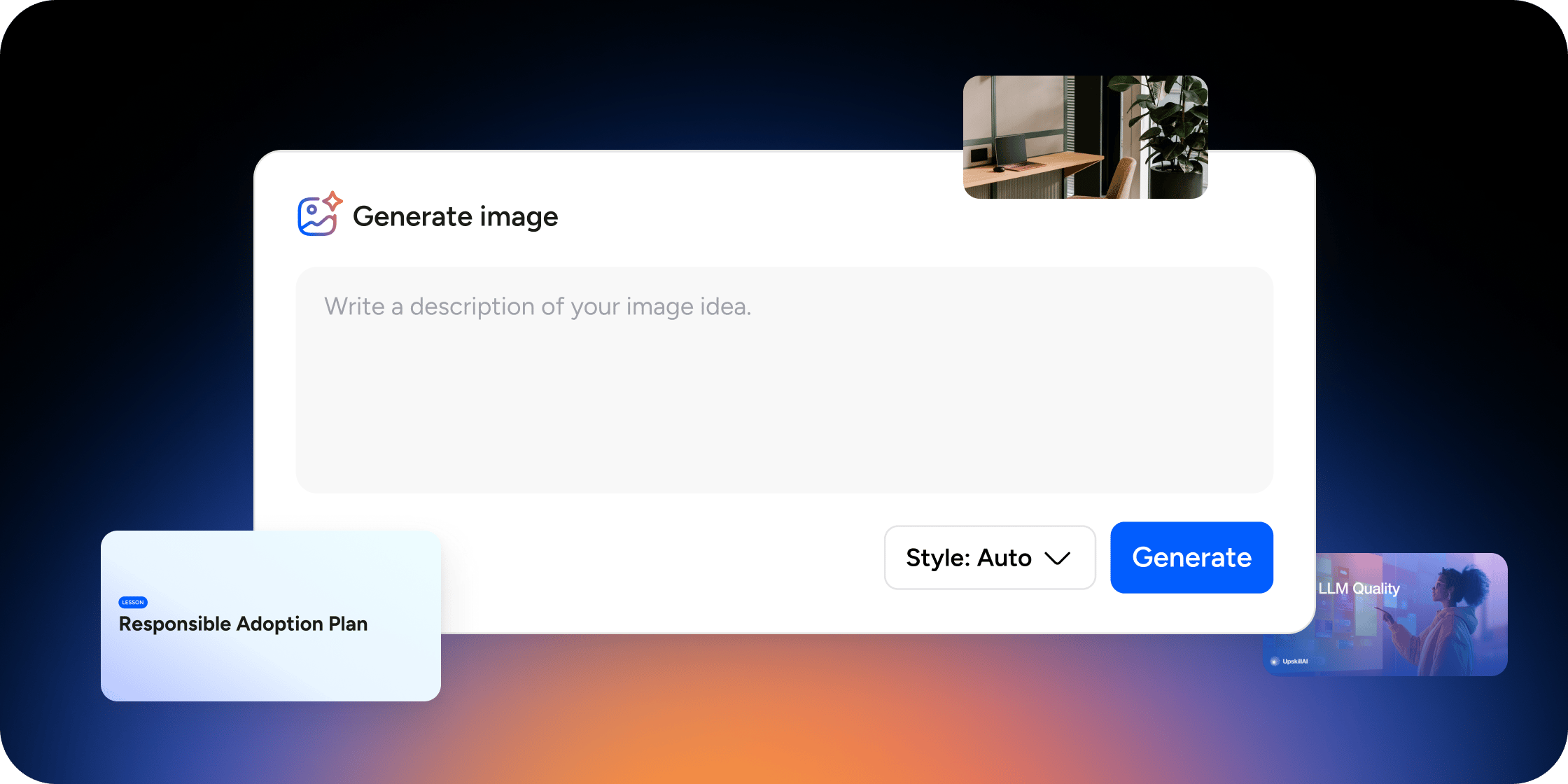
AI Image Generation is a built-in tool that lets admins and program managers create images, covers, and thumbnails directly inside Disco using a text prompt, removing the need for external design tools to maintain a consistent visual aesthetic.
 ## Overview
AI Image Generation is available anywhere an image can be uploaded in your Academy, including Program cover images, curriculum thumbnails, posts, and events. Admins and Academy owners have access to all three generation methods. Program managers can generate cover images when creating AI-assisted content and can use the slash command in the content editor. Members cannot generate images.
Images render from a text prompt in seconds. Any image you choose to use is automatically saved to your media library and can be reused freely without counting toward your quota again. All plans include a shared monthly quota of 100 AI-generated images per organization.
## Generate an Image from the Media Picker
The media picker's **Generate** tab is available to Academy owners and admins anywhere an image can be uploaded in Disco, including Program cover images and curriculum thumbnails. This is the primary method for creating standalone images on demand.
1. Open the image upload area for the element you want to update.
2. Select the **Generate** tab in the media picker.
3. Enter a text prompt describing the image you want. Prompts must be at least 10 characters.
4. Choose a style from the **Style** dropdown.
5. Click **Generate** and wait a few seconds for the image to render.
6. Review the result. Click **Use Image** to apply it (a crop modal appears where applicable) or **Regenerate** to try again with the same prompt.
## Generate an Image from the Content Editor
The content editor slash command lets you insert an AI-generated image directly into any lesson body, post, or event description without leaving the editor. Academy owners, admins, and program managers can all use this method.
1. Open the content editor for a curriculum item, post, or event.
2. Type / to open the slash command menu and select **Generate Image**.
3. Enter a text prompt describing the image you want. Prompts must be at least 10 characters.
4. Choose a style from the **Style** dropdown.
5. Click **Generate** and wait a few seconds.
6. Click **Use Image** to insert the image or **Regenerate** to try again.
## Generate a Cover Image with AI-Created Content
When you use Disco's AI to create a new Program or collection, a cover image is generated automatically alongside the content. You do not need to generate the cover separately. Academy owners, admins, and program managers can all use this method.
1. Open the add content modal from the global add menu, a collection, or a curriculum app.
2. Select the **Create with AI** tab.
3. Enter a prompt describing the content you want to generate.
4. Click **Generate**. Disco produces the content and a cover image together.
Cover images generated through this flow count toward your organization's monthly quota.
## Choose an Image Style
The **Style** dropdown controls the visual treatment applied to your prompt. Choose the option that best matches your Academy's aesthetic.
* **Auto**: Lets Disco select the most appropriate style based on your prompt.
* **General**: A balanced, versatile look suitable for most use cases.
* **Realistic**: Photographic quality, best for lifestyle or people-focused imagery.
* **Design**: Graphic and illustrative, suited for branded or conceptual visuals.
* **3D Render**: Three-dimensional imagery with depth and volume.
The **Realistic** style works well for cohort-based courses focused on professional skills or personal development. For more abstract topics or branded programs, **Design** tends to produce cleaner, more on-brand results. When in doubt, start with **Auto** and let Disco pick. You can always regenerate with a specific style if the first result does not land.
## Usage and Quota
All plans include 100 AI-generated images per month per organization. This quota is shared across all admins and program managers in your Academy.
How quota is counted:
* Cover images auto-generated during AI content creation count toward the monthly quota.
* Reusing an image already saved to your media library does not count again.
* Template-generated cover images do not count toward the quota and have no limit.
* There is no in-app indicator of your remaining quota.
* There is no additional cost for image generation on any plan.
## FAQ
There is no in-app quota indicator. If you believe your organization has reached its limit, contact Disco support to check your usage.
Images generated from the **Generate** tab and slash command do not automatically apply your brand colors. The style you select and the language of your prompt control the visual output. Branded cover images generated from your Academy's appearance settings are a separate feature that applies your uploaded colors and Program title automatically.
Any image you choose to use is saved automatically to your media library. You can reuse it as many times as you like without it counting toward your quota again.
Try rephrasing your prompt and generating again. If the problem persists after a few attempts, contact Disco support.
Disco does not include an in-product image editor. Once you use an image, you can replace it at any time by returning to the media picker, generating a new image, or uploading a different one.
Yes, the quota resets each month. Contact Disco support if you have questions about your organization's specific reset date.
Prompts must be at least 10 characters.
No. Program managers can use the slash command in the content editor and generate cover images when creating AI-assisted content, but the **Generate** tab in the media picker is available to Academy owners and admins only.
AI Image Generation creates a new image from a text prompt you write. The branded cover image feature generates a cover automatically using your Academy's uploaded colors and the Program title. Both produce cover images, but AI Image Generation gives you much more creative control over the output.
## Overview
AI Image Generation is available anywhere an image can be uploaded in your Academy, including Program cover images, curriculum thumbnails, posts, and events. Admins and Academy owners have access to all three generation methods. Program managers can generate cover images when creating AI-assisted content and can use the slash command in the content editor. Members cannot generate images.
Images render from a text prompt in seconds. Any image you choose to use is automatically saved to your media library and can be reused freely without counting toward your quota again. All plans include a shared monthly quota of 100 AI-generated images per organization.
## Generate an Image from the Media Picker
The media picker's **Generate** tab is available to Academy owners and admins anywhere an image can be uploaded in Disco, including Program cover images and curriculum thumbnails. This is the primary method for creating standalone images on demand.
1. Open the image upload area for the element you want to update.
2. Select the **Generate** tab in the media picker.
3. Enter a text prompt describing the image you want. Prompts must be at least 10 characters.
4. Choose a style from the **Style** dropdown.
5. Click **Generate** and wait a few seconds for the image to render.
6. Review the result. Click **Use Image** to apply it (a crop modal appears where applicable) or **Regenerate** to try again with the same prompt.
## Generate an Image from the Content Editor
The content editor slash command lets you insert an AI-generated image directly into any lesson body, post, or event description without leaving the editor. Academy owners, admins, and program managers can all use this method.
1. Open the content editor for a curriculum item, post, or event.
2. Type / to open the slash command menu and select **Generate Image**.
3. Enter a text prompt describing the image you want. Prompts must be at least 10 characters.
4. Choose a style from the **Style** dropdown.
5. Click **Generate** and wait a few seconds.
6. Click **Use Image** to insert the image or **Regenerate** to try again.
## Generate a Cover Image with AI-Created Content
When you use Disco's AI to create a new Program or collection, a cover image is generated automatically alongside the content. You do not need to generate the cover separately. Academy owners, admins, and program managers can all use this method.
1. Open the add content modal from the global add menu, a collection, or a curriculum app.
2. Select the **Create with AI** tab.
3. Enter a prompt describing the content you want to generate.
4. Click **Generate**. Disco produces the content and a cover image together.
Cover images generated through this flow count toward your organization's monthly quota.
## Choose an Image Style
The **Style** dropdown controls the visual treatment applied to your prompt. Choose the option that best matches your Academy's aesthetic.
* **Auto**: Lets Disco select the most appropriate style based on your prompt.
* **General**: A balanced, versatile look suitable for most use cases.
* **Realistic**: Photographic quality, best for lifestyle or people-focused imagery.
* **Design**: Graphic and illustrative, suited for branded or conceptual visuals.
* **3D Render**: Three-dimensional imagery with depth and volume.
The **Realistic** style works well for cohort-based courses focused on professional skills or personal development. For more abstract topics or branded programs, **Design** tends to produce cleaner, more on-brand results. When in doubt, start with **Auto** and let Disco pick. You can always regenerate with a specific style if the first result does not land.
## Usage and Quota
All plans include 100 AI-generated images per month per organization. This quota is shared across all admins and program managers in your Academy.
How quota is counted:
* Cover images auto-generated during AI content creation count toward the monthly quota.
* Reusing an image already saved to your media library does not count again.
* Template-generated cover images do not count toward the quota and have no limit.
* There is no in-app indicator of your remaining quota.
* There is no additional cost for image generation on any plan.
## FAQ
There is no in-app quota indicator. If you believe your organization has reached its limit, contact Disco support to check your usage.
Images generated from the **Generate** tab and slash command do not automatically apply your brand colors. The style you select and the language of your prompt control the visual output. Branded cover images generated from your Academy's appearance settings are a separate feature that applies your uploaded colors and Program title automatically.
Any image you choose to use is saved automatically to your media library. You can reuse it as many times as you like without it counting toward your quota again.
Try rephrasing your prompt and generating again. If the problem persists after a few attempts, contact Disco support.
Disco does not include an in-product image editor. Once you use an image, you can replace it at any time by returning to the media picker, generating a new image, or uploading a different one.
Yes, the quota resets each month. Contact Disco support if you have questions about your organization's specific reset date.
Prompts must be at least 10 characters.
No. Program managers can use the slash command in the content editor and generate cover images when creating AI-assisted content, but the **Generate** tab in the media picker is available to Academy owners and admins only.
AI Image Generation creates a new image from a text prompt you write. The branded cover image feature generates a cover automatically using your Academy's uploaded colors and the Program title. Both produce cover images, but AI Image Generation gives you much more creative control over the output.