> ## Documentation Index
> Fetch the complete documentation index at: https://docs.disco.co/llms.txt
> Use this file to discover all available pages before exploring further.
# AI Audio Narration
AI Audio Narration is an AI-powered feature that automatically converts text-based lesson content into natural-sounding audio so members can listen to lessons from any device, at any time.
 ## Overview
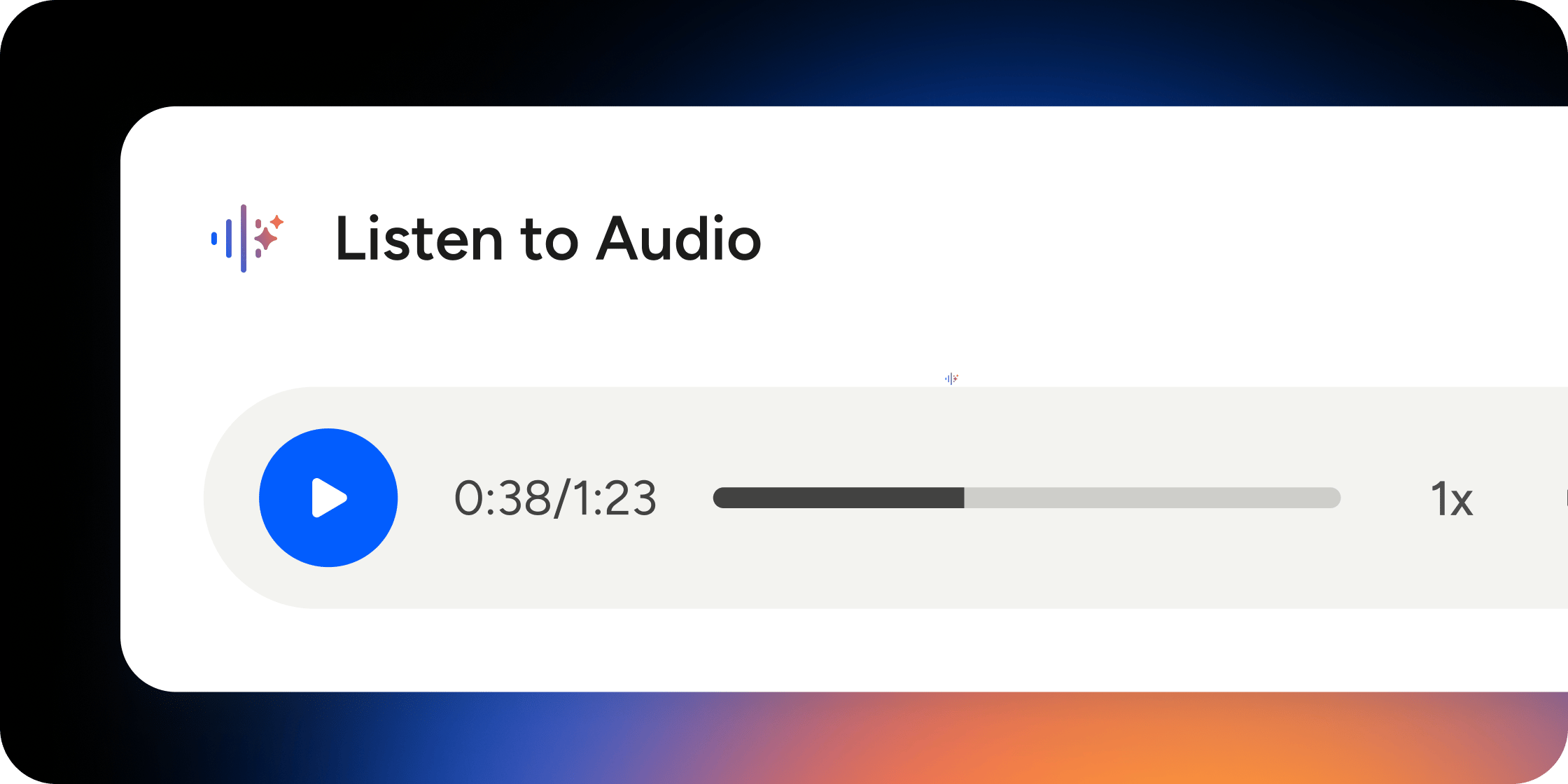
AI Audio Narration generates spoken audio from the text in your published lessons. It applies to text-based content inside Programs and collections and turns on automatically when you publish, no configuration required. Members can listen on the web or on the Disco mobile app, including while using other apps in the background.
## How It Works
When you publish a Program or add content to a collection, Disco queues the text for audio generation. Once ready, members see a **Play Audio** button in the content footer. If you edit a lesson after publishing, Disco automatically queues the narration for regeneration. Audio updates within approximately one hour of your last saved edit. If you make additional edits during that window, the regeneration timer resets.
If you duplicate or clone a Program or lesson, the audio from the original carries over to the copy. After you finish editing the duplicated content, Disco will regenerate the audio to match the updated text, typically within one hour of your last change.
## Listening to Narrated Lessons
Members can start listening from any text-based lesson.
1. Open a lesson inside a Program or collection.
2. Click or tap **Play Audio** in the content footer.
3. Use the playback controls to pause, resume, adjust volume, or change playback speed.
On the Disco mobile app, background playback is supported. Members can switch to another app and continue listening without interruption.
Listening to narration does not automatically mark a lesson complete. Members still need to click **Complete & Continue** to progress through the curriculum.
## What Content Gets Narrated
AI Audio Narration applies to text-based lesson content inside Programs and collections. The following content types are not narrated:
* Embedded images
* Video
* Uploaded audio files
* Interactive elements such as quizzes and surveys
Uploaded audio content like podcast episodes or recorded sessions is managed separately through the Audio Content Support feature.
Well-structured text produces the clearest narration.
* Keep paragraphs short and sentences natural. This improves the flow of the generated audio.
* Avoid excessive abbreviations, special characters, or code blocks. These may not narrate as expected.
* Review the generated audio after publishing to confirm it reads your content accurately.
## FAQ
No. AI Audio Narration is enabled by default across the platform. Audio is generated automatically whenever you publish text-based lesson content.
There may be a brief delay between publishing and the audio appearing. Members will see a loading indicator in the **Play Audio** button while audio is being generated.
Audio updates within approximately one hour of your last saved edit. If you continue editing during that window, each save resets the timer. Wait until you have finished all edits before checking the regenerated audio.
When you duplicate or clone content, the audio from the original is carried over to the copy. Once you finish editing the duplicated lesson, Disco will regenerate the audio to match the new content within approximately one hour of your last save.
Yes. Playback controls include pause, resume, volume adjustment, and speed adjustment.
Yes. Background playback is supported on the Disco mobile app. Members can switch to other apps and continue listening.
No. Members still need to click **Complete & Continue** to mark a lesson complete, even after listening to the full narration.
Not currently. Narration is generated in a single AI-selected voice. Custom voice selection, multi-voice narration, and multilingual translation are not currently supported.
Multilingual narration is not currently supported. Audio is generated in a single language based on the text content.
Uploaded audio files are not narrated by AI Audio Narration. Podcast episodes and recorded sessions are managed separately through the Audio Content Support feature.
Yes. Members can listen to narrated lessons on the Disco mobile app, with background playback supported.
## Overview
AI Audio Narration generates spoken audio from the text in your published lessons. It applies to text-based content inside Programs and collections and turns on automatically when you publish, no configuration required. Members can listen on the web or on the Disco mobile app, including while using other apps in the background.
## How It Works
When you publish a Program or add content to a collection, Disco queues the text for audio generation. Once ready, members see a **Play Audio** button in the content footer. If you edit a lesson after publishing, Disco automatically queues the narration for regeneration. Audio updates within approximately one hour of your last saved edit. If you make additional edits during that window, the regeneration timer resets.
If you duplicate or clone a Program or lesson, the audio from the original carries over to the copy. After you finish editing the duplicated content, Disco will regenerate the audio to match the updated text, typically within one hour of your last change.
## Listening to Narrated Lessons
Members can start listening from any text-based lesson.
1. Open a lesson inside a Program or collection.
2. Click or tap **Play Audio** in the content footer.
3. Use the playback controls to pause, resume, adjust volume, or change playback speed.
On the Disco mobile app, background playback is supported. Members can switch to another app and continue listening without interruption.
Listening to narration does not automatically mark a lesson complete. Members still need to click **Complete & Continue** to progress through the curriculum.
## What Content Gets Narrated
AI Audio Narration applies to text-based lesson content inside Programs and collections. The following content types are not narrated:
* Embedded images
* Video
* Uploaded audio files
* Interactive elements such as quizzes and surveys
Uploaded audio content like podcast episodes or recorded sessions is managed separately through the Audio Content Support feature.
Well-structured text produces the clearest narration.
* Keep paragraphs short and sentences natural. This improves the flow of the generated audio.
* Avoid excessive abbreviations, special characters, or code blocks. These may not narrate as expected.
* Review the generated audio after publishing to confirm it reads your content accurately.
## FAQ
No. AI Audio Narration is enabled by default across the platform. Audio is generated automatically whenever you publish text-based lesson content.
There may be a brief delay between publishing and the audio appearing. Members will see a loading indicator in the **Play Audio** button while audio is being generated.
Audio updates within approximately one hour of your last saved edit. If you continue editing during that window, each save resets the timer. Wait until you have finished all edits before checking the regenerated audio.
When you duplicate or clone content, the audio from the original is carried over to the copy. Once you finish editing the duplicated lesson, Disco will regenerate the audio to match the new content within approximately one hour of your last save.
Yes. Playback controls include pause, resume, volume adjustment, and speed adjustment.
Yes. Background playback is supported on the Disco mobile app. Members can switch to other apps and continue listening.
No. Members still need to click **Complete & Continue** to mark a lesson complete, even after listening to the full narration.
Not currently. Narration is generated in a single AI-selected voice. Custom voice selection, multi-voice narration, and multilingual translation are not currently supported.
Multilingual narration is not currently supported. Audio is generated in a single language based on the text content.
Uploaded audio files are not narrated by AI Audio Narration. Podcast episodes and recorded sessions are managed separately through the Audio Content Support feature.
Yes. Members can listen to narrated lessons on the Disco mobile app, with background playback supported.